
IN THIS ARTICLE
Introduction to standard satellite data
Image prices and credit consumption
How to import Sentinel 2 images in PIX4Dfields
Layers and bands available after importing
What can I do with available layers?
Satellite troubleshooting
Try PIX4Dfields now
Introduction to standard satellite data
Standard resolution satellite imagery is provided by the European Space Agency’s (ESA) Sentinel‑2 mission.
Starting with PIX4Dfields 2.12, downloads of standard resolution satellite imagery are charged using credits, and high resolution satellite imagery is also available.
Previous PIX4Dfields versions can continue to access standard resolution imagery at no additional cost, subject to a monthly fair‑use quota.
This addition creates an excellent opportunity to combine satellite and drone data for agriculture and related industries. Satellite imagery is already widely used by farmers, researchers, and agribusinesses to monitor fields and support data-driven decisions.
The main advantages of satellite imagery are its wide-area coverage, access to historical datasets, and the ability to monitor fields remotely without being physically on-site.
The main limitations are potential cloud cover, the relatively low revisit time depending on location, and the coarser Ground Sampling Distance (GSD) compared to drone imagery. Nevertheless, the resolution is sufficient for many agricultural applications.
Standard resolution data characteristics:
- Historical data is available globally from 2017.
- Revisit time is ~5 days.
- All bands are resampled to a 5 meters resolution and combined into a single raster file (.tiff).
- Radiometric and atmospheric corrections are applied to deliver bottom of the atmosphere (BOA) reflectance data, processed from L1C data with Sen2Cor.
- The maximum field boundary size for an individual request is around 10000 hectares.
resolution
Image prices and credit consumption
Starting with PIX4Dfields 2.12, standard resolution satellite imagery can be accessed with credits, which users can add to their accounts as needed. Credit consumption is directly linked to the number of hectares ordered:
- 1 credit = 50000 hectares
- 1 hectare = 0.00002 credits
- The cost is calculated based on the boundary area and the number of scenes selected, and is rounded up to the nearest whole credit. For example, a 100 ha field costs 1 credit. A 10,000-hectare field with 6 selected scenes = 60,000ha = 2 credits.
For more information, please read Satellite data FAQ - PIX4Dfields and Credit system FAQ - PIX4Dfields.
How to import Sentinel-2 images in PIX4Dfields
Sentinel‑2 images can be imported into either a new project or an existing one.- In order to import images into an existing project, click
 Import on the layers menu.
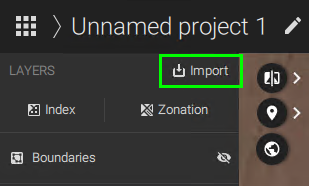
- In order to import images into a new project, click
 New Project on the dashboard.
After the Import files menu appears;
- Select Download under the Satellite data section.
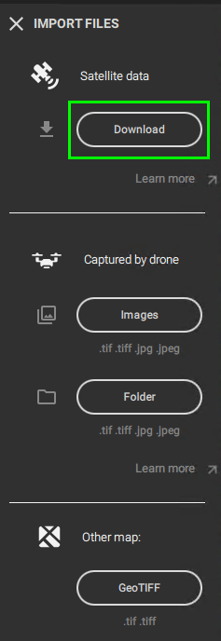
- First, the boundary needs to be selected. It can be created by clicking
 Create new, or it can be imported by clicking
  Import shape. When creating the boundary, quickly search for the field location by using the search location icon.
Holes in shapes will be discarded, and data will be shown for the whole field. If you need the holes in your layer, you can trim it afterwards using the same boundary you used for the satellite download. For more information: Trim layers. - Once the boundary is selected, the prior month's available images will appear in the graphic.
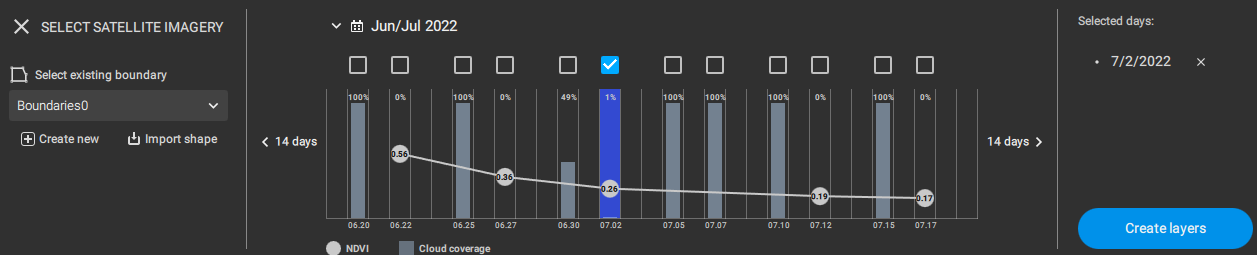
- The X-axis contains the date of each image.
- The Y-axis contains the
 Cloud coverage bars and the average
  NDVI.
NDVI. - Click on the bars to display the image on the map.
- The 14 days buttons on the sides allow searching images in those periods.
- Click the calendar icon to select a different month or year.
- To download an image, select it by clicking the checkbox above the corresponding bar.
- Then, the selected dates are listed on the right-hand side of the menu under Selected days.
- Click Create layers to make them available in the layers menu of PIX4Dfields.
- Confirm that the total cost is correct and click Purchase and create layers.
- If credits are insufficient, a message will be displayed "Not enough credits. Buy more to create layers." For more information on how to purchase credits: How do I purchase credits? - FAQ
- Once the purchase is confirmed, the order will be processed and images will be avaiable on the layers menu.
Layers and available bands after purchase
For each downloaded image, two layers are generated: an RGB composite orthomosaic containing all available bands, and a pre-calculated NDVI layer.
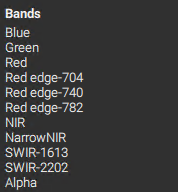
What can I do with the available layers?
All the available PIX4Dfields tools can be used with both generated layers. The RGB composite orthomosaic, which includes all available bands, can be used to create vegetation indices. The pre-calculated NDVI orthomosaic can be used to generate zonations and prescription maps.
Satellite troubleshooting
- PIX4Dfields 2.11 and previous versions had a fair-use quota for satellite data.
When the limit is reached, the following error message appears:
"Satellite download limit reached
R0021: You have reached your monthly satellite data download limit. Please contact support"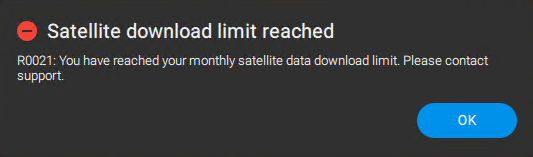
- The quota resets every month.
- We recommend updating to PIX4Dfields 2.12, which removes the limit on the number of satellite images you can download. Please note that credits are consumed for each downloaded image.
- If access to satellite images is impossible, firewall exceptions must be added.
- "R0058: Satellite data import failed due to problems on the side of the satellite data provider." This error can occur due to corrupted installations. Please follow: How to uninstall PIX4Dfields. Make sure to delete the REGISTRY EDITOR information as mentioned.
- It is advised to update to the latest PIX4Dfields version available.
- For Mac users: ensure there's no system process called "webfilterproxyd" limiting the connection. It is normally under "Parent controls".
- In case of other issues, you can contact support.
Try PIX4Dfields now
Register for a free 15 days trial to import Sentinel-2 satellite images in PIX4Dfields.