
IN THIS ARTICLE
What is the credit balance system?
What actions consume credits?
How many credits does my PIX4Dfields license include?
How many credits are required to download satellite imagery of my field?
Where are my credits stored?
How do I purchase credits?
How do I redeem Pix4D credit vouchers?
How can I check how many credits I have?
How can I check my credit history?
Who can buy credits?
When do credits expire?
Does deleting an image restore credits?
As a user, what happens if I do not have enough credits?
Can I use PIX4Dfields credits for PIX4Dcloud processing?
What is the credit balance system?
Credits allow users to access standard and high resolution satellite images:
1 credit corresponds to:
- 3.84 hectares of high resolution imagery(30cm to 70cm).
- 50,000 hectares of standard low resolution imagery (10m).
1 hectare corresponds to:
- 0.26 credits for high resolution imagery(30cm to 70cm) rounded up to the next credit. Minimum order: 26 credits.
- 0.00002 credits for standard low resolution imagery (10m) rounded up to the next credit. Minimum order: 1 credit.
Note: Until September 30, the price for high-resolution imagery was reduced to 0.05 credits per hectare.
What actions consume credits?
The following tasks consume credits:
- Downloading high resolution satellite imagery. For more information: High resolution satellite data - PIX4Dfields.
- Downloading standard resolution satellite imagery. For more information: Standard satellite images - PIX4Dfields.
How many credits does my PIX4Dfields license include?
- Monthly Subscription: 25 Credits / month (expire at the end of the month)
- Yearly Subscription: 100 Credits / year (expire at the end of the year)
- 3-Year Subscription: 350 Credits / 3 years (expire after 3 years)
- One-Time Charge licenses:
- 100 Credits (one-time after activating the license).
- Maintenance plan renewals: No credits are included.
- Trial licenses: no credits are included.
How many credits are required to download satellite imagery of my field?
The number of credits required for a field can be estimated by:
-
Accessing and configuring the satellite imagery feature in PIX4Dfields:
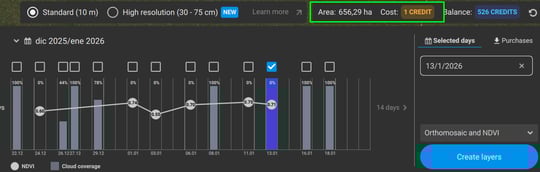
-
Accessing the credit calculator:
-
Access the calculator: https://account.pix4d.com/credits.
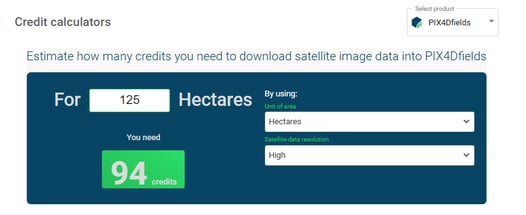
- Under Select product, select PIX4Dfields.
- Add the number of hectares/acres of your field.
- Set the unit of area correctly.
- Select High resolution or Standard resolution.
- The total number of credits required for the field is displayed.
Where are my credits stored?
Credits are stored on the user's organization and not on the license. Each license within an organization contributes to the credit amount of the organization, and each credit bundle purchased through an organization will be added to the balance of the organization.
All users with a valid PIX4Dfields license in the organization can use the credits system.
How do I purchase credits?
It is possible to buy credits directly from our e-commerce. Credits are purchased in packages of 100, 500, 1000, 2500, or 10000 credits. The cost per credit decreases with larger packages, providing better value for covering larger areas.
- Go to the Credit transaction page: https://account.pix4d.com/credits.
- Select the amount of credits.
- Click Buy credits.
How do I redeem Pix4D credit vouchers?
Pix4D credit vouchers can be redeemed to add more Pix4D credits to a Pix4D user account (or to a Pix4D organization).
It is generally necessary to redeem a Pix4D credit voucher when purchased directly from a Pix4D sales representative or an official Pix4D partner.
The process for redeeming a coupon is described in the following link: How to redeem license keys or credit voucher codes.
Information: Pix4D credit vouchers are redeemable for 3 years after purchase; they are not valid after this time.
How can I check the number of credits I have?
In order to check how many credits a user has, there are two possibilities:
- Check the available credits in the PIX4Dcloud drive
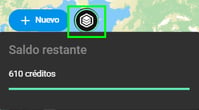
- Check the available credits in the credit history
How can I check my credit history?
- Go to the Credit transaction page: https://account.pix4d.com/credits.
- Click on the Credit history tab:
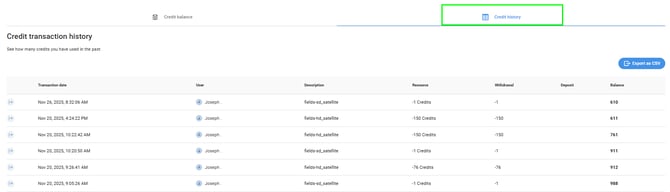
- The Credit history includes the date of the transaction, the user who made the transaction, a description, and the number of credits consumed. In the last column the balance is displayed.
- (Optional) You can Export the Credit history by clicking Export as CSV. You can select a customized date range.
Who can buy credits?
The credit system is available:- Individual users under the credit-based system.
- Organization Owners using the credit-based system.
When do credits expire?
- Monthly Subscription: 25 Credits/month (expire at the end of the month)
- Yearly Subscription: 100 Credits/year (expire at the end of the year)
- 3-Year Subscription: 350 Credits/3 years (expire after 3 years)
- One Time Charge licenses: 100 Credits (one-time, expire at the end of one year)
Does deleting an image restore credits?
Deleting an image within your projects does not result in the return of credits. It is important to note that credits are directly allocated to cover the processing costs of projects on third-party services such as AWS and other essential infrastructure utilized on our platform.
Warning: DO NOT DELETE IMAGES AFTER DOWNLOADING.
Images can only be downloaded once. If you delete the images after downloading, a new purchase will be required.
As a user, what happens if I do not have enough credits?
If credits are insufficient, images can still be searched and the area inspected, but an order cannot be placed until sufficient credits are purchased. For further questions or concerns, please contact Sales.