
IN THIS ARTICLE
Introduction
High resolution data characteristics
Image prices and credit consumption
How to download a high resolution image
Using the downloaded image
Order a new image (satellite tasking)
Satellite FAQ
Introduction
PIX4Dfields 2.12 now offers access to paid high resolution satellite imagery, powered by Vantor (formerly Maxar). Vantor operates a leading constellation of high resolution earth observation satellites which deliver commercial imagery at resolutions as fine as 30 centimeters.
This capability complements the standard low resolution Sentinel-2 satellite imagery previously available in PIX4Dfields, which now consumes credits. For more details on Sentinel-2 10 meter resolution imagery, refer to: Standard low resolution satellite data - PIX4Dfields.
High resolution data characteristics
Within PIX4Dfields, all bands regardless of their native resolution are upsampled using the panchromatic band and pansharpening method to a 31 to 50 centimeter ground sampling distance (GSD), ensuring high-resolution layers that enhance data analysis.
Multi-spectral bands have a native resolution between 1.2 and 1.8 meters, varying based on the satellite constellation utilized for image acquisition.
| Satellite name | Launch year |
Panchro |
MS GSD (m) |
Bands | Abbreviation under Info tab. |
|
WordView-1 |
2007 | 0.5 | N/A | Panchromatic | wv01 |
| WordView-2 | 2009 | 0.46 | 1.85 | Blue, Green, Red, NIR | wv02 |
| WordView-3 | 2014 | 0.31 | 1.24 | Blue, Green, Red, NIR | wv03 |
| WordView-4 | 2016 | 0.31 | 1.24 | Blue, Green, Red, NIR | wv04 |
| GeoEye-1 | 2008 | 0.41 | 1.65 | Blue, Green, Red, NIR | ge01 |
| WorldView legion | 2024-2025 | 0.34 | 1.36 | Blue, Green, Red, NIR | lg |
Image prices and credit consumption
High-resolution satellite imagery is purchased using credits, which users can add to their accounts as needed. Credit consumption is directly linked to the number of hectares ordered.
- 1 hectare = 0.26 credits
- Minimum order: 100 hectares = 26 credits.
For more information about credits: Credit balance system FAQ - PIX4Dfields.
How to download a high resolution image
This feature provides access to existing Vantor imagery, meaning the satellite has already captured the scene in the past and the data is now available for download.
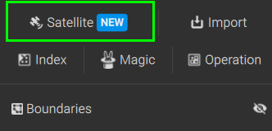
- To access the satellite menu, click on Satellite.
- Choose High resolution (30cm - 75 cm).
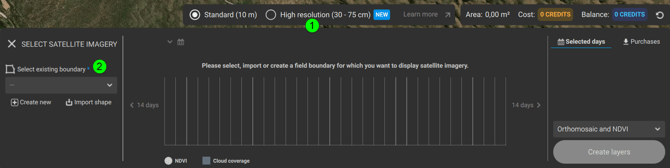
- The boundary needs to be selected under the Select existing boundary menu.
- The boundary can be created by clicking
 Create new, or it can be imported by clicking
  Import shape.
 - When creating the boundary, quickly search for the field location by using the search location icon.

- The boundary can be created by clicking
-
- Holes in shapes will be discarded, the image will be available for the whole field. If you need the holes in your layer, you can trim it afterwards using the same boundary. For more information: Trim layers.
- Holes in shapes will be discarded, the image will be available for the whole field. If you need the holes in your layer, you can trim it afterwards using the same boundary. For more information: Trim layers.
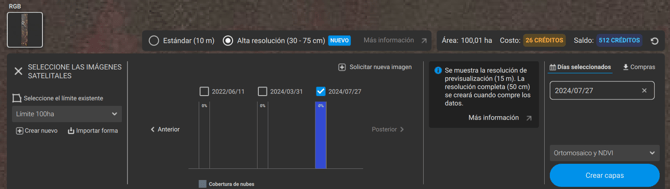
- Once the boundary is selected, the most recent images will be displayed, and the latest one available will be selected and previewed.
Note: If the available dates do not meet the requirements, new imagery can be requested by selecting Order new image.
- If there are no recent images, please visit: Order a new image.
- A message will pop up, “Showing preview resolution. The full resolution will be created when you purchase the data.”
- If the boundary is smaller than 100 ha, a message will pop up:
“Minimum charged area is 100ha. Enable “Buffer to 100ha” to enlarge the downloaded area at no extra charge.”- [Optional] Click Buffer to 100 ha to download a buffered image.
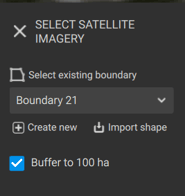
- If the buffer is not enabled, the minimum charge of 100 hectares will apply, and the image will cover the extent of the selected boundary.
- [Optional] Click Buffer to 100 ha to download a buffered image.
- If the boundary is larger than 2000 ha, a message will pop up:
"Area is too large for satellite download. Make the boundary area smaller to enable usage for satellite imagery download"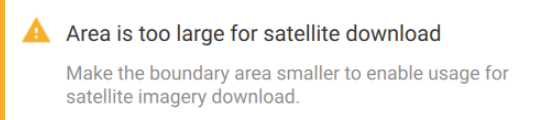
- To solve this, make the area smaller.
- A message will pop up, “Showing preview resolution. The full resolution will be created when you purchase the data.”
Note: The minimum footprint area is 100 ha. The maximum footprint area is 2000 ha.
- The bars contain the
 Cloud coverage for each image.
- Click on each bar to display the image on the map.
- The Older and Newer buttons on the sides allow searching for images in those periods.
- To select an image, click the checkbox next to the corresponding date.
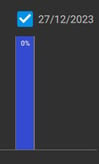
- Please note that credits accumulate with each selected days, increasing the total amount to be charged.
- The selected days are displayed on the right-hand side of the menu under Selected days.
- Select if the Orthomosaic and the NDVI layer should be created. This selection does not affect the cost of the service.
- Click Create layers to request the images.
- Read the usage restrictions and click OK.
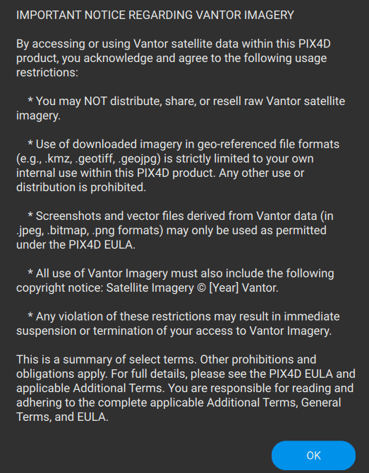
- Confirm all is correct and click Purchase and create layers.
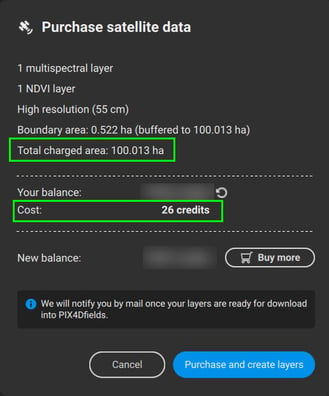
- If credits are insufficient, a message will be displayed "Not enough credits. Buy more to create layers."
For more information on how to purchase credits: How do I purchase credits? - FAQ
- If credits are insufficient, a message will be displayed "Not enough credits. Buy more to create layers."
Note: In this case, downloading one image for the 100 hectares costs 26 credits.
- Once the purchase is confirmed, the order will be processed. When the image becomes available for download, the user will receive an email notification.
- To download the images, click Download all under the new satellite download menu.
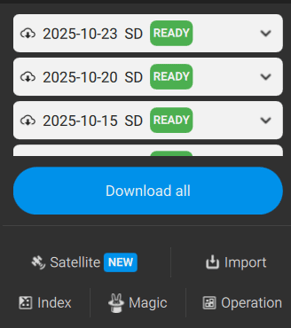
Warning: DO NOT DELETE IMAGES AFTER DOWNLOADING. Images can only be downloaded once. If you delete the images after downloading, a new purchase will be required.
Using the downloaded image
After downloading, the image is ready for use.
- Use the Index calculator to obtain vegetation indices.
- Use the Magic tool to run detections, and much more!
For additional details about the layer, navigate to the Info tab located in the menu on the right-hand side.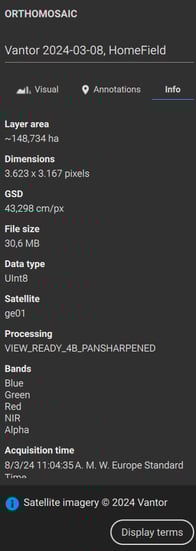
- In this case, GeoEye (ge01) satellite captured the image at GSD 43cm/px.
- Bands available are Blue, Green, Red, NIR. Alpha should be ignored.
- VIEW_READY_4B_PANSHARPENED: Images are corrected in terms of absolute accuracy and radiometry. All images are pansharped to increase their resolution.
Order a new image (satellite tasking)
If a more recent image is required, additional imagery can be ordered upon request.
- Minimum Size: 50 km² (5,000 Ha).
- Maximum Size: 1,000 km² per Area Of Interest (AOI).
For more information: https://www.pix4d.com/satellite-tasking/
Satellite FAQ
For more information about this feature please visit, Satellite data FAQ - PIX4Dfields.