
IN THIS ARTICLE
What is the credit balance system?
What actions consume credits?
What actions do not consume credits?
How do I purchase credits?
Can I purchase credits automatically?
How do I redeem PIX4D credit vouchers?
How can I check how many credits do I have?
How can I check my credit history?
Who can buy credits?
When do credits expire?
How many credits do I need to process my project?
Does deleting a project give me the credits?
How many credits do I get with a PIX4Dcloud Pro trial license?
Do PIX4Dcatch users need to buy credits?
As a user, how do I know the number of credits needed to process my dataset on PIX4Dcloud?
As a user, what happens if I do not have enough credits?
Licenses: This article is valid for all PIX4Dcloud licenses.
What is the credit balance system?
Credits represent the amount of data processed on PIX4Dcloud infrastructure. The number of credits required depends on the camera resolution (in megapixels) and the number of images processed.
Credit formula
Credits = (Image resolution in MP × Number of images) / 100
The image resolution is calculated from the image width and height.
An online credit calculator is available at:
https://www.pix4d.com/pix4dcloud-calculator/
Information: For datasets with Gaussian Splats, the following formulas apply:
- For terrestrial datasets uploaded from PIX4Dcatch and PIX4Dmatic: Credits = (Image resolution in MP * number of images / 100 ) + 5 credits.
- For drone datasets: Credits = Image resolution in MP * number of images / 80.
Warning: The maximum number of images that can be processed in PIX4Dcloud is 4000. See also PIX4Dcloud best practices.
What actions consume credits?
Credits are consumed whenever processing is performed on PIX4Dcloud servers, regardless of the final processing outcome.
The following actions consume credits:
-
Uploading and processing images directly in the PIX4Dcloud user interface
-
Uploading and processing images from PIX4Dcatch to PIX4Dcloud
-
Creating a project in PIX4Dmapper and uploading it to PIX4Dcloud for processing
-
Creating a project in PIX4Dmatic and uploading it to PIX4Dcloud for processing
-
Reprocessing a dataset (by uploading the same dataset again with the same name and number of images)
Information: Credits are consumed even if processing fails, as they cover infrastructure and processing costs (e.g. AWS). Credit refunds are only considered when failures are caused by verified internal bugs. Users are strongly encouraged to review PIX4D best practices before processing.
What actions do not consume credits?
No credits are consumed when no processing is performed in PIX4Dcloud.
Examples include:
-
Uploading already processed outputs directly through the PIX4Dcloud user interface
-
Uploading processed results using the Share to Cloud feature from other Pix4D products:
How do I purchase credits?
It is possible to buy credits from the Organization portal: https://account.pix4d.com/home.
Can I purchase credits automatically?
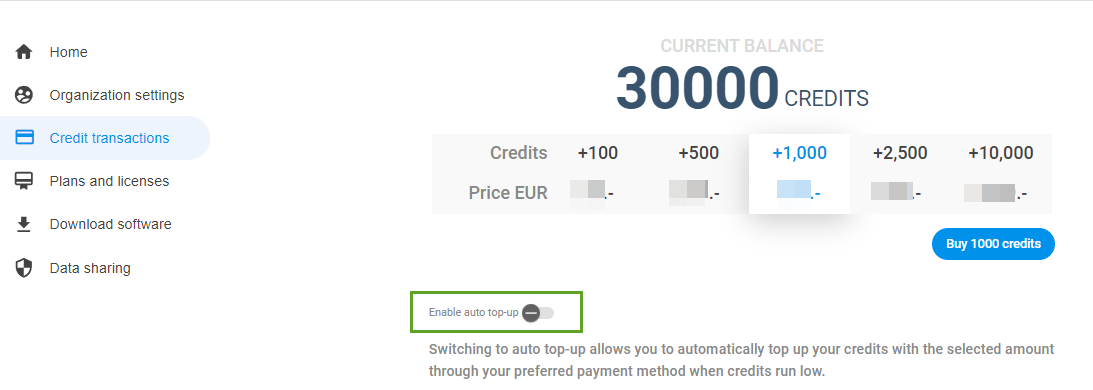
PIX4Dcloud supports automatic credit top-up, which purchases additional credits when the balance falls below a defined threshold.
To enable auto top-up:
- Go to the Organization Dashboard at https://account.pix4d.com/home.
- Click Credit transaction.
- Click Enable auto top-up.
- Click Buy now.
Important:
-
Auto top-up is available only after the first manual credit purchase. The selected credit package is reused for future automatic purchases.
- Credits are automatically purchased when there are not enough credits to process a PIX4Dcloud dataset.
-
Disable auto top-up
-
Re-enable auto top-up
-
Enter the updated credit card information
If the account has active subscriptions, follow: Managing the payment method information.
How do I redeem PIX4D credit vouchers?
PIX4D credit vouchers can be redeemed to add credits to an individual or Organization account. Vouchers are typically issued by PIX4D sales representatives or authorized partners.
Redemption instructions are available here: How to redeem license keys or credit voucher codes.
Information: Credit vouchers are valid for 3 years from the purchase date.
How can I check how many credits do I have?
Credits can be checked in two ways:
- Check the available credits in the PIX4Dcloud drive
- Check the available credits in the credit history
How can I check my credit history?
- Login with your PIX4D credentials at cloud.pix4d.com/login
-
Open Account Settings from the user menu.
-
Select the desired Organization dashboard.
- Click on Credit transactions in the left panel.

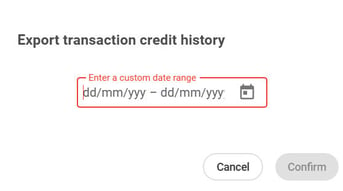
The credit history lists the transaction date, user, resource, and number of credits. The history can be exported as a CSV file for a custom date range.

Who can buy credits?
The credit system is available (since June 1st, 2023) to:
-
Individual users using the credit-based system
-
Organization Owners using the credit-based system
When do credits expire?
Credits do not expire as long as a valid license is active. If the license expires, unused credits are deleted after 60 days. See: Our retention policy.
How many credits do I need to process my project?
The required number of credits can be estimated using the online calculator:
https://www.pix4d.com/pix4dcloud-calculator/
During project creation, PIX4Dcloud and PIX4Dcatch display the exact number of credits required before processing starts. For more information, see:
Warning: Projects that include Gaussian Splatting outputs require 5 additional credits (available only when processing from the PIX4Dcatch interface).
Does deleting a project give me the credits back?
No. Deleting a project does not restore consumed credits. Credits are used to cover processing and infrastructure costs, but deleting a project does free up storage space.
How many credits do I get with a PIX4Dcloud Pro trial license?
A PIX4Dcloud Pro trial includes 40 processing credits and an unlimited number of projects.
Example usage:
-
One drone project with ~200 images captured using a 20 MP camera.
-
PIX4Dcatch projects use a default resolution of 2.7 MP; for example, 100 images require approximately 3 credits.
Note:
What to do if your trial project requires more than 40 credits: If your dataset requires more than the 40 credits provided by the trial (resulting in a "waiting for credits" status), you do not need to wait for your trial to end or upgrade to a full subscription immediately. You can purchase additional credit packages directly during your trial phase via the Organization portal. For step-by-step guidance, see How to purchase credits.
For more deatils, see: PIX4Dcloud / PIX4Dcloud Pro credit balance system - PIX4Dcatch RTK.
Do PIX4Dcatch users need to buy credits?
This depends on the PIX4Dcatch license type:
-
PIX4Dcatch Yearly license: License only, no included credits
-
PIX4Dcatch Individual Year: Includes the license and 500 credits
To purchase additional credits from the Organization portal.
As a user, how do I know the number of credits required to process my dataset on PIX4Dcloud?
Once a project is uploaded directly to PIX4Dcloud (web browser) or from PIX4Dcatch, the system will automatically report the exact number of credits that will be consumed for processing. This information can be verified:
- In the user interface of PIX4Dcatch.
- By accessing the PIX4Dcloud Drive.
To calculate in advance the number of credits required to process a project, you can use the online credit calculator.
Warning: Projects including Gaussian Splatting as output will cost 5 more credits (only available when processing from the PIX4Dcatch user interface)
What happens if I do not have enough credits?
If insufficient credits are available and auto top-up is disabled, the project can still be created but processing does not start. The dataset status remains Pending User Capacity until enough credits are purchased.