
IN THIS ARTICLE
Capture a project
PIX4Dcatch captures images and LiDAR (iOS Pro devices only) from a terrestrial (ground-based) perspective with positional and orientation information. The data captured can be processed to obtain comprehensive and detailed 2D and 3D models.
Note: The maximum number of images per project that can be processed in PIX4Dcloud is 4000.
When capturing data with PIX4Dcatch, there are two ways to georeference the images:
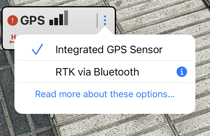
- Standard georeferencing with meter-level accuracy using the integrated GNSS/GPS sensor in the device.
- RTK georeferencing with a compatible RTK device for centimeter-level accuracy. For more information: Connecting PIX4Dcatch to a compatible RTK (GNSS) device.
How to capture a project
Before starting the capture process, the capture route should be planned to ensure optimal results, which is based on the subject’s size and geometry. It is recommended to use circular and/or linear capture paths. For larger subjects, use multiple parallel paths (horizontal or vertical), ensuring adequate overlap between them.
To capture a project:
- Tap the record button
 and begin moving the device slowly. The app will automatically start capturing images according to the selected settings. By default the images will be captured with 90% overlap.
.png?width=250&height=500&name=Plantilla%20Iphone%20(28).png)
 to gain insight into what is being captured.
 to pause the recording. Tap the record button to resume recording.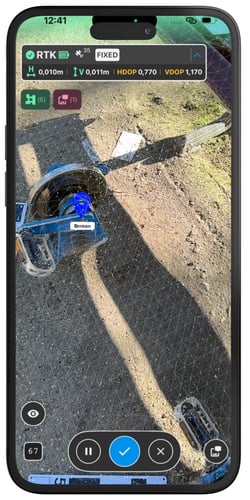
Important: Use the pause button only when absolutely necessary. To ensure accuracy, remain in a static location and limit pauses to under 20 seconds.
 upon capture completion. The cancel button
  may be used to abort a project while capturing.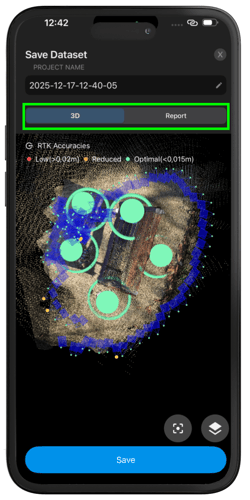
- Project Name.
 Tap to center the project.
 Tap to access:
 Toggle the camera positions visibility.
 Toggle Sparse point cloud. Available for devices with a TOF and/or LiDAR sensor. Tie points will be displayed for devices without these sensors.
 Close the menu.
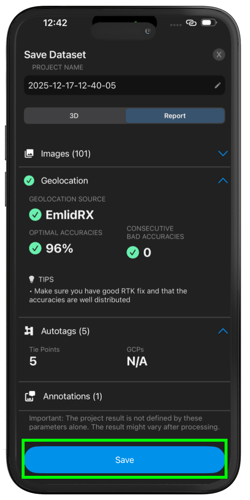
The Report tab displays the quality of the capture before saving the project. For more information, consult Quality Control in PIX4Dcatch.
5. Tap Save to store the completed project locally on the device, making it available for local export or uploading to PIX4Dcloud.
Best practices
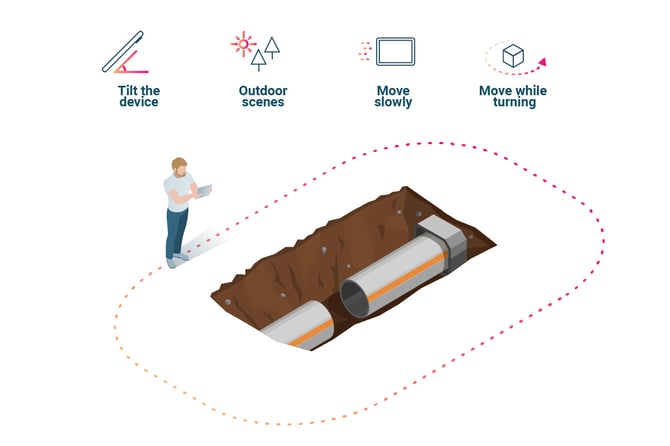
- Fill the image frame with the content you wish to reconstruct:
- Employ a slight downward tilt, ensuring the object of interest fills the frame of the images.
- Hold the camera on a slight to capture both near and far objects. Avoid holding the camera facing directly onto the object.
- Avoid moving objects, including the shadow of the operator.
- Capture rich textures in good lighting.
- Move and turn slowly:
- Do not change the orientation of the camera while standing still. e.g., turn in place.
- Avoid sudden perspective changes or rapid, jerky motions.
- Try to maintain a consistent distance between the camera and what it captures.
- Plan for smooth transitions around corners.
- It is better to change the perspective of the camera (i.e., raising or lowering the device) to capture additional detail than it is to point the camera up/down from the same height.
- Plan:
- Identify areas that may have limited visibility due to scene geometry.
- Plan the image collection with consideration of lighting.
- Consider potential locations for placing Autotags and/or GCPs.
-
- In difficult terrain, a practice run can be particularly helpful.
- Try to avoid:
- Low-light scenes. If a scene must be scanned in poor lighting, try to move slowly or use artificial light while avoiding shadows.
- Pointing the camera in the exact direction of travel (i.e., straight ahead).
- Face the camera at an angle from the direction of travel.
- Try not to travel over the same path more than once.
- Change the elevation and path slightly whenever necessary when passing over a previously captured region.
- Ensure stable internet:
- Use WiFi only if the scene has full coverage and the connection is stable.
- Turning WiFi off is a good idea, as it may interfere with a mobile data connection, even if the WiFi signal is weak. Projects with mixed WiFi and mobile data connections may fail.