
IN THIS ARTICLE
Initialize Connection
Before initializing the connection:
- Ensure that Bluetooth is enabled on the mobile device.
- Power on the PIX4Dcatch compatible RTK device following the manufacturer's recommendations.
- Open PIX4Dcatch.
With the mobile device and the RTK device connected, tap the GPS signal indicator at the top right corner of the interface and select RTK via Bluetooth.
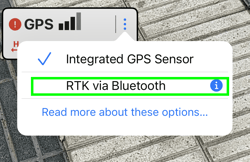
Once the RTK Device Settings dialog opens, connect to the RTK device in PIX4Dcatch.
Tap Devices Discovered - Tap to Select
-2.png?width=250&height=500&name=Plantilla%20Iphone%20(1)-2.png)
If a profile already exists, select the desired profile and click Connect to use the NTRIP credentials previously entered.
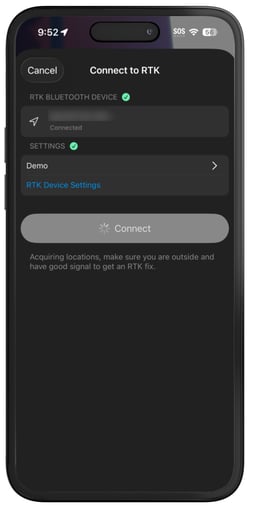
If no profile exists, select Import or Create RTK Profile as required.
For information about the RTK profile template, click here.
.png?width=250&height=500&name=Connect%20rtk%20(2).png)
Next Steps
Once the RTK device connection and configuration are complete, proceed to Capture a project with PIX4Dcatch to begin collecting data and measuring points.