
IN THIS ARTICLE
Once you have captured a dataset with PIX4Dcatch, you can process your project using one of two workflows:
- PIX4Dcloud – Upload your data directly from the app to process online for fast, shareable results.
- PIX4Dmatic – Export your data to a desktop computer to process locally for advanced workflows and greater control.
Process in PIX4Dcloud
PIX4Dcloud allows you to easily upload your PIX4Dcatch projects and process them online, making it simple to generate and share results quickly.
1. Tap the Project folder icon at the bottom of the screen.
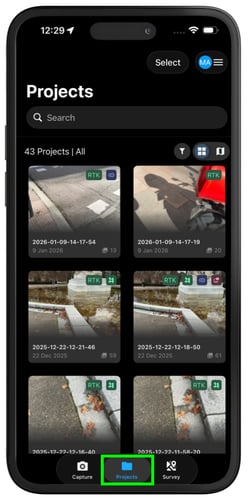
2. Select your project: Choose the project you want to upload using one of the following methods:
- Tap the captured project to open it, then tap on
 Upload.
 - Press and hold the project to open the options menu, then tap on
 Upload.
3. Verify organization and upload location, then tap Next.
- Account and Organization: Select the organization where the dataset will be uploaded. Processing credits will be deducted from this organization's account, and you can assign the dataset to a specific site.
- Upload Location: Choose the destination site or folder within the organization.
- Records: (Optional) Add project details or information that will appear in the final project overview.
-4.png?width=250&height=500&name=Plantilla%20Iphone%20(20)-4.png)
-3.png?width=250&height=500&name=Plantilla%20Iphone%20(20)-3.png)
4. Select processing options: Choose your desired processing configurations before initiating the upload. For more information, visit PIX4Dcloud processing options in PIX4Dcatch.
5. Start the upload: Tap the Upload icon to send your project to PIX4Dcloud.
Advanced Cloud Features: PIX4Dcatch also supports multi-project uploads and reuploads to PIX4Dcloud. For detailed information, visit Multi-Project Upload and Project Re-upload.
- Multi-project Upload: Upload multiple projects to PIX4Dcloud at the same time.
- Project Reupload: Reupload projects with different processing options.
Note: In PIX4Dcatch, projects can be uploaded in the background, allowing you to continue capturing a new project without waiting for the current upload to finish. Uploads continue even if you close the app, provided your device allows background activity and has an internet connection.
Process in PIX4Dmatic
To process a PIX4Dcatch dataset in PIX4Dmatic, first export the project from the PIX4Dcatch app and then import it into the PIX4Dmatic software for processing.
1. Export from PIX4Dcatch: Export your captured project as an OPF (Optimized Project Format) file. This is the recommended format because it packages all necessary project data together, ensuring a complete and error-free transfer. For details, see How to export PIX4Dcatch projects (iOS/Android).
2. Process in PIX4Dmatic: Import the OPF file into PIX4Dmatic. Apply the PIX4Dcatch processing template to process the data, which automatically configures optimal settings for terrestrial datasets to generate accurate point clouds, meshes, and other outputs. For the complete workflow, refer to How to process PIX4Dcatch datasets in PIX4Dmatic.
Warning: To export project data from the PIX4Dcatch app, you must hold a valid license for PIX4Dcatch, PIX4Dcloud, PIX4Dmatic, or PIX4Dmapper or a Perpetual license with an active Support & Upgrade (S&U) plan.