
Important: Vidoc is no longer distributed by Pix4D.
To effectively use a Pix4D supported RTK device with a mobile device, the initial step is configuring the setup correctly. This involves setting the camera offset between the antenna and the mobile device's camera. This offset, whether measured automatically by PIX4Dcatch (SPC and SPC+) or manually by the user, is crucial for accurately computing locations captured by Pix4D supported RTK devices, ensuring precise measurements for scans or ground control points (GCPs).
目次
Which Version of viDoc distributed by Pix4D do I have
Smartphone type with SPC+ connector
Smartphone type with SPC connector
Mount the viDoc distributed by Pix4D RTK to the Device
Smartphone model
Tablet model
Devices with a Known Camera Offset
Camera Offset Measurements
How to Manually Measure the Camera Offset
Measure the X axis
Measure the Y axis
Measure the Z axis
Enter the Camera Offset Values
Which Version of viDoc distributed by Pix4D do I have?
Currently, the Pix4D supported RTK devices has different versions that require different offset values: viDoc distributed by Pix4D compatible with SPC+ connector (Pix4D supported RTK devices P01) and viDoc distributed by Pix4D compatible with SPC connector. This section describes how to identify the Pix4D supported RTK devices version, in order to set the correct camera offset values and achieve the best available accuracy of the reconstruction.
重要: バージョン1.28.0以降のAndroidではRTK デバイスはサポートされていません。RTKの販売代理店にお問い合わせください。
If you bought the RTK device through Pix4D, please Contact Support
Smartphone type with SPC+ connector
Since SP Connect released a new version of their adapter called SPC+, Pix4D released Pix4D supported RTK devices P01, a new version of the viDoc distributed by Pix4D RTK device that is now compatible with the new SPC+ cases. This device version is indicated by the additional Pix4D logo and the rounded shape of the new SPC+ mount type. Manual offset measurement is only needed in the following situations:
- PIX4Dcatch does not recognise the device
- A custom case is used

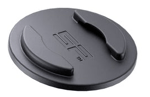

Smartphone type with SPC connector
This Pix4D supported RTK devices version is compatible with the old SPC cases and can be recognized easily by the rectangular mount type and the black label without the Pix4D logo. Manual offset measurement is only needed in the following situations:
- PIX4Dcatch does not recognise the device
- SPC universal case is used
- A custom case is used
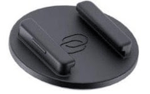
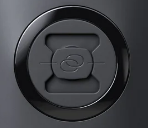
Mount the viDoc distributed by Pix4D to the Device
Pix4D 販売するviDocはPix4D PIX4Dcatch モバイル端末で撮影した画像PIX4Dcatch センチメートル単位の精度PIX4Dcatch するGNSS RTK受信機Pix4D 。Pix4D が販売するviDocPix4D デバイスは、SP Connectが提供するSPコネクタ(ケースまたはクランプ)を使用して、スマートフォンや タブレットと接続することができます。
スマートフォンの機種
First, insert the phone into its compatible SP-connect case. Then, mount the case to the RTK device by following the instructions provided with the SP-connect case.
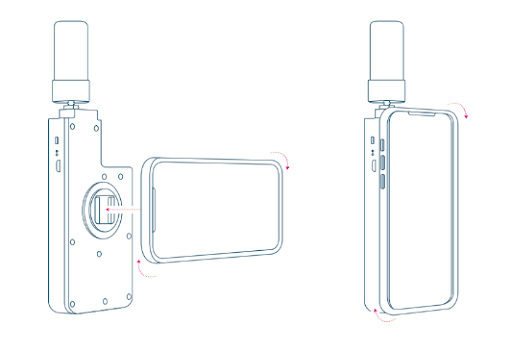
Important: Ensure proper orientation of the mobile device after mounting it to the viDoc distributed by Pix4D with the antenna pointing up.
|
Device type |
Orientation |
|
iPhone |
Portrait |
|
iPad |
Landscape |
Tablet model
Compatible SP-Connect Case:
Insert the tablet into the suitable SP-connect case. After that, secure the case to the RTK device by following the guidelines provided with the SP-connect case, ensure the table is in landscape mode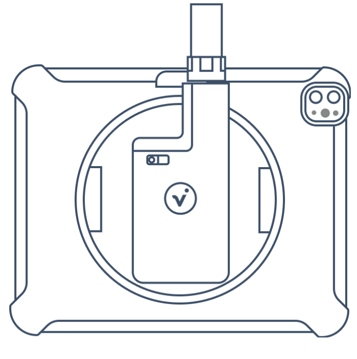
Holder with clamp:
Loosen the screw on the bottom of the viDoc distributed by Pix4D, and carefully insert the tablet into the clamp. Use the iPad's magnets to center the viDoc distributed by Pix4D. Tighten the screw to secure the tablet, and ensure that the tablet is in landscape mode.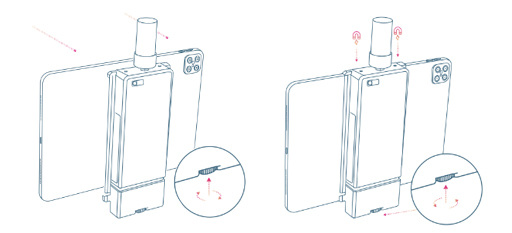
Devices with a Known Camera Offset
This list contains the combinations of mobile devices (phones and tablets) with the Pix4D supported RTK devices where the camera offsets are already measured. PIX4Dcatch will automatically fill in the X, Y, Z fields with the correct camera offset values.
カメラのオフセット測定
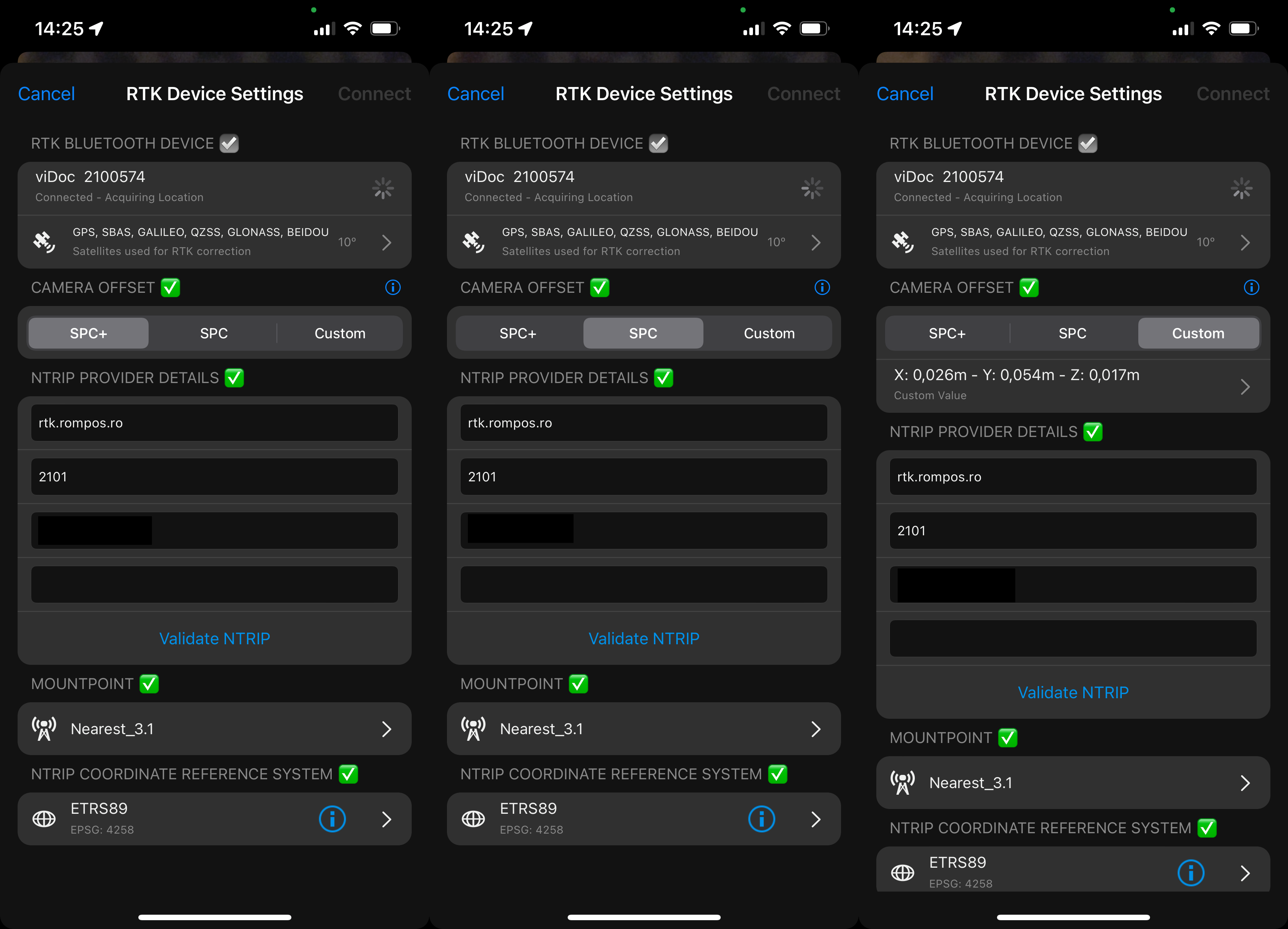
When initiating the connection to the Pix4D supported RTK devices, the dialog RTK Device Settings opens. The section Camera Offset allows the user to set the X, Y, Z offset values properly. The available options depend on the combination of the viDoc distributed by Pix4D RTK device version, the mobile device and the device case. The following options are available: SPC, SPC+ (in tablet and older mobile app versions: Automatic) and Custom.
The options SPC and SPC+ are only available if the combinations of the viDoc distributed by Pix4D RTK device version, the mobile device and the device case are known. The option Custom is always available and intended to be used by universal or specific cases. This option requires measuring the camera offsets manually and setting them in PIX4Dcatch. The camera offset value selection is saved for the next measurements and modifications are only needed if the setup changes.
カメラのオフセットを手動で測定する方法
適切なSP-connectケースを使用して、本デバイスをPix4D デバイスに取り付けてください。スマートフォンケースは、SP-connectのウェブサイトから別途購入できます。対応するモデルがない場合は、SP-connectのユニバーサルスマートフォンマウントをご利用いただけます。SP-connectのケースは、ほとんどの自転車店やバイクショップでも取り扱っています。
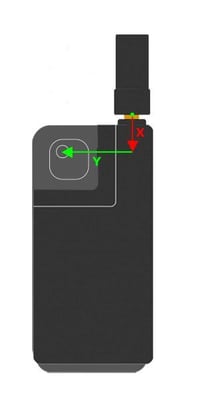
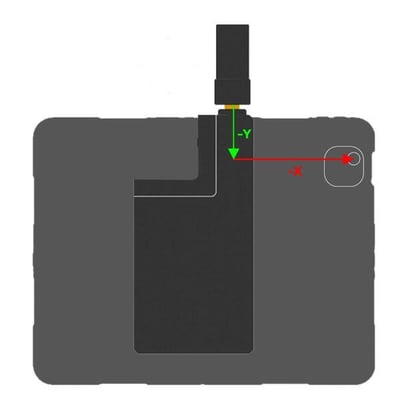
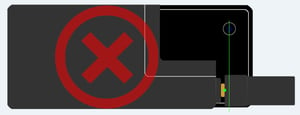
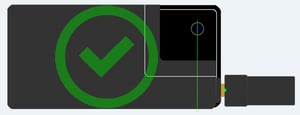
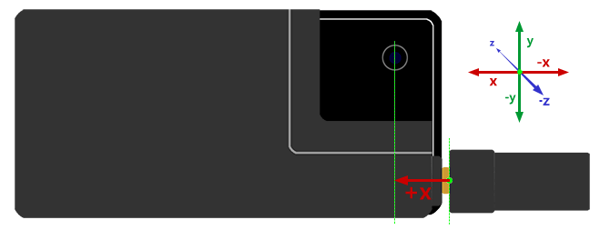
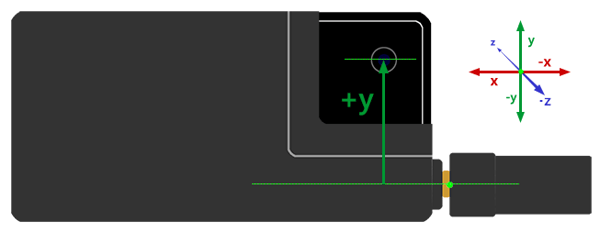
Place the device in landscape mode and the display to the front. Notate the orientation of the X, Y, and Z axes and how they relate to the point of origin on the antenna to measure from. The point of origin resides in the middle of the screw mount at the base of the antenna. It will also be necessary to determine which lens to measure from for devices with multiple camera lenses.
Measure the X axis (Y axis for iPad)
Measure the value from the antenna base to the center of the lens along the axis for the X axis offset.
Measure the Y axis (X axis for iPad)
Measure the value from the center of the antenna to the center of the lens along the axis for the Y axis offset.
Z軸を測定する
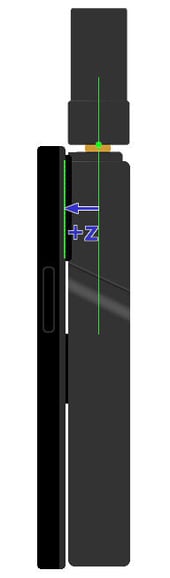
Z軸のオフセットを測定するには、アンテナの中心からレンズの中心までの深さを測定してください。
カメラのオフセット値を入力してください
カメラのオフセット値を正確に測定して記録したら、RTKデバイス設定ダイアログの適切な「カメラオフセット値」フィールドに入力 できます。デバイスの地域設定に応じて、表示される単位はセンチメートルまたはインチになります。
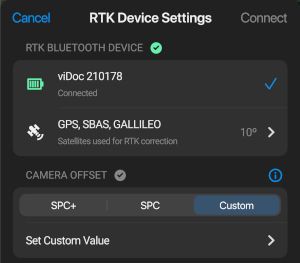
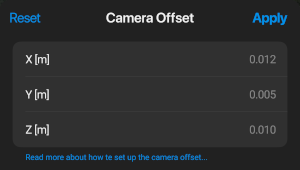
The camera offset is now properly set in the Camera Offset Values X, Y, Z fields. Continue with the RTK Device Settings dialog to complete the viDoc distributed by Pix4D RTK connection to the device.