
Organization Management centralizes user administration, license ownership, and access to PIX4Dcloud resources (datasets, sites, and folders). All permissions depend on the role assigned at the Organization level.
IN THIS ARTICLE
OverviewDefinitions
Roles
Pix4D Account Management page
Home
How to create an Organization
Organization Portal Management
Overview
Edit Organization Settings
Invite Users
Remove Users
Purchase Licenses
Purchase Credits
Configure Email Notifications
Account Settings
Modify Personal Information
Set a Default Organization
Privacy settings
Third-party Integration
Video: The following video tutorial explains step-by-step how to setup an Organization.
Overview
Organization Management allows companies to group users under a common structure and centrally manage Pix4D licenses and PIX4Dcloud resources. Licenses and cloud assets belong to the Organization—not to individual users.
Definitions
| Term | Definition |
| Organization | The structure used to manage multiple users, Pix4D licenses, and PIX4Dcloud resources. Requires at least one Owner. |
| User | A person assigned a role within an Organization and invited by an Owner or Manager. |
| Resource | A dataset, site, or folder in PIX4Dcloud. |
| Dataset | A set of processed images or uploaded outputs visibile in the browser. |
| Site | A collection of datasets relating to the same location, viewable via a Timeline. |
| Folder / Subfolder | A container for grouping datasets or sites. |
Note: Users without a Pix4D account are prompted to create one during invitation acceptance.
Roles
- Member:
- View Organization information.
- Access assigned licenses and resources.
- Reader:
- View all Organization resources.
-
Temporarily annotate datasets (no saving).
-
Download annotations and PDF reports (if previously generated).
-
Cannot use desktop licenses.
-
Cannot manage share links.
- Editor:
Includes Reader permissions and:
-
Full access to datasets, sites, and folders.
-
Upload images and outputs.
-
Use desktop licenses.
-
Cannot manage share links. However, users with access to a shared dataset can interact with it according to the permissions assigned to the share link.
- API credentials generation allowed (for PIX4Dcloud Enterprise license only).
-
- Manager:
Includes Editor permissions and:
-
Enable/disable share links. For information about LINK and EMBED URLs, permissions, and sharing limitations, see Share functionality - PIX4Dcloud.
-
Invite, remove, and assign roles up to Manager.
-
Use Share to Cloud in supported Pix4D software.
-
Full access to licenses.
-
Buy Support & Upgrade options.
-
Redeem new licenses
-
- Owner:
Includes Manager permissions and:
-
-
Edit billing and legal information.
-
Close the Organization.
-
Purchase licenses and credits.
-
Enable automatic credit top-up.
-
Cancel or resume licenses.
- Assign roles up to Owner.
-
Note:
-
Roles apply globally to the Organization.
-
Users may belong to multiple Organizations, each with different roles.
Pix4D Account Management page
The Account Management page is the central hub for accessing personal and Organizational settings.
Users can:
-
Update personal account settings.
-
Access third-party integrations.
-
View and enter any Organization they belong to.
-
Manage privacy preferences.
Access methods:
-
From a web browser https://account.pix4d.com/
-
From Pix4D desktop products > User icon > Account settings
-
From PIX4Dcloud > User icon > Account settings
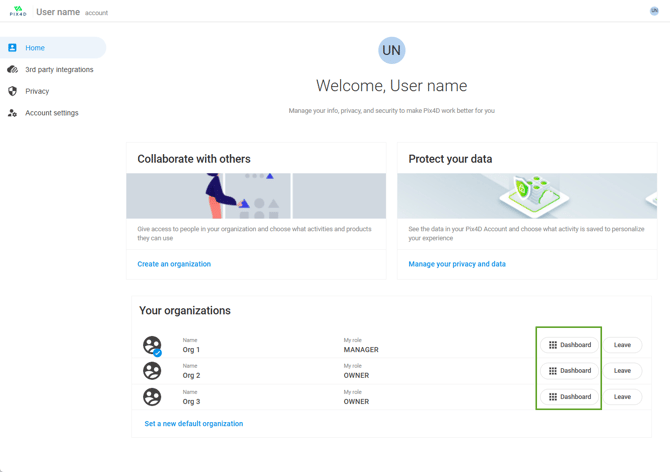
Home
The Home page lists all Organizations linked to the user and provides access to each Organization’s dashboard.
How to create an Organization
For more information, How to create and delete an Organization.
Organization portal management
Owners and Managers can manage users, licenses, credits, and Organization details.
Overview of an Organization
-
Log in to https://account.pix4d.com/
-
Click Dashboard next to the Organization.
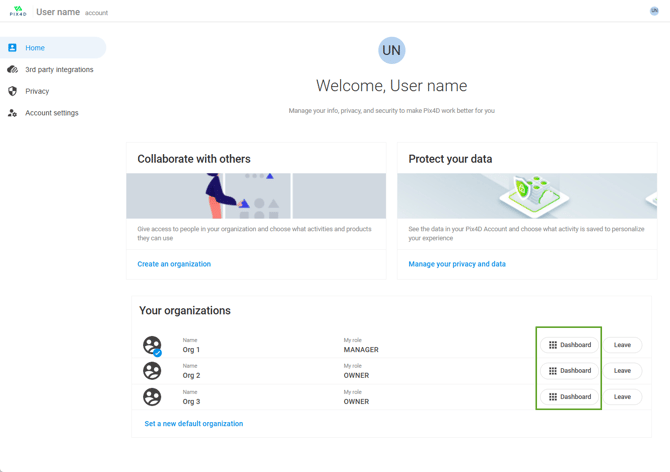
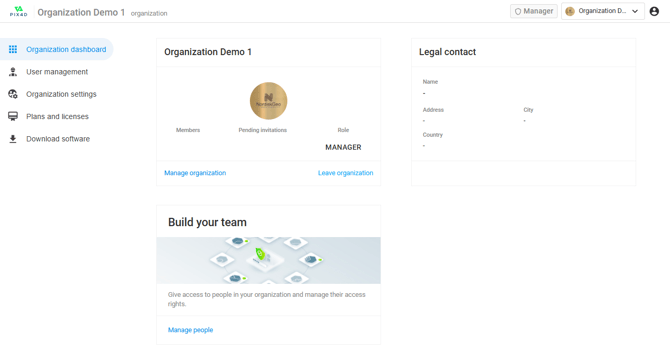
The dashboard displays:
-
-
Company and legal details
-
Credit balance
-
The user's current role
-
Edit Organization Settings
(Owners only)
-
Select the Organization.
-
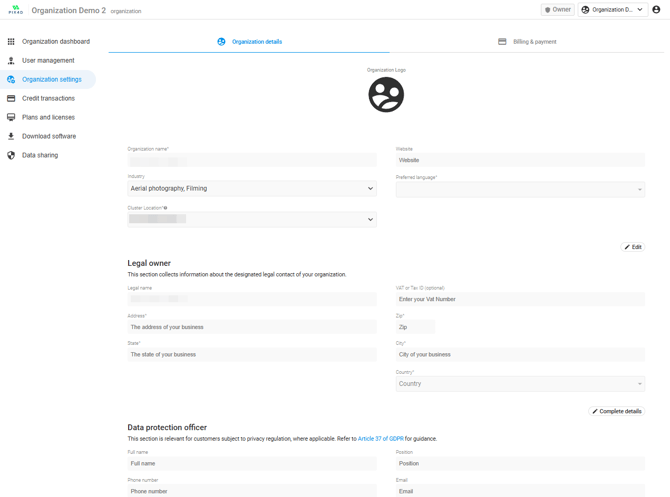
Click Organization settings.
-
Select Edit or Complete details.
Invite Users
(Available to Owner and Managers.)
Two ways to invite:
-
Organization dashboard → Build your team → Manage People
-
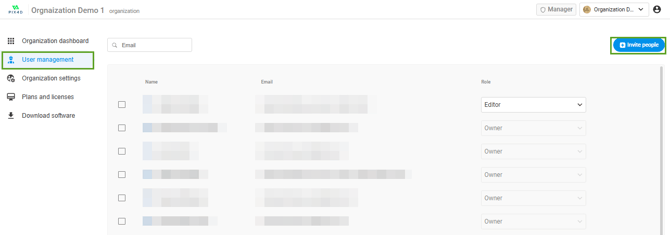
Organization dashboard → User Management
Steps:
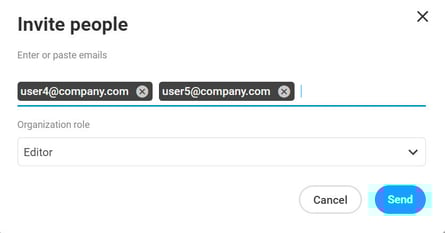
- Click Invite people.
-
Enter the user’s email and role.
-
Send the invitation.
Invitation behavior
-
Pending invitations can be viewed under:
User Management > User access management list > Status = “Pending”. -
Invitations are valid for 15 days. After 15 days, they automatically expire.
-
Invitations can be removed before acceptance. Removing a pending invite prevents the user from accessing the Organization unless re-invited.
User acceptance flow
-
Users receive an email containing an Accept invitation button.
-
Users with an existing Pix4D account log in directly, if not already logged in.
-
Users without an account are guided through account creation.
Remove Users
Owners and Managers only.
-
Home → Build your team → Manage People
-
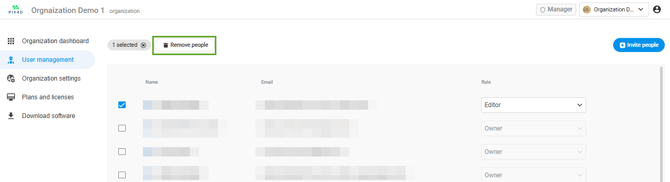
Select the user(s).
-
Click Remove user.
Note: Removing a user does not delete their Pix4D account.
Purchase Licenses
(Owners and Managers only)
-
Select the Organization.
-
Go to Plans and License.
-
Under My Plans, click Shop products.
-
Select a product > Buy Now.
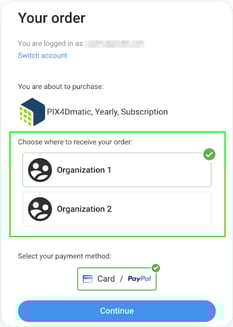
Note: For voucher redemption, select the correct Organization before validating.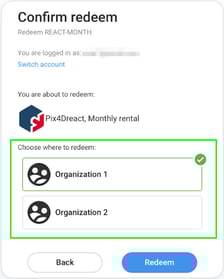
Purchase Credits
(Owners and Managers only)
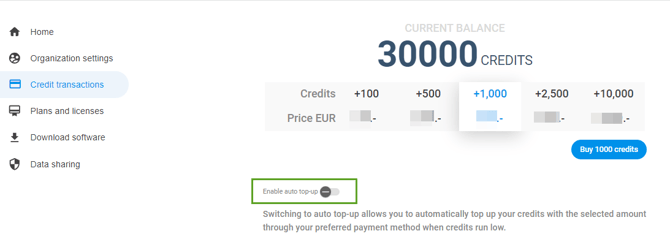
-
Open Credit History.
-
Select a credit package.
-
(Optional) Enable auto top-up.
Configure Email Notifications
Notifications include:
-
Expiring or expired licenses
-
Low credit balance
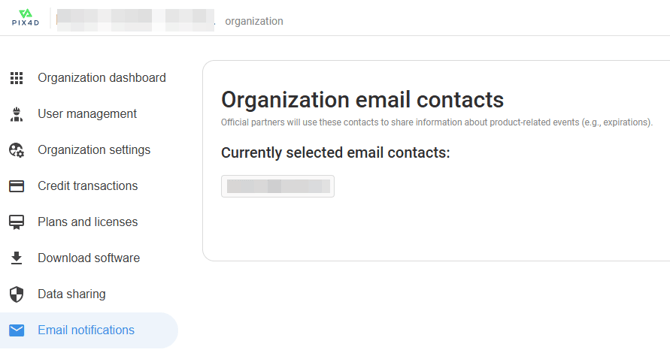
Owners and Managers can add any email address, even if not associated with a Pix4D account.
Steps:
-
Log in at https://account.pix4d.com/home
-
Under Your Organizations, click Dashboard.
-
Open Email notifications
Account settings
Users can update their personal account details and preferences.
How to modify my personal information
- Go to the Account settings.
- Select Account details.
Changes save automatically.

Set a Default Organization
-
Go to the Account settings.
-
Select Personal preferences → Edit.
-
Choose a default Organization.
Behavior in PIX4D Products:
-
PIX4Dmapper: Determines processing Organization and license.
-
PIX4Dfields / PIX4Dreact: Determines where shared results are uploaded.
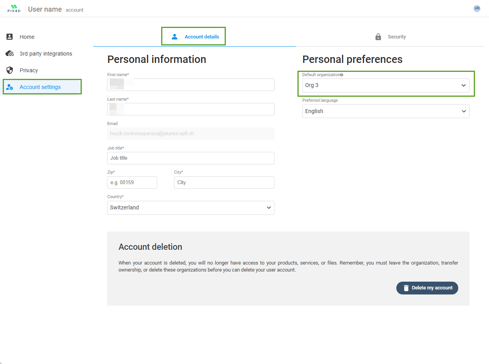
Note: Users with only one organization cannot change the Default organization. If a user only is assigned to one organization, that will be the user's Default organization.
A user can have only one Default organization.
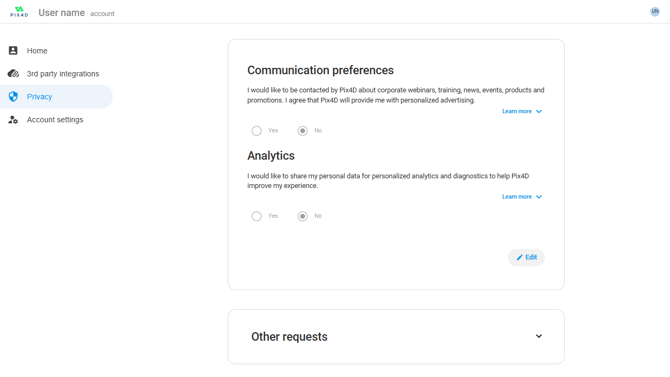
Privacy settings
Users can adjust communication preferences, analytics settings, and request data deletion.
To modify:
-
Open Privacy.
-
Click Edit.
-
Click Save.
Third-Party integrations
PIX4Dcloud Pro supports transferring results to external services.
-
ArcGIS Online
See Transfer Outputs to ArcGIS Online – PIX4Dcloud Pro -
Trimble Connect
See Transfer Outputs to Trimble Connect – PIX4Dcloud