
IN THIS ARTICLE
Multi-project upload
PIX4Dcatch allows you to upload multiple projects to PIX4Dcloud simultaneously. This batch-upload capability streamlines your workflow by eliminating the need to wait for individual project uploads to finish.
Requirements:
Before initiating a multi-project upload, ensure your selected files meet the following criteria:
- RTK Data Only: Multi-upload is supported exclusively for projects containing RTK data.
- Same Processing Settings: Multi-project upload is not supported if the selected projects have different:
- Processing options
- Coordinate Reference Systems (CRS)
- Target upload locations
- No GCPs and Marks: Projects containing manually added Ground Control Points (GCPs) or Marks are not supported for multi-project uploading.
How to upload Multiple Projects
- Open the Projects tab
 .
. - Tap Select in the upper right corner.
.png?width=250&height=500&name=Plantilla%20Iphone%20(23).png)
- Select the multiple projects you want to upload.
.png?width=250&height=500&name=Plantilla%20Iphone%20(24).png)
- Tap the Upload
 icon at the bottom of the screen, then confirm by selecting Upload.
 - Verify your organization and the target upload location, then tap Next.
- Configure the processing options for your projects. The selected processing option will be applied to all projects.
- Tap Upload to start uploading.
.png?width=250&height=500&name=Plantilla%20Iphone%20(41).png)
Project Re-upload
You can upload a project multiple times using different processing configurations without overwriting or deleting previous processing results in PIX4Dcloud. Each upload creates an independent processing version, allowing you to compare results generated with different settings.
How to Re-upload the PIX4Dcatch Project
-
Tap the Project folder icon at the bottom of the screen.
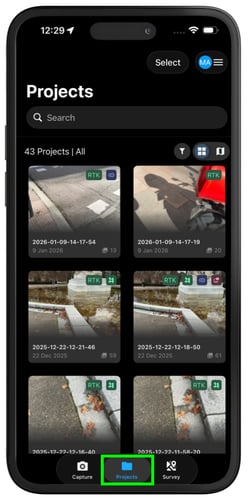
- Select the project to Re-upload: Choose the project you want to upload using one of the following methods:
- From the Projects view: Press and hold the project to open the options menu, then tap on
 Re-upload.
 - From within the Project: Tap the captured project to open it, tap the more options icon
.png?width=24&height=24&name=more_vertical%20(1).png) in the upper-right corner, and select Re-upload as a new project .
in the upper-right corner, and select Re-upload as a new project .
- From the Projects view: Press and hold the project to open the options menu, then tap on
- Verify the target organization and upload location, then tap Next.
- Configure the processing option for your re-upload project.
- Tap on Upload to start uploading.

To access and track re-uploaded versions, open the project's 3D view and tap the Open  icon. The application displays the upload name, date, and upload status for each version.
Note: In PIX4Dcatch, projects can be uploaded in the background, allowing you to continue capturing a new project without waiting for the current upload to finish. Uploads continue even if you close the app, provided your device allows background activity and has an internet connection.
You will receive a notification on your device when an upload completes successfully or if an error occurs during the upload, keeping you informed of the upload status.
A progress bar appears on each project card, while a master upload status bar appears at the top of the Projects screen to track overall upload progress. Each project displays one of the following statuses:
 Uploaded: The project was uploaded successfully.
 Processing: The project is being processed in PIX4Dcloud.
 Missing credits: Processing is delayed until sufficient cloud credits are available.
 Error: An issue occurred during processing.
Each project in the Project Folder may display one of the following status messages:
.png?width=166&height=24&name=image%20(40).png) Captured: The project has been captured and is ready for upload.
Captured: The project has been captured and is ready for upload..png?width=166&height=24&name=image%20(38).png) Paused upload: The upload has been paused .
Paused upload: The upload has been paused ..png?width=166&height=24&name=image%20(39).png) Pending upload: The project is currently uploading to the Cloud.
Pending upload: The project is currently uploading to the Cloud..png?width=166&height=24&name=image%20(36).png) Uploaded: The project has been uploaded to PIX4Dcloud.
Uploaded: The project has been uploaded to PIX4Dcloud..png?width=166&height=23&name=image%20(37).png) Error on Upload: An issue occurred during the upload process.
Error on Upload: An issue occurred during the upload process..png?width=166&height=24&name=image%20(35).png) Processing: The project is now processing in PIX4Dcloud.
Processing: The project is now processing in PIX4Dcloud..png?width=166&height=24&name=image%20(34).png) Error on Cloud: An issue occurred during cloud processing.
Error on Cloud: An issue occurred during cloud processing..png?width=166&height=24&name=image%20(33).png) Processed: The project has been processed successfully.
Processed: The project has been processed successfully..png?width=166&height=24&name=image%20(32).png) Offline: The device is currently offline.
Offline: The device is currently offline.