
IN THIS ARTICLE
The missing output is:
Orthomosaic and/or DSM
Point cloud
3D Textured Mesh
The unavailable functionality is:
3D view
Virtual inspector
Elevation profile
Volume calculation
Share button is not visible in the dataset
Timeline / Cannot add a dataset to a site
DXF design overlay
Licenses: Note that in this article some features are only available with PIX4Dcloud Pro licenses.
Roles:
- Only Owners, Managers, and Editors can process a dataset in PIX4Dcloud.
- Viewing the functionalities in a dataset is available to Owners, Managers, Editors, and Readers.
Orthomosaic and/or DSM
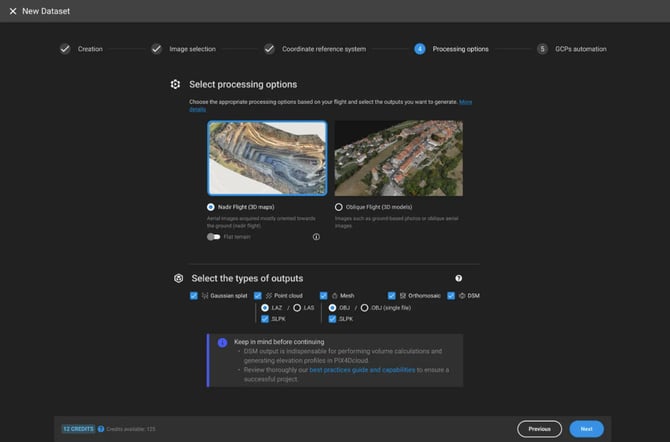
Error description: The Orthomosaic and/or DSM processing appears to have failed, or the output is completely missing from the project.Cause / How to solve: The output may not have been selected in the list of outputs to be generated before starting the processing step. Users frequently assume this is a bug, but it is often simply unselected prior to processing.
- Verify your processing template and options to ensure the required outputs are enabled.
- For PIX4Dcloud processing: Check the processing template settings when creating the project to ensure Orthomosaic and DSM generation are selected.
- For PIX4Dmapper uploads: Go to Process > Processing Options... > 3. DSM, Orthomosaic and Index and verify the specific format boxes (e.g., GeoTIFF) are checked. See more in, After uploading from PIX4Dmapper to PIX4Dcloud for processing.
- If the output was missing from the selection, enable the required output checkboxes and re-process the project. (Note: Reprocessing will consume additional credits).
Point cloud
Error description: The Point Cloud processing appears to have failed, or the output is completely missing from the 3D view.Cause / How to solve: The Point Cloud may not have been selected in the list of outputs to be generated before starting the processing step. Users frequently assume this is a bug, but it is often simply unselected prior to processing.
- Verify your processing template and options to ensure the required outputs are enabled.
- For PIX4Dcloud processing: Check the processing template settings when creating the project to ensure Point Cloud generation is selected.
- For PIX4Dmapper uploads: Go to Process > Processing Options... > 2. Point Cloud and Mesh and verify the Point Cloud format boxes (e.g., LAS) are checked.
- If the output was missing from the selection, enable the required output checkboxes and re-process the project. (Note: Reprocessing will consume additional credits).
3D Textured Mesh
Error description: The 3D Textured Mesh processing appears to have failed, or the output is completely missing from the 3D view.Cause / How to solve: The 3D Textured Mesh may not have been selected in the list of outputs to be generated before starting the processing step. Users frequently assume this is a bug, but it is often simply unselected prior to processing.
- Verify your processing template and options to ensure the required outputs are enabled.
- For PIX4Dcloud processing: Check the processing template settings when creating the project to ensure 3D Textured Mesh generation is selected.
- For PIX4Dmapper uploads: Go to Process > Processing Options... > 2. Point Cloud and Mesh > 3D Textured Mesh and verify the "Generate 3D Textured Mesh" box is checked.
- If the output was missing from the selection, enable the required output checkboxes and re-process the project. (Note: Reprocessing will consume additional credits).
3D view
- Error description 1: The Point Cloud and 3D Textured Mesh are uploaded as results, and they are not aligned.
- Cause / How to solve:
The mesh (.obj, .jpg and .mtl) uploaded as a result to the Cloud is indeed not georeferenced. In all of the PIX4D processes, a file called offset.xyz is always generated together with the mesh files and is used to place it in the right location
If the 3D mesh is not coming from a PIX4D process, that file has to be created manually, otherwise, PIX4Dcloud will not be able to locate the 3D mesh in the right position.
- Cause / How to solve:
- Error description 2: The 3D view doesn't render.
- Cause / How to solve: It is necessary that the web browser application supports optimized WebGL for rendering 3D graphics. This is a known issue for some iOS devices. For more information: ArcGIS help, Sketchfab help.
Virtual inspector
- Error description : When selecting the Inspect tool, the following message appears on the right panel: "The Virtual Inspector is not available. Make sure the project was processed in the cloud".
- Cause / How to solve:
The Virtual Inspector is only available under these conditions:
- The project has been processed on PIX4Dcloud (that excludes projects created by uploading results).
- The project has been computed with PIX4Dmatic and the results have been uploaded to the cloud, and the original images have also been uploaded.
- The project has been created with PIX4Dmatic and it has been uploaded to cloud for processing.
- Cause / How to solve:
-
-
- The project images were not captured using a fisheye lens camera (e.g. Bebop 2, GoPro).
-
Elevation profile
- Error description: The elevation profile is missing / doesn't work.
- Cause / How to solve:
The project does not have a DSM.
- Cause / How to solve:
- Error description: After clicking Calculate volume still spinning for a log time
- Cause / How to solve:
- You clicked Calculate volume before the dataset status displayed "All changes saved".
- The base volume is not aligned with the DSM.
- Cause / How to solve:
Volume calculation
- Error description: The volume computation is not available.
- Cause / How to solve:
The project does not have a DSM.
- Cause / How to solve:
Timeline / Cannot add a dataset to a site (Only PIX4Dcloud Pro)
- Error description: The timeline is not displayed at the top of the project / I cannot add a CAD overlay / I cannot add a dataset from inside my project.
- Cause / How to solve:
The dataset is not assigned to a site yet.
Assign the dataset to a site first. Then, the timeline, the overlay layer and the Add dataset option will appear in the project view.
- Cause / How to solve:
Design overlay (Only PIX4Dcloud Pro)
- Error description: DXF is not visible in 2D viewer.
- Cause / How to solve:
One of these might be the reason:- DXF shifted with respect to the orthomosaic in the 2D viewer because the project and the DXF are in different coordinate systems.
- DXF with incorrect scale.
- DXF with incorrect rotation.
- Cause / How to solve:
Warning:
- The DXF is expected to be in the same coordinate system as the project, otherwise it will not be aligned with the orthomosaic, DSM, point cloud and 3D mesh.
- The DXF is a very complex format that contains many different type of elements. Some of them may not be supported and will not be displayed.
Share button is not visible in the dataset
Note that Editors and Readers roles cannot share a dataset with other users.