
IN THIS ARTICLE:
Introduction
How to create a layer from basemap
Limits and considerations
Comparison with Satellite imagery download
Introduction
Creating a layer from a basemap allows users to quickly have a functional data layer that can be used to enable AI tools and drawing annotations, without the need for having an existing project or downloading satellite data. This feature is mainly aimed at spray drone operators who use the map for mission planning. It transforms a portion of the basemap into a usable layer, enabling users to measure and annotate basic things even when no other data is available.
How to create a layer from basemap
-
(if no project exists yet) From the PIX4Dfields homescreen, click + New Project.
- Make sure to select the correct basemap from the globe icon
 at the bottom left corner. The layer creation will capture the basemap currently selected.
 - From the left sidebar, locate Import files > From basemap and click Create layer.
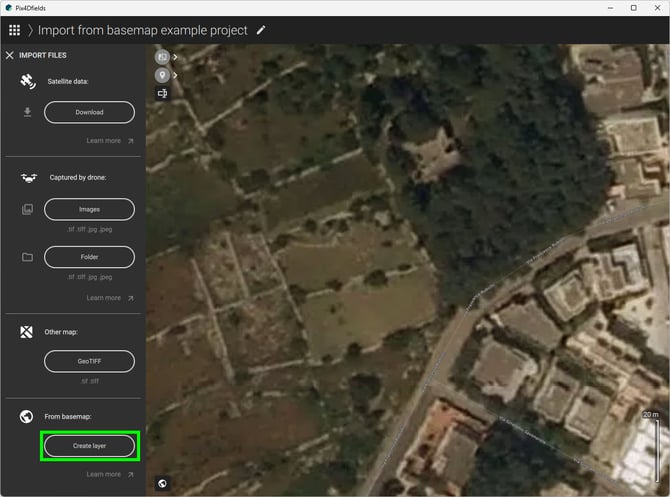
- Create a new boundary or import a boundary shape.
Note: It is possible to add more than one boundary. An area covering all boundaries will be created.
-
- Create a new boundary:
- Click
 Create new
 - Use the main mouse click to set the boundary vertices
- Click
 accept to finish the boundary creation
 - (optional) rename the boundary
- Click Save
- Click
- Import a boundary shape :
- Click
.png?width=24&height=24&name=import-16%20(1).png) Import shape
Import shape - Browse to the location where the boundary shape is located, select it and click Open. Supported filetypes:
*.geojson,*.shp,*.kml
- Click
- Create a new boundary:
- (optional) Set obstacles in the area (trees, waterways, poles, etc). A new obstacle can be created or imported. The basemap for these areas will not be downloaded.
- Create a new obstacle:
- Click Create new
- Use the main mouse click to set the boundary vertices
- Click accept to finish the obstacle creation
- (optional) Rename the obstacle
- Click Save
- Click
- Import an obstacle shape:
- Click Import shape
- Browse to the location where the boundary shape is located, select it and click Open. Supported filetypes:
*.geojson,*.shp,*.kml
- Click
- Create a new obstacle:
- (optional) Set the Add buffer toggle as needed. This will add a 10-meter buffer around the selected area
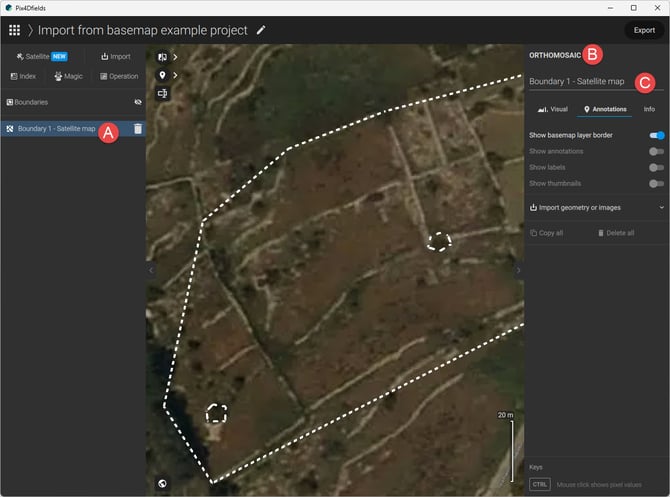
- Click Create layer. A new layer is created in the project layer.
- (Optional) Rename the layer
- Click on the newly created layer.
- A sidebar on the right will appear
- Click on the title and rename the layer
- Press the Enter key to confirm the changes
Limits and considerations
When creating a layer from a basemap, it is important to have these limits and considerations in mind:
- The limit of the selectable area is approximately 10,000 ha.
- Acknowledge the limitations related to the base map's accuracy and age.
- The basemap downloaded area will cover the smallest area covering all boundaries. Obstacles are not taken into account to calculate the area covering the boundaries, but no basemap will be downloaded for these obstacle areas.
- The basemap download only contains RGB data, no multispectral.
Comparison with Satellite imagery download
| Pros | Cons | |
| Satellite imagery download | - Known acquisition date - Exact location data - Multispectral bands (index creation) |
- Paid |
| Basemap download | - Free | - Unknown acquisition date - Lower location accuracy - Only RGB |
To have a map with known acquisition date, exact location, and multispectral bands, please use the satellite imagery downloader (standard resolution, high resolution).