
In PIX4Dcatch, Checkpoints are used to validate project accuracy and do not influence the 3D reconstruction process. They serve as an independent quality control measure to assess the global accuracy of the photogrammetric project. By comparing the known coordinates of the checkpoints with the coordinates generated in the 3D model, it is possible to quantify the precision of the results.
Ground Control Points (GCPs), on the other hand, are used to calibrate and optimize the 3D model. Incorporating GCPs helps minimize distortions and ensures that the final reconstruction is accurately positioned within the selected coordinate system.
How it works
- Open PIX4Dcatch and navigate to the Project tab.
- Tap the Tools icon
 .
. - Select icon GCPs
 .
. - Tap the desired GCP collection.
- Each point appears in a card displaying its name and the number of images.
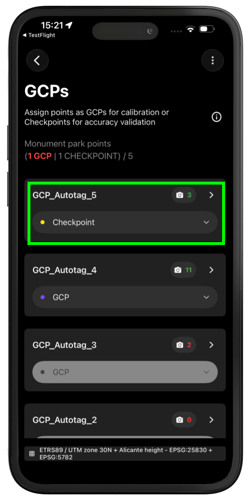
- Tap the camera icon
 to mark the images. Additional information on marking images is available here.
-
- If three or more images are marked the GCPs will be processed, the camera icon displays as green and with the number of images marked.
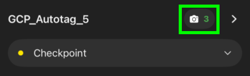
- If fewer than three pictures are marked, the camera icon displays as red and the point card is grayed out or disabled.
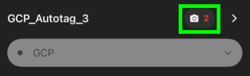
- If three or more images are marked the GCPs will be processed, the camera icon displays as green and with the number of images marked.
-
- The GCP displays as purple and the Checkpoint as yellow.
-2.png?width=250&height=500&name=Plantilla%20Iphone%20(40)-2.png)
- The GCP displays as purple and the Checkpoint as yellow.
7. A summary of the point status is available below the Point Collection Name.
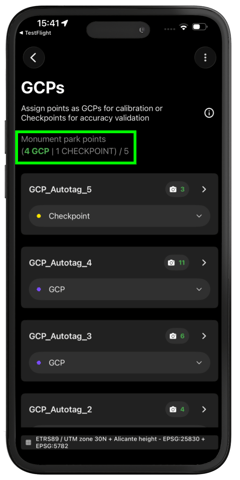
Note: For optimal calibration results, a minimum of three Ground Control Points (GCPs) must be marked. While processing will still occur without meeting this condition, the quality of the calibration will be affected.
Upon completing the marking of points, the project is ready for further action. It is possible to upload the project directly to PIX4Dcloud to begin processing; detailed information on this procedure is available here.
Alternatively, the project can be exported to PIX4Dmatic for processing. For more information click here. In addition to full project exports, Ground Control Points (GCPs) and Checkpoints can be exported individually to be imported into PIX4Dmatic. For more information click here.