
Ground control points (GCPs) are reference points with known coordinates used to accurately georeference and align photogrammetry projects. In PIX4Dcatch, images containing GCPs can be manually marked before upload. These marked images, along with the associated GCP data, can then be uploaded to PIX4Dcloud for processing.
Important: The Point Collection must use a projected Coordinate Reference System (CRS). Geographic coordinate systems (latitude and longitude) are not supported for GCP marking.
Follow these steps to manually mark GCPs:
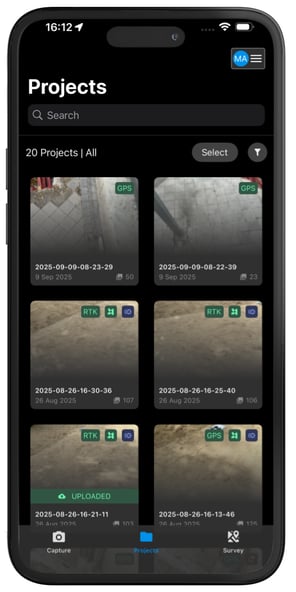
- Open the Project tab
 .
. - Select the project.
- Tap the
 Tools icon located on the lower left of the 3D view screen.
 - Tap the GCPs
 icon. The list of GCP Marks is visible.
 - Select the Point Collection that contains the GCP points.
-1.png?width=250&height=500&name=Plantilla%20Iphone%20(27)-1.png)
- Tap a GCP point to begin marking the GCP. Once selected, a new screen will appear showing the images and the locations of both the GCPs and images on a map view.
.png?width=250&height=500&name=Plantilla%20Iphone%20(35).png)
-
Tap the exact location of the GCP in the image to mark it.
Tips for marking GCPs:
- For precise placement, tap and hold on the image to open the magnifier tool.
- At least 3 images must be marked. However, to achieve the highest absolute accuracy, mark each GCP in 6–12 images. Zoom in to the highest level or use the magnifier tool when marking.
- Verify that all GCPs are clearly visible and unobstructed before placing markers.
- To reset or delete a mark, tap the three-dot menu in the top-right corner, then tap Reset GCP.
.png?width=250&height=500&name=Plantilla%20Iphone%20(37).png)
8. Once the GCP has been marked in all relevant images, tap Save.
9. Repeat these marking steps for each remaining GCP.
To process a project with GCPs, please visit Processing projects - PIX4Dcatch.