
Ground control points (GCPs) are reference points with known coordinates, typically measured using RTK/PPK GNSS receivers or total stations. In PIX4Dcatch, GCPs can be measured manually. To use GCPs measured with PIX4Dcatch in PIX4Dmatic, both the image marks and the corresponding point coordinates must be exported from PIX4Dcatch and imported to PIX4Dmatic.
Manual tie points (MTPs) are points marked in images that help improve the quality and the relative accuracy of the reconstruction. In PIX4Dcatch, MTPs can be created automatically using Autotags. Unlike GCPs, only image marks are required. The MTP's coordinate data is not needed to be imported into PIX4Dmatic.
IN THIS ARTICLE
Export GCPs from PIX4Dcatch
Import GCPs into PIX4Dmatic
Import GCP Marks
Import MTP Marks
Process the Project in PIX4Dmatic Standard / PIX4Dmatic Pro
Export from PIX4Dcatch
Exporting GCPs measured with targets or Autotags
- Open PIX4Dcatch and tap Projects at the bottom.
- Select the project for exporting the GCPs and their marks.
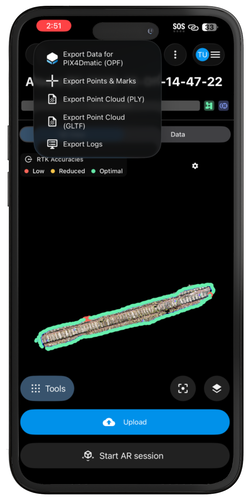
- Tap the Export
 icon in the top-right corner.
 - Select Export Points & Marks.
- Choose the export method (e.g., email or cloud storage, etc ).
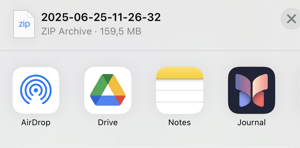
- marks-PIX4Dmatic.csv
- name_of_point_collection-PIX4Dmatic.csv
Import GCPs into PIX4Dmatic
- Open the Tie Points tab at the bottom of the control panel in PIX4Dmatic.
- Drag and drop “name_of_point_collection-PIX4Dmatic.csv” into the Tie Point section or select it manually.

- Set the column format to PENZ (point, easting, northing, elevation).
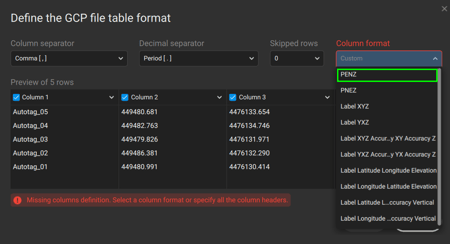
- Review the preview table, then click Apply.
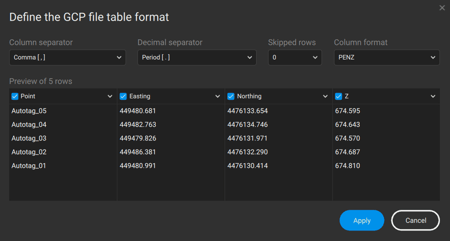
- GCPs will appear in the Tie Points section.
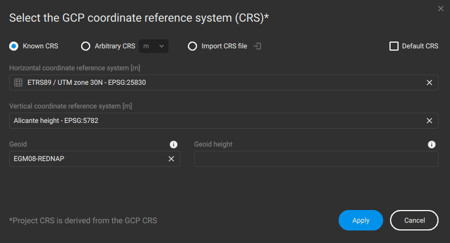
- Set the proper coordinate reference system by clicking the
 pencil icon. Click Apply.
Import GCP Image Marks
Note: GCP coordinates must be imported before importing marks.
- In the Tie Points tab, click the
 more options icon.
 - Select Import marks.
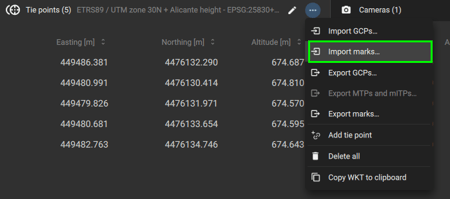
- Choose the file "marks-PIX4Dmatic.csv".
- The table will update with the mark positions.

Import Tie Point Marks
MTPs only need the image marks imported and do not require a point collection file.
- In the Tie Points tab, click the
 more options icon.
 - Select Import marks.
- Choose the file “catchTagsMarks.csv.”
- Tie points will be added and automatically classified as MTPs.
Process the Project in PIX4Dmatic Standard / PIX4Dmatic Pro
- After importing GCPs and/or MTPs, go to the Processing settings and select the PIX4Dcatch processing template.
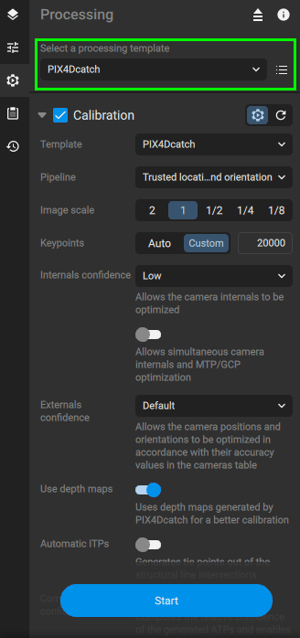
- Adjust processing settings if needed (using the default setting is highly recommended).
- Click Start to begin processing.
For more information on processing: Processing steps - PIX4Dmatic