
To completely uninstall PIX4Dmatic software:
-
In the Windows Search, type Add or remove programs.
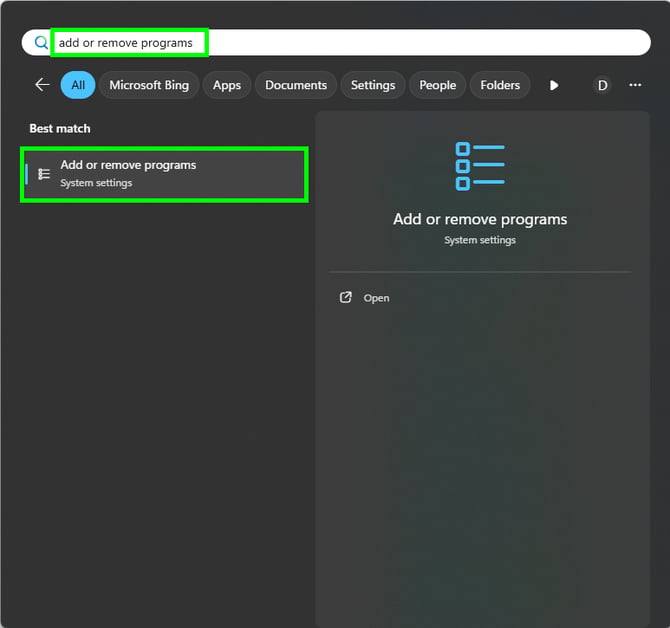
-
Scroll to find PIX4Dmatic and click the three dots and then uninstall.
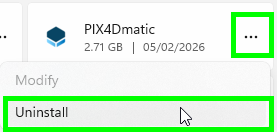
- Click Uninstall.
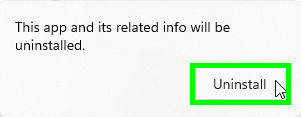
- If a pop-up appears asking Do you want to allow this app to make changes to your device? click Yes.
- On the path where PIX4Dmatic was installed (default is C:\Program Files\PIX4Dmatic), ensure this folder does not exist anymore. If it exists, DELETE this PIX4Dmatic folder.
- In C:\Users\Your Username\AppData\Local\pix4d, ensure the folder PIX4Dmatic does not exist anymore. If it exists, DELETE this PIX4Dmatic folder.
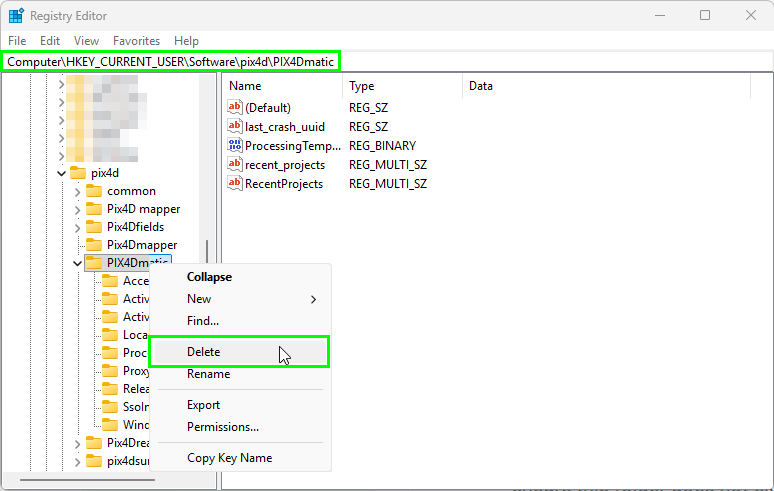
- In the Windows Search type RegEdit and open the Registry Editor.
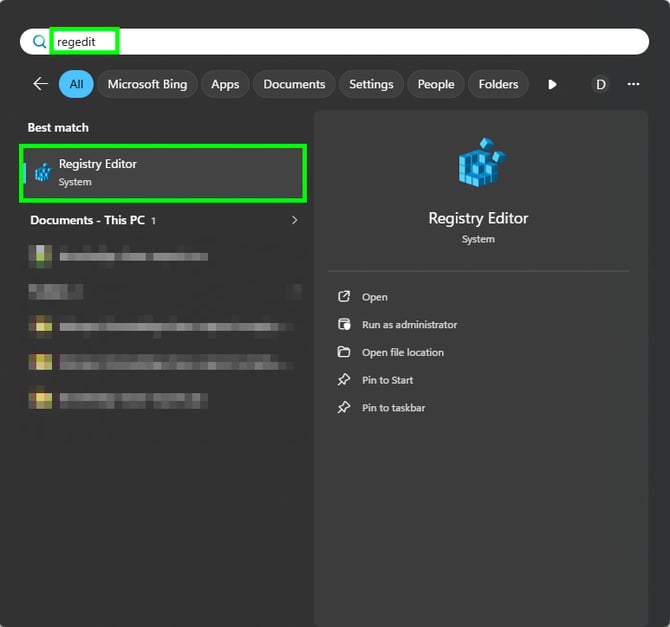
- Locate the folder stored in the path: HKEY_CURRENT_USER\Software\pix4d\pix4dmatic and ensure this folder does not exist anymore. If it exists, DELETE this PIX4Dmatic folder.
- Restart the computer.
- Reinstall the latest version of the software: https://www.pix4d.com/download/pix4dmatic/