
本記事では
Overview
Transfer within the same Organization
How to move a resource to a folder
How to assign a dataset to a Site
Transfer between Organizations
Use cases and conditions
Overview
In PIX4Dcloud, resources (datasets, sites, and folders) can be transferred:
- Within the same Organization (for example, moving a dataset from one folder to another)
- Between different Organizations
Transfers are controlled by license type, roles, and access permissions, especially when Team Access Control is enabled.
Transfer Within the Same Organization
-
Roles and Permissions: the following users can transfer resources within the same Organization:
-
Owner
- Manager
- Editor
- Member (Manager)
- Member (Editor)
-
-
Access Type Requirement (Important):
-
Resources with Direct access cannot be transferred.
-
Only resources with Inherited access can be transferred.
-
-
What Happens to Permissions After Transfer:
-
When a resource is moved within the same Organization, all users who had access keep their permissions in the new location.
-
Exception – Assigning a dataset to a Site:
When a dataset is assigned to a Site, only users who have access to the Site will retain access to the dataset.
-
How to Transfer Resources
Move a Resource to a Folder
-
Single resource
-
-
Click the more options (⋮) menu on a dataset, site, or folder.
-
Select Move to a folder.
-
Choose the destination and click Move here.
-
-
Multiple items
-
-
Select the checkboxes for the desired items.
-
Click Move to.
-
Navigate to the destination folder and confirm.
-
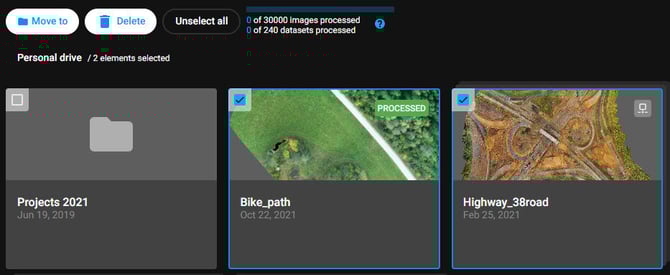
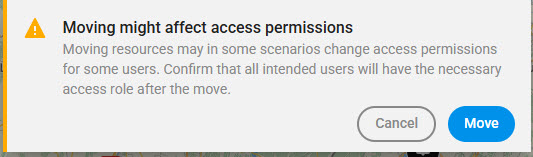
Note: Moving a folder also moves all of its contents.
How to assign a dataset to a site
License: This action is only accessible to PIX4Dcloud Pro and above licenses.- On the Drive, on the dataset, click Assign to.
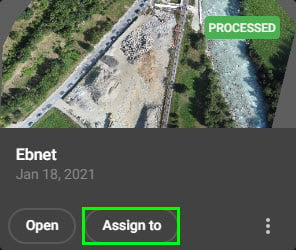
-
Enter the name of an existing site or a new site.
-
Select Assign.
Notes:
-
The dataset will be moved into the Site.
-
To assign a dataset to a different Site, it must first be removed from the current Site.
-
After assigning, only users who have access to the Site will have access to the dataset.
Transfer Between Organizations
Roles and Permissions (Important)
Only Organization-level roles can transfer resources between Organizations.
The user must be at least:
-
Manager in the source Organization
-
Editor in the target Organization
- Members cannot transfer resources between Organizations.
Access Type Requirement:
-
Resources with Direct access cannot be transferred.
-
Only resources with Inherited access can be transferred.
Requirements
To transfer resources between Organizations:
Organization Membership
- The user must belong to both Organizations.
- The invitation to the target Organization must be accepted before transferring.
License Requirements
- Both Organizations must have an active PIX4Dcloud license.
Dataset Status
- Only processed datasets can be transferred.
- Multiple datasets can be transferred only if all selected datasets are processed.
- If one dataset is not processed, the entire transfer will fail.
Information:
-
Existing shared links will no longer work after the transfer.
-
The AWS cluster location where the project is stored does not change.
-
License allowances or credit balances may be affected depending on the license model (see Use Cases below).
How to Transfer Resources Between Organizations
- Log in with the Pix4D credentials on cloud.pix4d.com/login.
-
In Drive, select the source Organization using the Organization switcher.
-
Select the folders, sites, or datasets to transfer.
- Click on Move to.
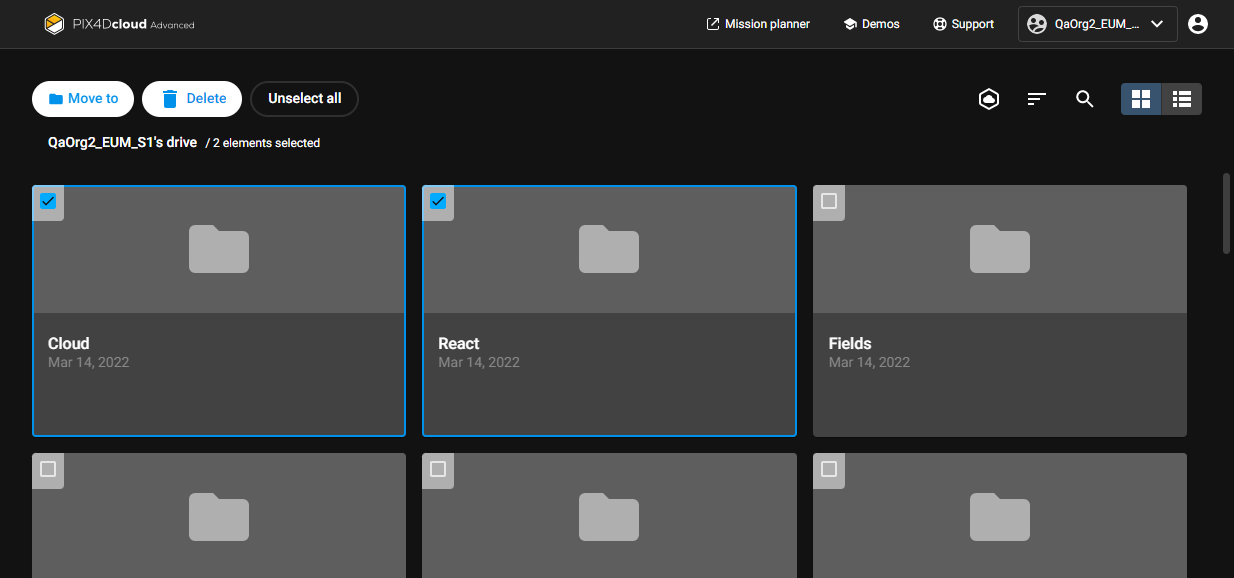
Source organization in the organization switcher. Select and Move. - Switch to the target Organization using the Organization switcher.
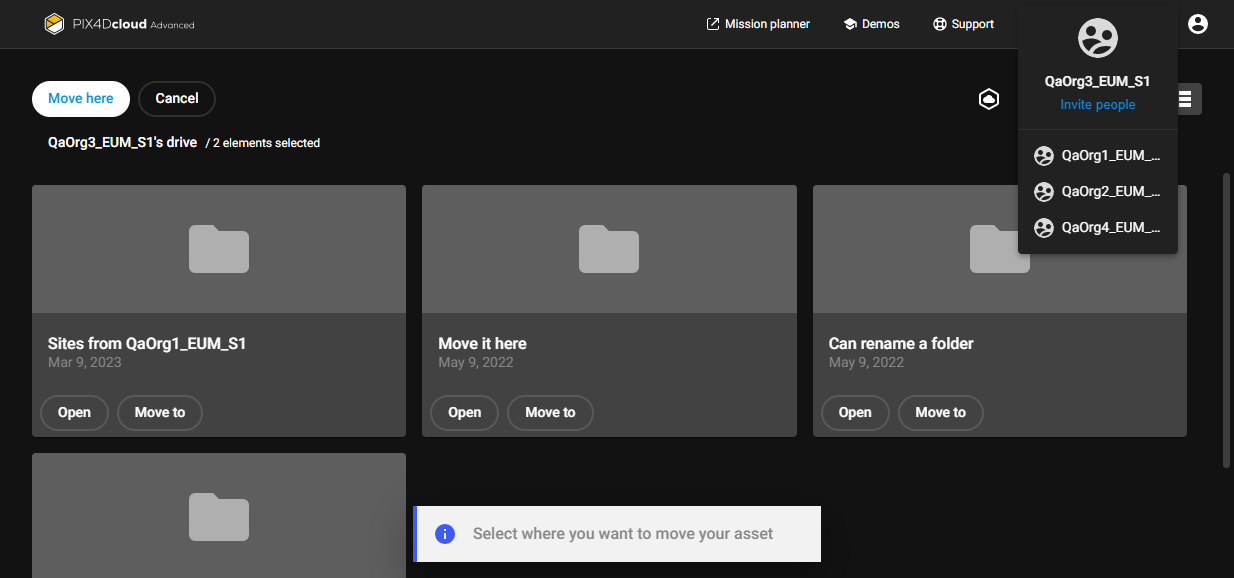
Select Target organization in the organization switcher. -
Click Move here:
-
Either inside an existing folder, or
-
At the root level (top-left corner).
-
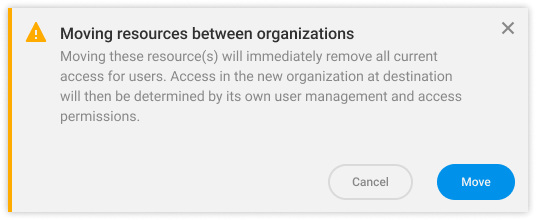
- Confirm the transfer when prompted.
Uses cases and conditions
The impact of a transfer depends on whether the Organizations use:
-
Images & Projects allowance model
-
Credits model
| Destination organization using images and projects | Destination organization using credits | |
| Source organization using images and projects |
Use case 1. Destination org will be paying for the projects as the allowance will be decreased by the new projects. Source org will see its allowance to be increased with the projects gone. |
Use case 2. Neither destination org’s credits nor Source org’s allowance change. |
| Source organization using credits | Use case 3. Not allowed |
Use case 4. Credits are not modified, both org’s credits balance is unaffected by the transfer. Source org was the payer as the credits were consumed there at the time of the processing. |
Use case 1 - Images & Projects → Credits
Allowed only if:
-
Projects are older than 1 month, or
-
The source license has expired
Impact:
-
No change in credits (destination)
-
No change in allowance (source)
Use case 2 - Images & Projects → Images & Projects
Impact: Projects are removed from the source allowance and added to the destination allowance.
Use case 3 - Credits → Images & Projects
Not allowed.
Warning: No folders, sites or projects can be moved from a source organization using credits to an organization using images/projects.
Use case 4 - Credits → Credits
Impact: No credits are modified. Credits were consumed at processing time in the source Organization.
Information: In this case, when a project is moved from one Organization to another, nothing will change in terms of credits in any of the Organizations when both are on credits.