
IN THIS ARTICLE:
Introduction
Organization details
Organization details
Legal owner
Data protection officer
Permanent changes
How to edit Organization details
Introduction
Organization settings are divided into Organization details and Billing & payment
Organization details
Organization details
These are the main details of the selected organization.
The organization details are the following:
- Organization Logo
- Organization name
- Website
- Industry
- Preferred language
- Cluster location
Changing this option will not move datasets that already exist and are owned by the organization.
These details can be changed anytime. More information here: How to edit Organization details.
Legal owner
This section collects information about the designated legal contact of your organization. This contains the Legal Business/Institution name provided during the creation of the organization.
The legal owner details are the following:
- Legal name
- Address
- VAT or TAX ID (optional). If your organization is exempt from VAT/sales tax, please select the relevant checkbox.
- ZIP
- Country
- City
Important: It is possible to modify the legal owner details of an organization only once (How to edit Organization details).
If it is necessary to modify the legal owner details again, please submit a request to Pix4D Support to change the legal owner details of an organization. Make sure to select No product in particular in the Product or topic your requests about field.
Note: The legal owner is different from the organization owner. While the legal owner represents the entity that legally holds the organization, the organization owner is a user role managing account settings and permissions. For details on the organization owner role, see our Organization Management Roles.
This section is relevant for customers subject to privacy regulations, where applicable. Refer to Article 37 of GDPR for guidance. These details can be changed anytime. More information here: How to edit Organization details.
The data protection officer's details are the following:
- Full name
- Position
- Phone number
Permanent changes
The changes made in the permanent changes section will be permanent and will affect the accessibility of your organization. Please be careful when making any modifications here.
Delete organization: If the organization is deleted, everyone will lose access to all projects and software licenses associated with it.
How to edit Organization details
Note: Only users with the Owner role can edit Organization details. More information about roles can be found here: Organization Management > Roles.
- Open the Pix4D account page and log in using the associated account credentials. The user must be an Owner of the organization.
- Under Your organizations, select the
 Dashboard of the organization where you want to modify the details.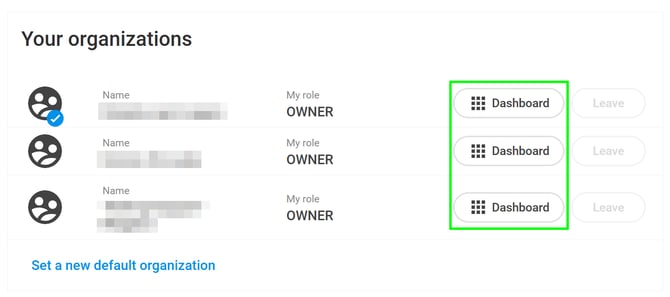
- Click
 Organization settings on the left sidebar
 - Click
 Organization details on the top bar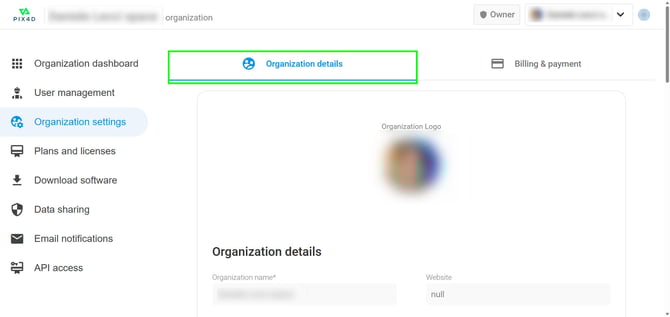
- To edit the Organization details, click the
 Edit button.
- To change the Organization logo, click on
 .
.
Min resolution: 300x150, Format: PNG, JPG or SVG, Max size: 500kb. - Organization name* and Website can be modified in their field.
- Industry, Preferred language*, and Cluster Location* can be selected from the drop-down menu.
- Click Save
 to save the changes
- To change the Organization logo, click on
- To edit the Legal owner, click the Complete details button (can be done only once!).
- The Legal name cannot be changed by the user. If it is necessary to modify the Legal name of the Legal owner details again, please submit a request to Pix4D Support to change the legal owner details of an organization. Make sure to select No product in particular in the Product or topic your requests about field.
- Address*, VAT or TAX ID, ZIP*, and City* can be modified in the fields.
- The Country* can be selected from the drop-down menu
- Click Save to save the changes
- To edit the Data protection officer, click the Edit button.
- The Full name, Position, Phone number, and Email can be modified in the fields.
- Click Save to save the changes
* = mandatory fields
Billing & payment
Billing address
The billing address is the address that will appear on the invoices when purchasing a license for the selected organization. These details can be changed anytime. More information here: How to edit Billing & payment.
The billing address details are the following:
- First name
- Last name
- Phone
- Address
- City
- Zip
- Country/Region
- State
If you selected: This billing address is a business address, you will be asked to also fill in these fields:
- Job title
- Company name
- VAT/Tax number
Invoices
This is a list of the invoices associated with the selected organization.
You can search by invoice number and filter by status (paid, cancelled, open, refunded).
Note: Invoices for licenses or other services purchased via a PIX4D reseller will not appear here.
How to edit Billing & payment
- Open the Pix4D account page and log in using the associated account credentials, the user must be an Owner of the organization.
- Under Your organizations, select the Dashboard of the organization where you want to modify the details.
- Click Organization settings on the left sidebar
- Click
 Billing & payment on the top bar
- To edit the Billing address, click the Edit button.
- First name*, Last name*, Email*, Phone*, Address*, City*, Zip* can be modified in the fields
- Country/Region* and State can be selected from the drop-down menu
- This billing address is a business address checkbox: By selecting this checkbox, you can also enter the following details:
- Job title
- Company name*
- VAT/Tax number*
- Click Save
 to save the changes
* = mandatory fields