
IN THIS ARTICLE
Overview
Step1. Access the Site Localization Calculator
Step 2. Input Data
Required data
Data table requirements
Upload the CSV file
Minimum recommended points
Step 3. Review Residuals
Calibration type options
Step 4. Output Data
Overview
Site Localization, also known as site calibration, is the process of georeferencing a local or arbitrary coordinate system by transforming global GNSS coordinates into a project-specific reference frame.
The online Site Localization Calculator available through the PIX4D account allows users to create a Site Localization file compatible with PIX4Dmatic, PIX4Dcloud, PIX4Dcatch, and many third-party applications (i.e. QGIS). It is important to note that PIX4Dmatic, PIX4Dcloud, and PIX4Dcatch do not currently include functionality to create Site Localization files directly within the applications.
Site Localization files are generated in Well-Known Text 2 (WKT2) format and contain the translation, rotation, and scale parameters required to transform coordinates from a global reference system to a local coordinate system for your site.
Step 1. Access the Site Localization Calculator
To access the Site Localization Calculator, please use the following link:
https://account.pix4d.com/select-organization/tools/site-localization
Alternatively, it can be accessed by logging into a PIX4D account:
- Log in with your PIX4D credentials at: account.pix4d.com.
- Under Your organizations, click Dashboard for the desired organization.
- Click Site Localization.
Step 2. Input Data
Required data
Creating a Site Localization file requires the following information:
- A table in CSV format containing reference points
- Name of the local coordinate reference system (ASCII characters only)
- Global horizontal coordinate reference system
- Global vertical coordinate reference system (required for Compound or 3D models)
- Units for the global vertical and local coordinate systems:
- meters
- feet
- US survey feet
Data table requirements
The reference point table must be provided in CSV format.
The following fields are required and must use the exact column names listed below. If the headers are incorrect, the Site Localization Calculator may not properly recognize the columns.
| Required Header | Description |
| ID |
Point identifier |
| Local easting | Local X coordinate |
| Local northing | Local Y coordinate |
| Local elevation | Local Z coordinate (optional) |
| Global easting or longitude | Global X coordinate or longitude |
| Global northing or latitude | Global Y coordinate or latitude |
| Global elevation | Global Z coordinate (optional) |
Important:
- Columns must have the required header.
- Columns may appear in any order.
- If using latitude and longitude, values must be in decimal degrees.
Example table:
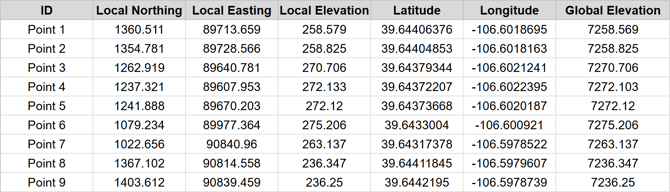
Warning: Failure to use the correct column headers may prevent the calculator from correctly recognizing the coordinate fields.
Upload the CSV file
Once the CSV file has been prepared, upload it to the Site Localization Calculator and specify the required parameters:
- Global Horizontal CRS
- Global Vertical CRS
- Global Vertical Units
- Local CRS Name
- Model Type:
- Compound (default)
- 3D
- 2D
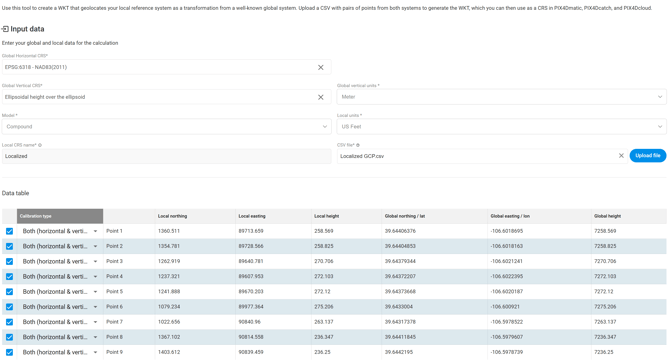
Important: The Site Localization Calculator defaults to the Compound model. Compound coordinate reference systems are recommended over 3D systems because they separate the horizontal and vertical calibrations, resulting in improved stability and cleaner analysis.
Minimum recommended points
PIX4D recommends using a minimum of four points. While the Site Localization Calculator can generate a localization using as few as three points, adding a fourth point produces a more reliable solution and improves error detection. Please note that residuals will not be calculated when only three points are used.
Using more than four well-distributed points can further improve localization accuracy, stability, and outlier detection.
Review the points on the map
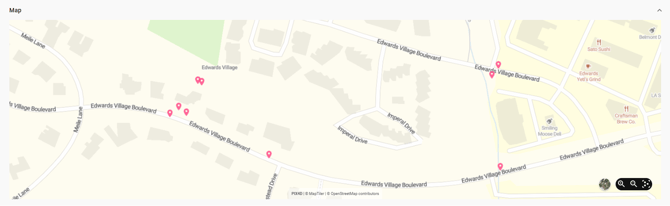
After importing the CSV file and specifying the required parameters, review the points displayed on the map.
Verify that the points appear in the correct geographic location. This step confirms that:
- The correct global coordinate system was selected.
- The coordinate units are correct.
- The global coordinates were interpreted properly.
Incorrect CRS selection or unit mismatches may cause the points to appear in the wrong location.
Once the points have been verified, click Calculate  .
.
Step 3. Review Residuals
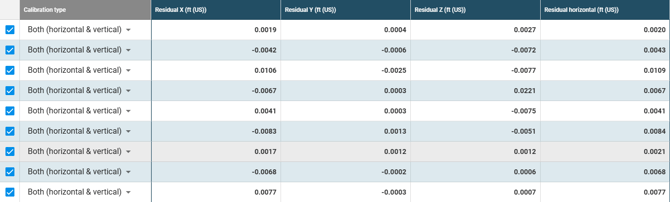
Statistical residuals are the differences between the measured control point coordinates and the coordinates predicted by the site localization transformation.
Residuals indicate how accurately the localized reference frame fits the input control data.
After the localization is calculated, review the residual values for each point. Points with high residual values should be investigated further.
High residuals may indicate:
- Measurement errors.
- Incorrect point coordinates.
- Incorrect CRS selection.
- Incorrect units.
Calibration type options
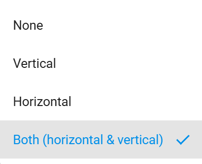
The Calibration Type drop-down menu controls how each point contributes to the localization calculation.
- None: Acts as a checkpoint only and does not influence calibration. Residuals are still calculated along both horizontal and vertical axes.
- Vertical: Influences only the vertical calibration and is excluded from the horizontal calibration. Residuals are calculated along both axes.
- Horizontal: Influences only the horizontal calibration and is excluded from the vertical calibration. Residuals are calculated along both axes.
- Both (Horizontal & Vertical): Contributes to both the horizontal and vertical calibration (default). Residuals are calculated along both axes.
-
Unchecked: Completely excluded from the calculation, and no residuals are computed.
Step 4. Output Data
The generated site localization file is displayed at the bottom of the page in WKT format.
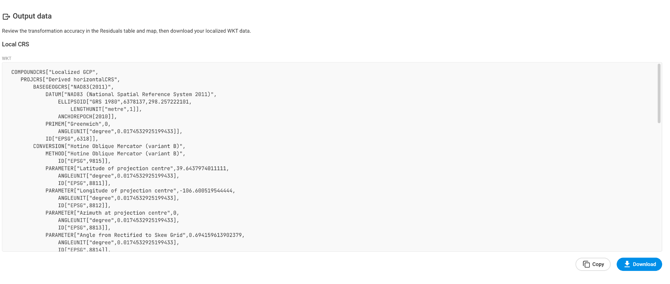
Once the results are validated, the localization file can be exported in the following ways:
- Downloaded as a .wkt

-
Copied to the clipboard

Additionally, a report from the calculation can be exported as a PDF. The report includes all transformation parameters, residuals, and a list of points.
-
Export Site Localization report as PDF

The resulting WKT file can then be imported into: