
IN THIS ARTICLE
Import a .WKT/.CAL file during project upload.
Import a .WKT/.CAL file when creating a Point Collection.
Import a .WKT/.CAL file from Project Settings.
PIX4Dcatch supports the use of custom projected Coordinate Reference Systems (CRS) through Well-Known Text (WKT) and Trimble Site Calibration files format, such as .CAL and .DC obtained from Trimble software. This allows you to work with coordinate systems that are not supported or unavailable in the default CRS catalog in the PIX4Dcatch app.
A WKT file is a plain-text file that defines all parameters of a CRS. PIX4Dcatch supports both WKT1 and WKT2 formats, allowing you to use custom CRS and Site Localization files. To ensure successful import and correct processing in PIX4Dcatch, the WKT file must follow the OGC Well-Known Text for Coordinate Reference Systems standard, define a projected CRS, use only PIX4D-recognized geoid models if included, and avoid invalid combinations such as pairing an EPSG vertical CRS with a custom or constant geoid height.
A .CAL/.DC file is a proprietary site calibration file used primarily by Trimble software (such as Trimble Siteworks, Earthworks, and Business Center) to align field operations with a local grid. Trimble software utilizes CAL files to define the local site localization parameters, allowing field rovers, surveyors, and machine control systems to operate seamlessly within a project's local coordinate system.
PIX4D also provides a Site localization calculator through your PIX4D account. This tool can create Site Localization files in WKT format, compatible with PIX4Dcatch, PIX4Dmatic, PIX4Dcloud, and third-party applications. For more information, see the article about Site localization calculator.
Import a .WKT/.CAL file during Project Upload.
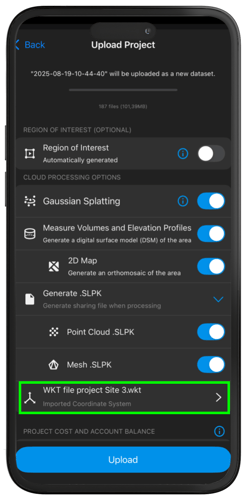
You can import a WKT/CAL file while uploading a project to PIX4Dcloud. In this case, the coordinate system defined in the WKT file is used as the output CRS for processing. All generated results are in this custom coordinate system specified by the WKT/CAL file.
To use the .WKT/.CAL when uploading to PIX4Dcloud, follow these steps:
-
Tap the Upload
 icon to upload the project to the PIX4Dcloud.
 -
In the Cloud Processing Options screen, tap Output coordinate reference system.
-
Tap Import Coordinate System.
-
Tap Import file and select the desired .wkt, .txt, .csv, .cal, or .dc format.
- Tap Select. If the import is successful, the file name will display under the Imported Coordinate System.
Import a .WKT/.CAL file when creating a Point Collection
You can also import a custom coordinate system file when creating a Point Collection to ensure control points (GCPs, checkpoints, or MTPs) are recorded in a custom coordinate system.
To import a .WKT/.CAL file when creating a new point collection, follow these steps:
- Tap the Survey icon located in the lower-right corner.

- Tap + New to create a new point collection.
- Enter a name for the Point Collection.
- Select Import Coordinate System.
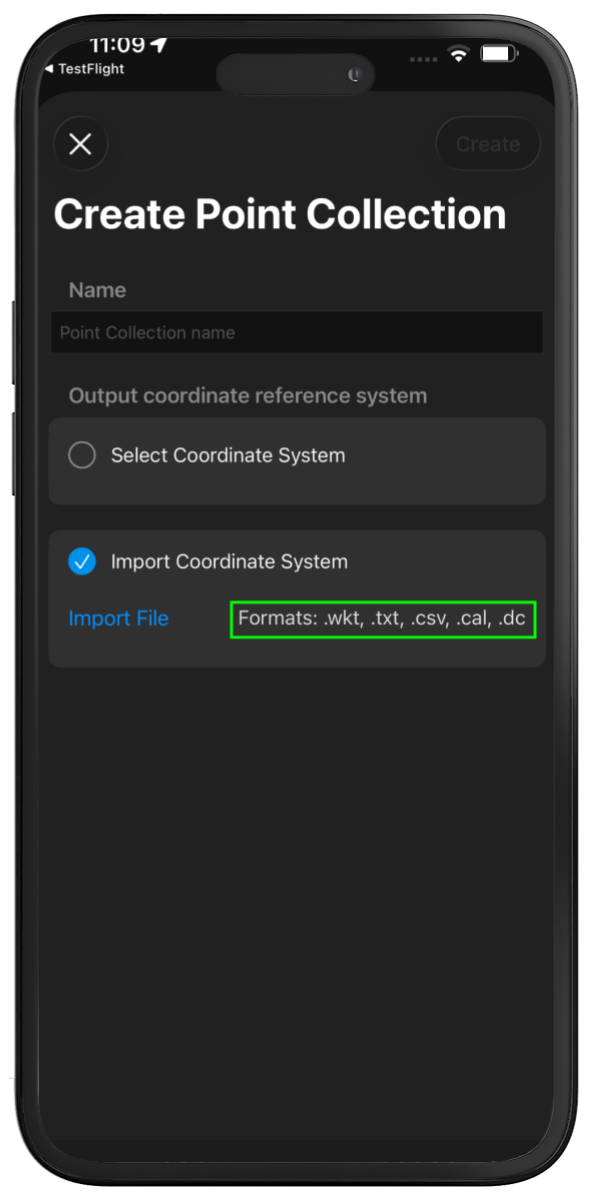
- Tap Import file and select the desired .wkt, .txt, .csv, .cal, or .dc format. The file name will appear under Import Coordinate System.
- Tap Create.
Note: The selected WKT file is saved and suggested by default for future Point Collections unless it is removed or changed.
Import a .WKT/.CAL file using the Project Settings
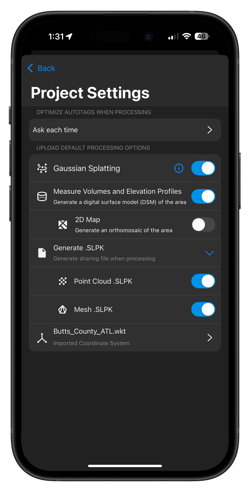
The custom output CRS can also be set in PIX4Dcatch through Project Settings. When you import a custom coordinate file, the coordinate system it defines becomes the default output CRS for all future projects. New point collections and projects will automatically use this coordinate system unless you manually select a different output CRS.
To use the custom coordinate system file in the project settings, follow these steps:
- Tap the User icon located on the lower right corner of the main screen.
- Under Settings, tap on Project Settings.
- Tap on Output coordinate reference system.
- Tap Import Coordinate System.
- Tap Import file and select the desired .wkt, .txt, .csv, .cal, or .dc format.
-
Tap Select. The file name will appear under Imported Coordinate System.
Note: The selected custom CRS is used as the default for future projects and Point Collections unless modified.