Capture settings
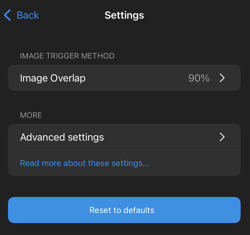
To access the advanced settings:
- Go to the main menu and select Capture Settings
- Tap in the More section and select Advanced settings
A Reset to defaults button is available to restore all settings to their original values.
Note: For information about the basic settings, please refer to the App Overview - PIX4Dcatch
Advanced settings
Settings vary depending on whether the device is an iPhone/iPad or an Android device. Upon accessing the Advanced Settings, the controls are structured into several distinct sections. Each section can be activated or deactivated using the corresponding toggle:
- Capture Quality
- RTK
- View
- Mesh
- Other
Available settings vary based on the device, whether iOS (iPhone/iPad) or Android.
-3.png?width=250&height=500&name=Plantilla%20Iphone%20(23)-3.png)
iOS Advanced Settings
Capture Quality
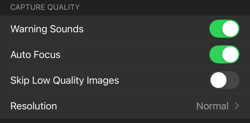
- Warning Sounds: Receive audible warnings during capture.
- Auto Focus: Sets the camera settings to autofocus.
- Skip Low Quality Images: Prevents image capture when excessive device movement is detected. A warning appears on-screen when triggered.
- Resolution: Defines the resolution of the captured images. Higher resolutions require more processing time and storage.
- Normal: Lower than 4k*.
- 4K: Approx. 4K*.
- Maximum Resolution: above 4k*.
* Actual values depend on the device model. Refer to Apple’s device specifications for details.
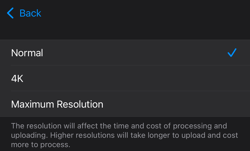
Note: High-resolution capture is available on iPhone 11 and later and iPad Pro (5th generation and later).
RTK
- Shows accuracy color overlay: Displays a color-coded accuracy gradient at the top of the capture view when connected to an RTK device.

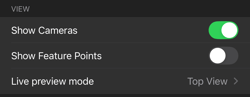
View
- Show Cameras: Display the camera indicator (image pyramid) for each captured photo.
- Show Feature Points: Display the feature points as detected by the device. A greater density of feature points generally improves reconstruction accuracy.
- Live preview mode: Controls how the real-time preview is displayed.
- First-person view: The view from the camera viewpoint.
- Top View: The view from above.
Mesh
- Save Mesh: Save the Mesh OBJ file for export.
- Enable Mesh: Generates a Mesh from LiDAR depth data. Available only for devices with LiDAR.
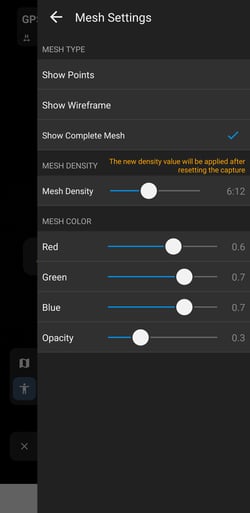
- Mesh Settings: Set the mesh type and mesh colors.
- Mesh type: Display the mesh or cameras as wireframes.
- Mesh Color: Adjust mesh and/or camera indicator colors using a 0–1 value scale.
- Mesh background: Adjust background opacity.
-Jan-07-2026-11-56-01-1018-AM.png?width=250&height=500&name=Plantilla%20Iphone%20(22)-Jan-07-2026-11-56-01-1018-AM.png)
Other
- Save Video: Saves a video recording of the capture session.
- Enable Pause Button: Enables the pause button during the capture.
Android Advanced Settings
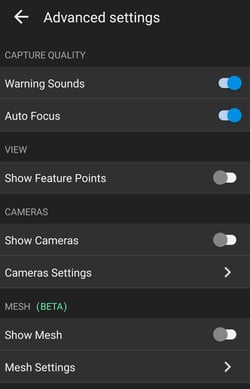
Capture Quality
- Warning Sounds: Receive audible warnings during capture.
- Auto Focus: Sets the camera settings to autofocus.
View
- Show Features Points: Display the feature points as detected by the device. A greater density of feature points generally improves reconstruction accuracy.
Cameras
- Show Cameras: Display the camera indicator (image pyramid) for each captured photo.
- Camera Settings: Allows adjustment of camera indicator colors.
Mesh
- Show Mesh: Displays the mesh in the viewer.
- Mesh Settings: Set the mesh type, density, and mesh colors.
- Mesh type: Display the mesh or cameras as wireframes.
- Mesh density: Adjust the density.
- Mesh color: Adjust mesh and/or camera indicator colors using the 0–1 value scale.