
The Roof detection tool in PIX4Dmatic allows for the automatic detection of roof surfaces and creates a polygon for every selected roof element. The algorithm uses the slope information and creates a planar polygon for every roof element selected. The color of the point cloud is not taken into account.
IN THIS ARTICLE
Definitions
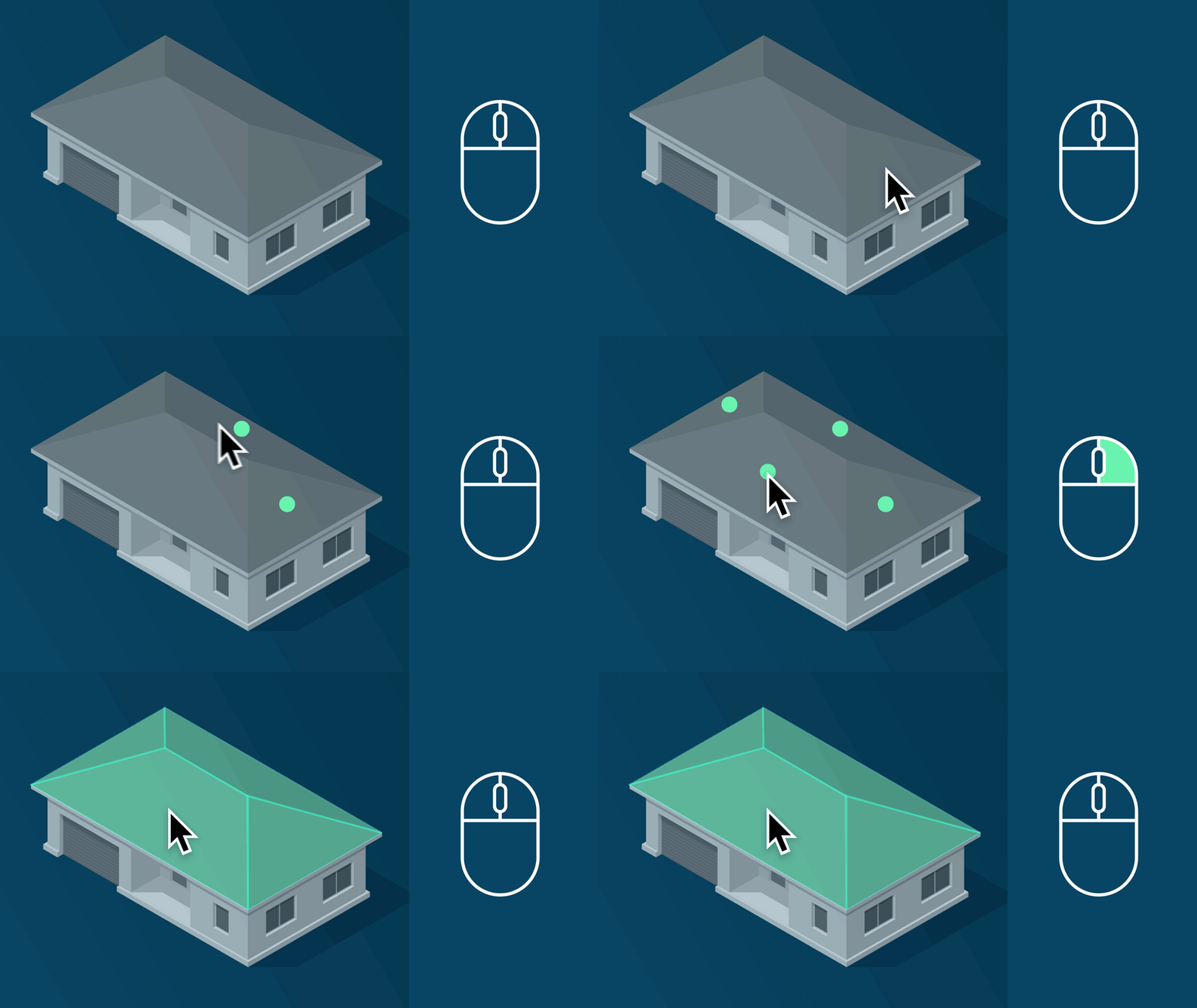
How to use the roof detection tool
How to measure the roof polygons
Modify the roof polygons
Definitions
| Roof element | Seed points | Roof polygon |
|
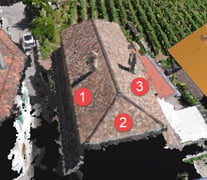
A roof element is part of a roof that can be described with a single plane. The image below shows three different roof elements. |
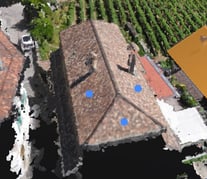
This point serves as a guide to tell PIX4Dsurvey where to start growing a polygon. The image below shows three seeds, one for each roof element. Every roof element must have at least one seed. |
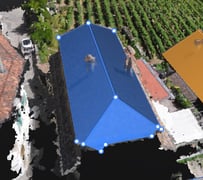
For each seed, a planar roof polygon is created. If two seeds grow into the same polygon, this will become a single polygon. The image below shows the three created roof polygons, one for each roof element. |
 |
 |
 |
How to use the roof detection tool
- Open a project in PIX4Dmatic.
- (Optional) Go to the Layers tab in the Content sidebar and select a layer.
- The created polygons will be added to the selected layer.
- If no layer is selected (or a locked or invisible layer is selected), a new layer is created.
- Select the Roof detection tool
 from the toolbar.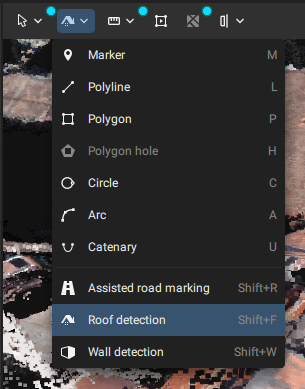
- Click the left mouse button on all roof elements in order to create the seed points. One roof element can have more than one seed.
- Right-click or Enter key to start the creation of the roof polygons.
- You can track the progress in the status center.
- If no roof is detected around a seed point, no roof polygon will be created around that seed.
- When possible, create seed points in a flat and non-noisy area
- Avoid placing seed points very close to the rooftop/plane edges
- Sometimes multiple seed points need to be selected for a single roof element/plane, especially for very large planes and for planes with obstacles in between (other planes, such as a dormer roof, can also be seen as obstacles).
- When in doubt, select an extra seed point, and the algorithm will still merge them into a single plane when possible.
Properties of the roof polygons
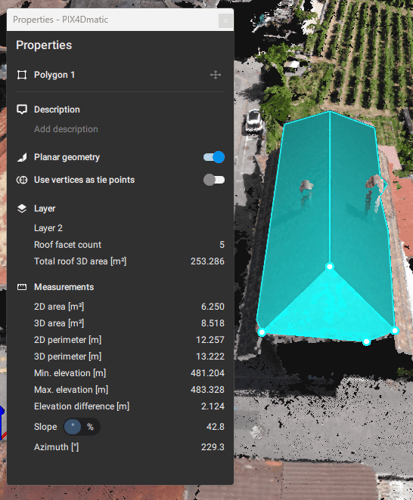
The roof detection generates a polygons to represent the roof. The propiertes of these polygons are the following:
The following measurements will appear in the bottom part of the content sidebar on the left side of the PIX4Dsurvey window.
- 2D area [m2, ft2]: The area of the polygon.
- 3D area [m2, ft2]: The 3D area of the polygon.
- 2D perimeter [m, ft]: The perimeter of the polygon calculated using projected distances.
- 3D perimeter [m, ft]: The perimeter of the polygon calculated using 3D distances.
- Min elevation [m, ft]: The minimum elevation of the polygon.
- Max elevation [m, ft]: The maximum elevation of the polygon.
- Elevation difference [m, ft]: The difference between the highest and the lowest point of the polygon.
In addition to all measurements shown for all polygons, the following measurements will appear in the bottom part (only for roof polygons detected with the roof detection tool).
Modify the roof polygons
Sometimes, the roof polygons need to be slightly corrected. In these cases, it is possible to follow the standard procedure for geometry editing, as explained in the article Editing geometry in the 3D view.