
Licenses: This article is only valid for PIX4Dcloud Pro licenses.
Roles: Only Owners, Managers, Editors, and Readers can view the GCPs layer in a dataset in PIX4Dcloud.
Accessing the GCPs Layer
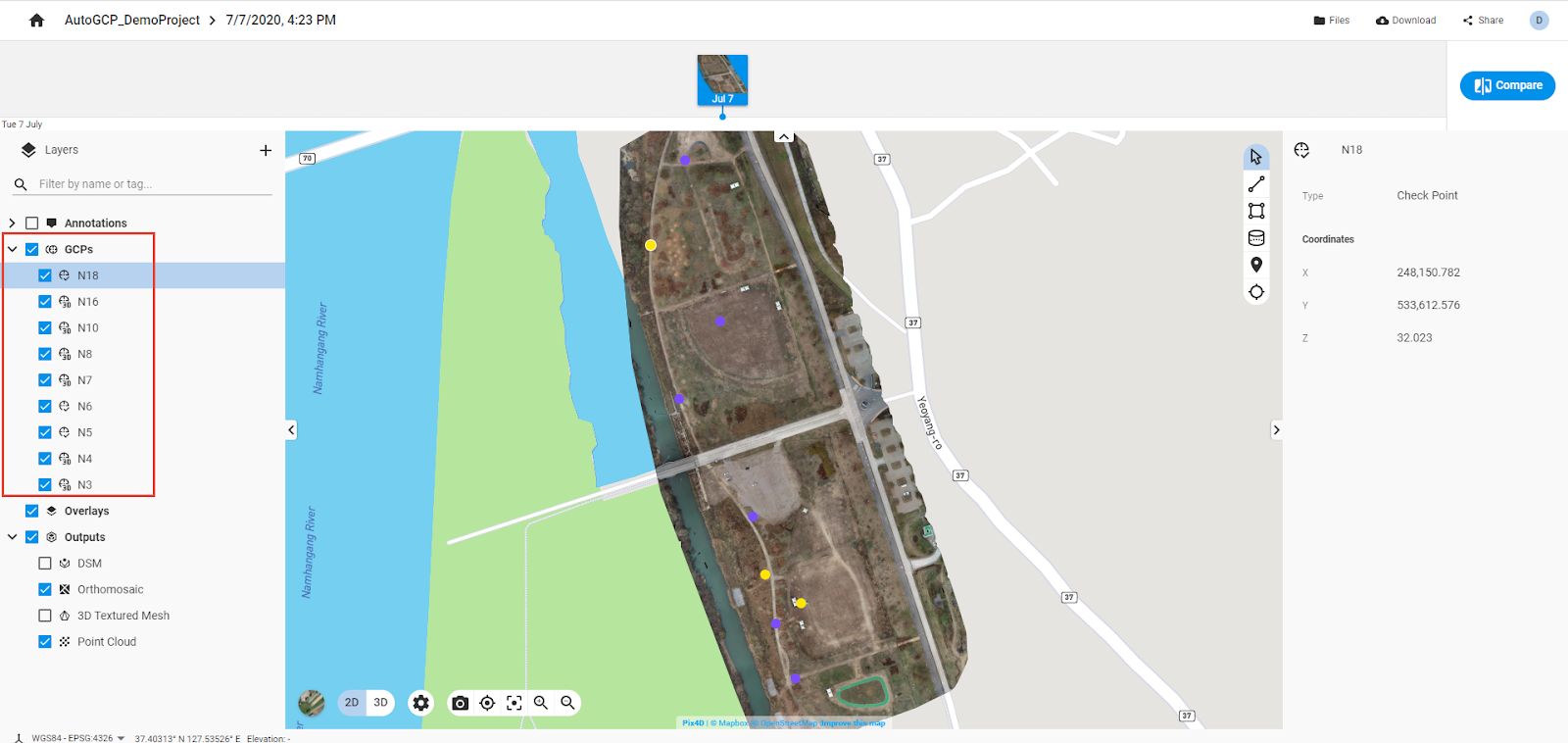
The GCPs layer is available only for PIX4Dcloud Pro projects where Ground Control Points have been detected using the AutoGCPs detection functionality.
To access the layer:
-
Open the dataset in the 2D or 3D view.
-
In the left panel, expand Layers.
-
The GCPs layer appears in the list when AutoGCPs detection has successfully identified control points.
Content of the GCPs Layer
The GCPs layer includes the following elements:
-
Ground Control Points (GCPs):
Points detected and marked by the AutoGCPs functionality. These are displayed in purple.
-
Check Points:
Points detected and marked by the AutoGCPs functionality for independent accuracy validation. These are displayed in yellow.
Warnings and Notes
Warning:
-
If the AutoGCPs detection fails and no points are found, the GCPs layer is not displayed.
-
If AutoGCPs detection does not identify all control points specified by the user, the GCPs layer is still displayed with the detected points only. For more details, see Detection of the GCPs failed.
Note: When a project is shared, the GCPs layer—if present—remains visible through the shared URL, allowing viewers to assess GCP and Check Point placement.