
IN THIS ARTICLE
Where are my datasets processed and stored
Processing clusters available in PIX4Dcloud
Why choose a specific cluster location
How to change the cluster location preference
Licenses: This article is valid for PIX4Dcloud Starter and PIX4Dcloud Pro licenses (formerly PIX4Dcloud Advanced).
Roles: Only Owners, Managers, and Editors can create and process datasets in PIX4Dcloud.
Where are my datasets processed and stored
When a PIX4D organization is created, a processing and storage cluster must be selected. This cluster defines where datasets processed in PIX4Dcloud are computed and stored.
For desktop software such as PIX4Dmatic and mobile applications such as PIX4Dcatch, data is stored locally by default. Data is only processed or stored in PIX4Dcloud when projects are uploaded using Processing in PIX4Dcloud or Share to Cloud.
In PIX4Dcloud, both data processing and storage are determined by the cluster selected for the organization.
Processing clusters available in PIX4Dcloud
By default, datasets are processed in the United States cluster.
- Europe: Germany cluster (default for all European countries)
- United Kingdon: UK cluster
- Switzerland: Switzerland cluster
- Australia: Australia cluster
- Canada: Canada cluster
- Brazil: Brazil cluster
- Asia:
- Korea: Korea cluster
- Japan: Japan cluster
- Singapore: Singapore cluster
A different cluster can be selected manually if required.
Why choose a specific cluster location
Selecting a specific processing cluster may be important for the following reasons:
-
Regulatory compliance
Some regions require data to be processed and stored within specific geographic boundaries. -
Data access and visualization performance
While cluster location does not affect processing quality, selecting a geographically closer cluster can improve data access and visualization performance (for example, faster loading of point cloud tiles).
How to change the cluster location preference
To change the cluster preference:
- Go to the PIX4Dcloud page.
- Log in with the PIX4D account credentials.
- Under Your organizations, click Dashboard under the desired organization.
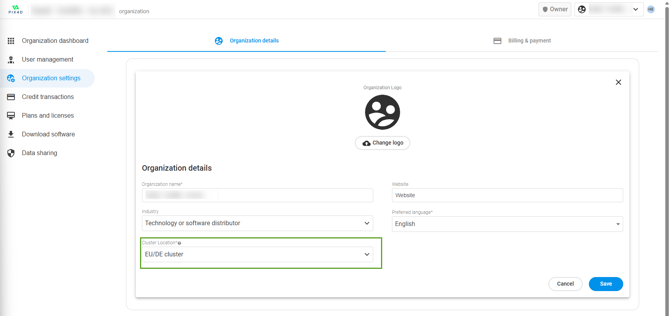
- Click Organization settings > Organization details.
- From the drop-down menu under Cluster Location, choose the preferred cluster location. Options are:
- Canada cluster
- Japan cluster
- Korea cluster
- US cluster
- Germany cluster
- Switzerland cluster **
- Brazil cluster
- UK cluster
- Australia cluster
- Singapore cluster
- Click Save.
Warning: The support for the Switzerland cluster is available in the following product versions:
-
PIX4Dcloud
-
PIX4Dmatic 2.0.1
-
PIX4Dcatch 2.20.1
-
PIX4Dfields 2.12.1
PIX4Dmapper and PIX4Dreact do not support the Switzerland cluster.
Important notes
-
Changing the cluster location does not move existing projects. Only datasets created after the change are processed and stored in the newly selected cluster.
-
Project metadata (such as project name, creation date, and filenames) is currently stored in the United States, regardless of the selected cluster.
For more information, see the PIX4D sub-processors list.