
Licenses: This article is valid for all PIX4Dcloud licenses. Features available exclusively with PIX4Dcloud Pro are indicated where applicable.
Roles: Only Owners and Managers can enable the share link in a dataset in PIX4Dcloud
Overview of sharing in PIX4Dcloud
PIX4Dcloud allows datasets and results to be shared with customers and collaborators through URLs generated directly from the dataset viewer.
Collaborators accessing a shared LINK or EMBED URL do not need a PIX4Dcloud account. Depending on the sharing method and permission level, they can visualize results, perform measurements, analyze data, or save supported annotations.
Sharing can be enabled or disabled at any time. When a share link is disabled, access through that link is immediately revoked.
Share link permissions and user roles
Permissions assigned to a share link determine what collaborators can do when they access a dataset through that specific link. These permissions are separate from the user's PIX4Dcloud Organization role or resource role.
For example, a user may have an Editor role in PIX4Dcloud, but when accessing a dataset through a LINK URL, their available actions are limited to the permissions provided by that share link.
Similarly, access to a shared link does not grant access to the full dataset management functionality available in PIX4Dcloud.
To perform actions such as downloading outputs, managing datasets, uploading images, or processing data, collaborators must access the dataset directly in PIX4Dcloud and have the appropriate permissions.
Sharing a dataset
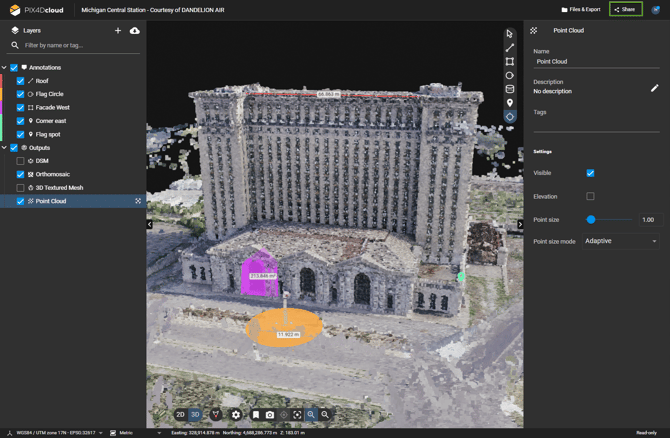
To share a dataset:
-
Open the dataset to be shared.
-
Select Share in the top-right corner of the viewer.
-
Choose one of the available tabs:
-
Enable the required sharing option.
- Copy the generated URL or embed cod
Share LINK URLs
LINK URLs provide access to the dataset through an interactive web browser view.
Depending on the selected permission level, collaborators can visualize results, perform measurements, analyze data, and create or save supported annotations.
Two LINK URLs can be generated for each dataset:
- View and measure only
- Edit and save
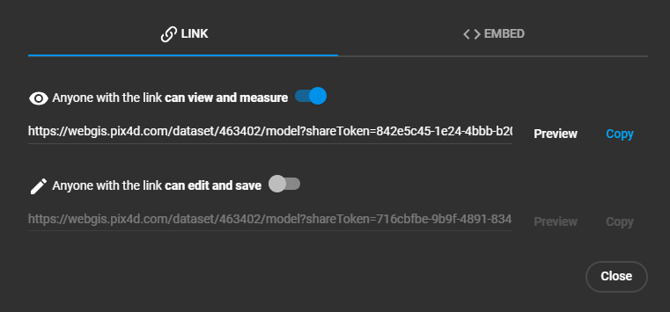
Content available through LINK URLs
When accessing a dataset through a LINK URL, collaborators can view:
- 2D and 3D results.
- Existing annotations.
- Measurement and analysis tools, depending on the permission level.
- Elevation profiles.
If default 2D or 3D views are defined for the dataset, these views are preserved when the dataset is opened through a share link.
View and measure only
The View and measure only LINK URL is intended for collaborators who need to visualize and analyze results without saving changes to the dataset.
Collaborators can:
- Open the dataset without logging in.
- View 2D and 3D results.
- Create temporary measurements and annotations.
- Modify supported layer visualization settings, such as visibility, opacity, and background color.
Changes made through this link are temporary and are discarded when the page is refreshed.
This option is recommended when customers or collaborators only need to review, visualize, and analyze project results.
Edit and save
The Edit and save LINK URL allows collaborators to make and save supported changes while accessing the dataset through the shared link.
Collaborators can:
- Open the dataset without logging in.
- View and analyze data using available 2D and 3D tools.
- Create and edit supported annotations and measurements.
- Modify supported layer visualization settings.
- Save supported annotations, measurements, and visualization changes.
Saved changes remain available after the page is refreshed.
Note: Edit and save does not provide full dataset editing or management access. It allows collaborators to save supported annotations, measurements, and visualization changes, but it does not provide access to dataset management, image or file upload, processing, or downloading and exporting outputs.
LINK URL limitations
A LINK URL is designed for sharing and interacting with existing results. It does not provide full access to the dataset in PIX4Dcloud.
When accessing a dataset through a LINK URL, collaborators can:
| Action | View and measure only | Edit and save |
| View and analyze results | YES | YES |
| Create measurements and annotations | Temporary only | YES |
| Save supported measurements and annotations | NO | YES |
| Save visualization changes | NO | YES |
| Upload images or files | NO | NO |
| Process or reprocess a dataset | NO | NO |
| Manage dataset settings or processing options | NO | NO |
| Download input images | NO | NO |
| Download outputs or export files | NO | NO |
| Generate or download PDF annotation reports | NO | NO |
| Add screenshots to PDF reports | NO | NO |
| Attach images to markers | NO | NO |
To upload data, process datasets, manage dataset settings, or download outputs, the collaborator must access the dataset directly in PIX4Dcloud with the appropriate Organization and resource permissions (Owners, Managers, or Editors).
Sharing datasets in a Site with PIX4Dcloud Pro
With PIX4Dcloud Pro, datasets can belong to a Site, allowing multiple datasets from the same location or project to be organized together.
When a shared dataset belongs to a Site, accessing the shared dataset can provide access to the Site and its datasets through the sharing workflow.
Collaborators can:
- Open datasets available within the shared Site.
- Navigate between datasets in the Site.
- Use available comparison functionality to compare datasets over time.
- Open shared Compare mode views, when available.
Important: Site access through a share link is intended for viewing and analyzing the shared Site and its datasets. It does not provide the collaborator with full PIX4Dcloud management access or permissions to manage the Site, upload datasets, process data, or download outputs.
This workflow is particularly useful when sharing progress over time with customers, such as construction monitoring, inspections, or repeated surveys of the same location.
Customer-facing sharing options
Use the following options depending on what the customer or collaborator needs to do:
| Goal | Recommended option |
| Allow customers to view and analyze project results | LINK – View and measure only |
| Allow customers to create and save supported measurements and annotations | LINK – Edit and save |
| Display PIX4Dcloud results on an external website | EMBED |
| Allow customers to compare datasets within a Site | Access the dataset directly through a PIX4Dcloud Pro Site sharing, when available |
| Allow customers to download outputs | Access the dataset directly in PIX4Dcloud with the required permissions |
| Allow collaborators to upload images or other files | Access PIX4Dcloud directly with the required permissions |
| Allow collaborators to manage or process datasets | Access PIX4Dcloud directly with the required permissions |
Embed URLs
EMBED URLs allow PIX4Dcloud results to be displayed on external websites.
The HTML code can be copied from the EMBED tab and added to a supported external website.
Behavior of EMBED URLs
When using an EMBED URL:
- Results are available for visualization only.
- Measurements and analysis tools are not available.
- Annotations are not displayed.
- Orthomosaics and 3D models can be viewed interactively.
The embedded content is served from a cache with a duration of 24 hours.
EMBED URLs are recommended when the goal is to display PIX4Dcloud results to website visitors without providing interactive analysis, annotation, or dataset access.
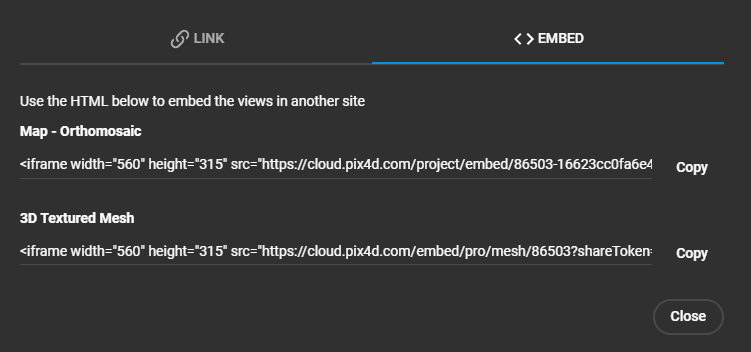
The final results on the external website are the following.
From top to bottom: Embedded orthomosaic and Embedded 3D view.
Warning: If a dataset cannot be shared, check that:
- The user's PIX4Dcloud role allows the share link to be enabled or disabled.
- The share link is active.
- Access to the link has not been revoked.
- The PIX4Dcloud license is active and supports the required sharing functionality.