
Licenses: This article is only valid for PIX4Dcloud Pro licenses (formerly PIX4Dcloud Advanced).
Roles: Only Owners, Managers, and Editors can compare volumes in a dataset in PIX4Dcloud.
Video: The following video tutorial explains step-by-step how to compare two volumes in PIX4Dcloud Advanced.
Comparing Volumes Across Datasets
Warning:
-
The Volume Comparison tool works only if:
-
A DSM is available for all selected datasets.
-
All selected datasets use the same coordinate system.
-
-
Volume comparison is not available from shared links.
To compare volumes:
-
In the 2D or 3D view, select the Volume tool (
 ) and either:
-
Create a new volume, or
-
Select an existing volume.
Tip: For more details on volume creation, see
How to calculate volumes on PIX4Dcloud. -
-
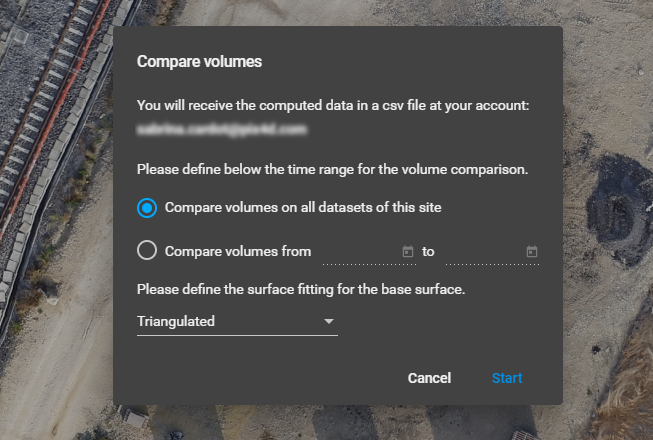
In the right panel, click Compare volumes.
-
Select the comparison scope:
-
All datasets in the Site, or
-
A specific time window within the Site.
-
-
Define how the base surface elevation is computed:
-
By default, the triangulation method is used.
-
Alternative methods can be selected depending on the use case.
For guidance on choosing the appropriate base surface, see:
Which Base Surface is recommended for the Volume Calculation? -
-
Click Start to launch the computation.
Results
-
The volume comparison results are calculated automatically.
-
A CSV file containing quantified volume changes over time is generated.
-
The results are sent by email to the person who request the comparison.
Notes and Limitations
-
All datasets included in the comparison must belong to the same Site.
-
The feature requires consistent georeferencing across datasets.
-
Volume comparison cannot be accessed through shared project links.