
IN THIS ARTICLE
Introduction
Exporting boundary mission
Exporting Variable Rate Application (VRA) format
Reducing the total flying area
Import the map into DJI Agras controller
Troubleshooting
Introduction
The DJI Agras T-series supports different file types and prescription maps, depending on the mission type and the specific Agras model.
When exporting Targeted Operations to the DJI Agras T-series, there are two available formats:
- Go to Export, Operations.
- Select the Operation to be exported.
- Select DJI Agras (T-series)
- DJI Boundary Mission: it is useful for exporting a field's boundaries or in specific cases where spot spraying is feasible.
- DJI VRA Format: suitable for most applications, it allows exporting a Variable Rate Application (VRA) map.
Warning: "There are no rates assigned to any cell":
- A rate must be specified when exporting as a Boundary mission.
- Adding a rate is optional when exporting in VRA format.
Exporting DJI boundary mission
Exporting boundaries is useful for determining the area extent of a mission and applying a fixed rate to it.
- All Agras drones are compatible with this export format. DJI AGRAS T10, T20, T30, T40, T50 and T100.
- If this option is unavailable in PIX4Dfields, exporting it as a DJI VRA mission might be the best solution. For more information: Disabled DJI Agras boundary mission - PIX4Dfields
Each boundary exported will result in a single flight mission on the remote controller.
- Exporting field boundaries: please follow How to Export Boundaries for DJI Agras T-Series in PIX4Dfields.
- Spot spraying (limited): When application areas are large and distinct, spot spraying is also possible with this export format.
- In this case, the application map is ready using the Targeted Operation feature.
Flying over the violet zone requires applying 10 liters of growth regulator.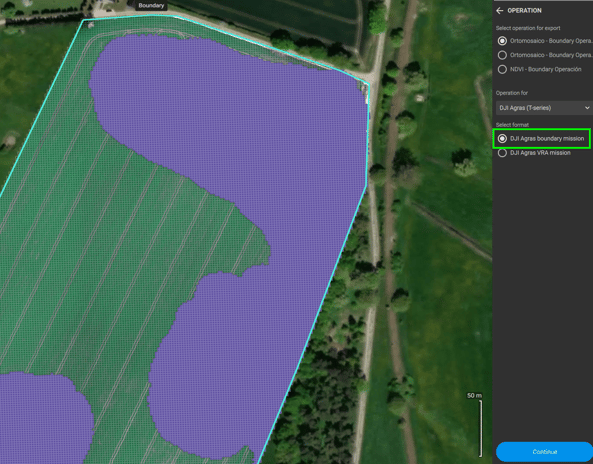
- Exporting produces one folder called DJI with a shapefile inside. Each area in the prescription map is differentiated when imported into the remote controller:
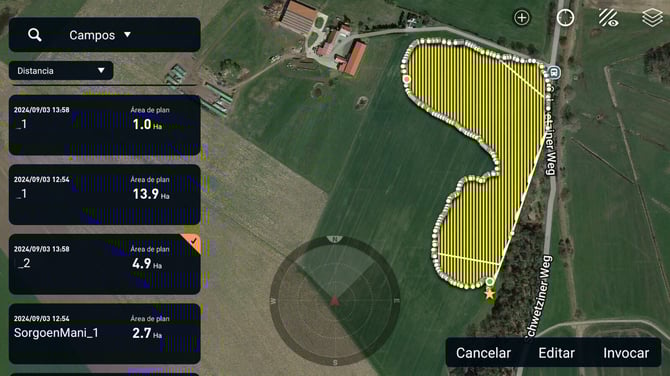
- In this case, the application map is ready using the Targeted Operation feature.
When should I use the Boundary mission?
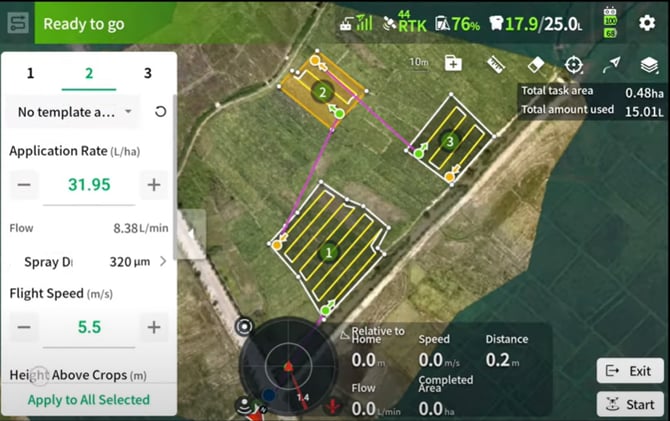
Boundary missions are helpful when one rate is applied, or when there are very distinct areas (more than ~3 hectares) that can be exported as boundaries. On the newer models, Boundary missions also enable Multitask operations.
Multitask operations
Newer Agras models can import a shapefile containing multiple polygons and fly them consecutively in a single mission. This was introduced on the T25/T50 and is also supported by the current generation (T100, T70P, T25P, T55, T100 Dual Battery).
Exporting Variable Rate Application (VRA) format
VRA is supported on the T20, T30, T40, T50, T70P, T100, T25P, T55 and T100 Dual Battery
In the example below, a weed-application map was created after detecting Sorghum infestation in peanuts using the Magic Tool and the Targeted Operation feature.
- 15 ha total boundary flown, ~0.96 ha actually sprayed.
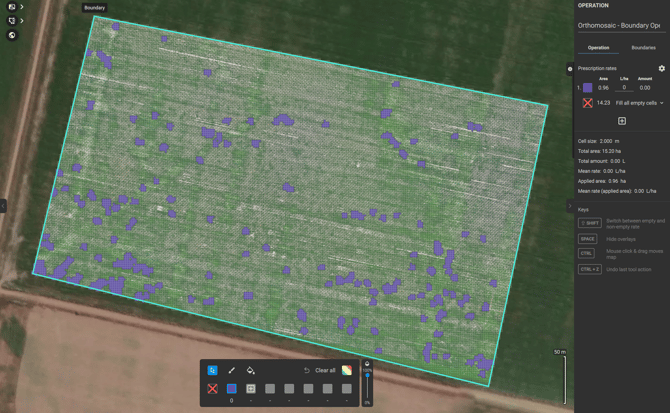
Set the proper rate to be applied, editing rates on the remote controller is not possible. Then export:
- Go to Export › Operations.
- Select the Operation to export.
- Select DJI Agras (T-series) › DJI VRA mission.
- Set the Flight height and the Spraying width.
- It exports a DJI folder with two sub-folders:
-
- Shapefile — the boundary of the mission.
- Rx — a .tiff file with the different rates per zone.
- Copy the exported map to the card and Import the map into DJI Agras controller
Reducing the total flying area
Before exporting, you can manually create a new, tighter boundary to reduce flying over non-application zones.- Click on the Operation layer on the left.
- Click on the Boundary icon.
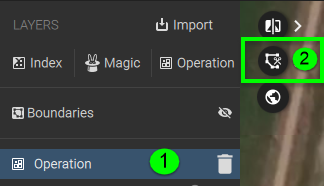
- Draw the new boundary, reducing the extent.
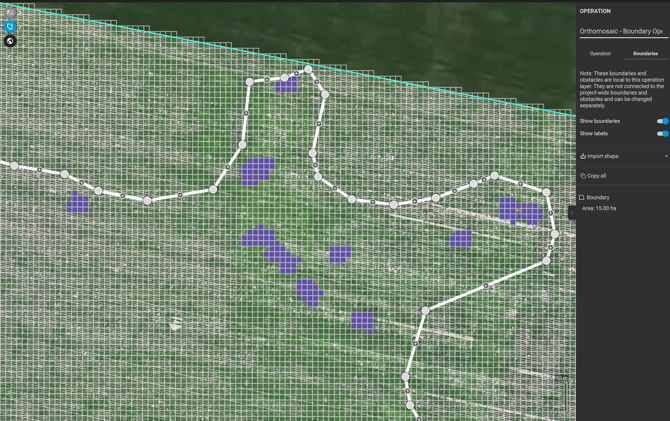
- Click on the previous Boundary and delete it
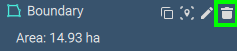 .
. - The total area was reduced by 20%, from 15 to 12 hectares.
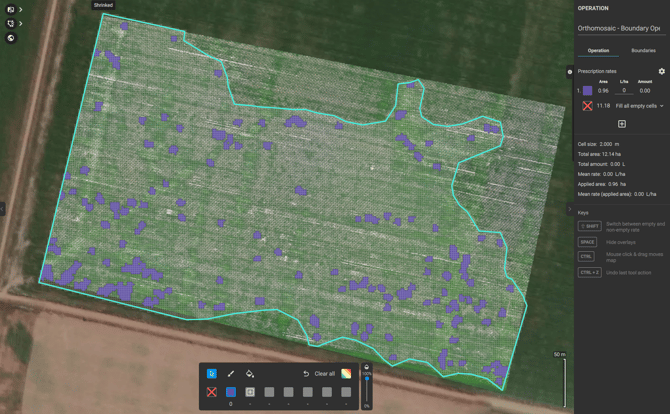
- Creating multiple boundaries is also useful — each becomes a separate flight when planning on the controller.
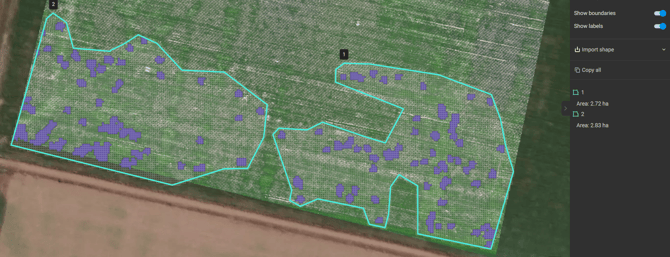
- VRA map imported into Agras remote controller. Each boundary becomes a flight plan:
.jpeg?width=475&height=267&name=WhatsApp%20Image%202024-09-03%20at%2013.40.56%20(1).jpeg)
.jpeg?width=479&height=269&name=WhatsApp%20Image%202024-09-03%20at%2013.40.56%20(2).jpeg)
When should I use the Variable rate missions?
- Use VRA when multiple rates are applied, or for complex spot spraying missions.
- The downside is that the boundary might need to be edited, to reduce flying over areas with rate 0.
Import map into DJI Agras controller
After exporting the desired format from PIX4Dfields:
- Copy the files into the SD card. Do not change the folder names.
- Insert it into the DJI controller. Then, power on the controller.
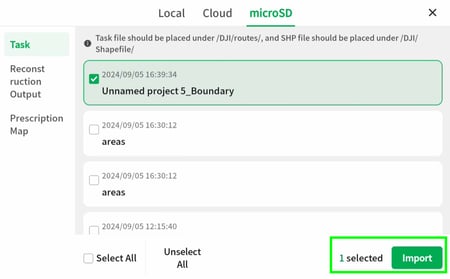
- Click on the SD Card icon, and choose microSD.
- Select the proper boundary under Task, and click Import:
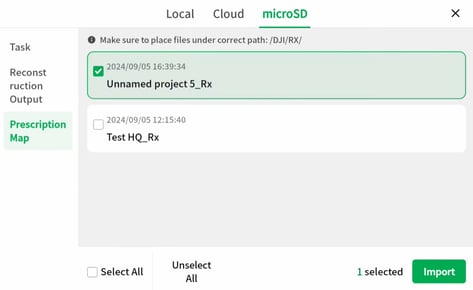
- For a VRA application, click Prescription Map and select the file.
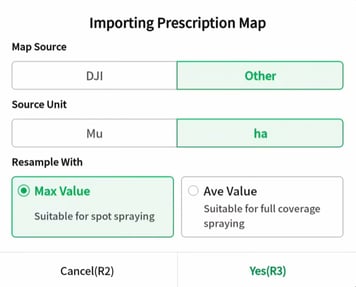
- The Importing Prescription Map menu will appear:
-
- Select Map Source: Other.
- Select the Source unit: ha, no matter the units being used.
- Set the Resample option:
- Max Value: this will apply the max rate when the drone passes over two cells.
- Average Value: this will apply the average rate when the drone passes over two cells.
Assigning the prescription to the field
Once the Boundary and Prescription are imported, the VRA must be assigned to the field.
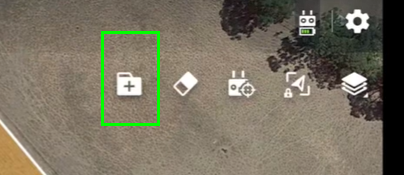
- Access the boundary field and click the + folder to assign the Prescription.
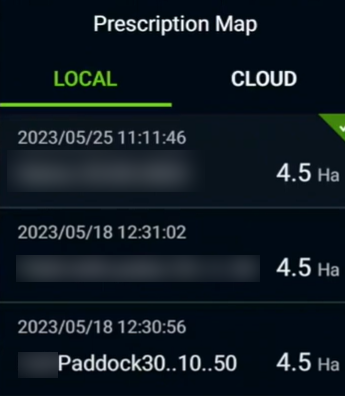
- Select the Prescription from the menu.
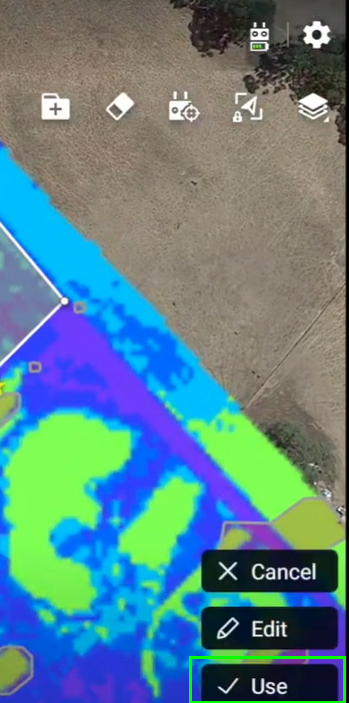
- Click Use
Set desired flight parameters, load the product, and fly.
Safe flights!
Troubleshooting
What if the rates and total volume are not correctly displayed in the controller?
If the rates or total volume are not correctly displayed after importing the prescription: