
Licenses: This article is valid for all PIX4Dcloud licenses.
Roles: Only Owners, Managers and Editor can modify the information inside a dataset.
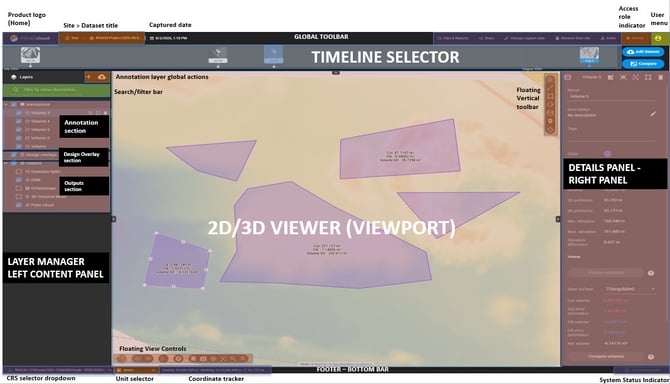
The Editor viewer is structured into the following main areas:
Global Toolbar
The Global toolbar provides access to general dataset and account settings.
- Product logo (Home): Click to exit the Editor viewer and return to the root Drive.
- Captured date: By default, PIX4Dcloud displays the dataset capture date detected from the image metadata. To modify the date, click the date, select a new date, and click Save. Changing the dataset date also shifts its position in the Timeline.
- Access role indicator: Displays the user's role and permissions for the dataset. For more information, see Organization management.
- User menu: Provides access to information about the current license plan, the user's email address, language and theme preferences, the online store, product updates and release notes, and the option to log out.
Timeline selector (PIX4Dcloud Pro and above license only)
The Timeline provides a visual representation of the datasets available for a site over time. It allows users to switch between datasets captured on different dates and analyze site progress.
For more information, see Timeline - PIX4Dcloud Pro.
Layer Manager
The Layer Manager organizes and provides access to the different layers and elements available in a dataset.
It includes:
- Annotations: Annotations created using the vertical toolbar or imported by the user.
- Design Overlays: Design plans or reference files displayed over the map or orthomosaic. They allow users to compare the planned design (as-designed) with the captured reality (as-built).
- Outputs: Outputs generated during dataset processing or manually uploaded by the user.
For more information, see:
- Export/import an annotation in PIX4Dcloud
- Design Overlay (2D/3D) - PIX4Dcloud Pro
- Outputs - PIX4Dcloud
Details Panel
The Details panel displays information and available actions for annotations created in the 2D/3D viewer.
For more information, see Details panel in PIX4Dcloud.
2D/3D viewer
The 2D/3D viewer displays the outputs generated during dataset processing and outputs manually uploaded by the user.
The viewer also provides access to the Vertical toolbar, which allows users to:
- Create and edit annotations.
- Perform measurements and inspections.
- Access tools for interacting with the dataset.
- Control how the dataset is displayed in 2D and 3D using the View Controls.
For more information, see 2D/3D viewer and tools in PIX4Dcloud.
Bottom bar
The Bottom bar provides information and controls related to the dataset view, coordinate system, units, access permissions, and annotation synchronization.
Coordinate system switcher
The Coordinate system switcher allows users to change how coordinates are displayed in the viewer between the Project CRS and WGS84.
- Horizontal coordinates (X, Y / Latitude, Longitude): When WGS84 is selected, horizontal coordinates are displayed as latitude and longitude in decimal degrees instead of the project grid coordinates.
- Vertical coordinate (Z): The elevation value remains unchanged when switching between coordinate systems.
Units switcher
The Units switcher allows users to select the measurement units used in the viewer:
- Metric
- Imperial
- US Imperial
Dataset status and permissions
The status area provides information about dataset access permissions and annotation synchronization.
- Access permissions: Indicates the permissions granted through the share link used to access the dataset. For example, a dataset can be accessed in Read-only mode, which prevents permanent changes.
- Annotation synchronization: Indicates the current saving status of annotations:
- Saving: Changes are being synchronized with PIX4Dcloud.
- All changes saved: All recent changes have been successfully synchronized.
- Error: An error occurred while saving or synchronizing changes.