

|

DTM |
|

|

|


✅Included: PIX4Dmatic Pro and PIX4Dmatic Analyst
❌Not included: PIX4Dmatic Standard
IN THIS ARTICLE
Input
Resolution
Surface smoothing
Interpolation
Polygon-aware
Visualization
Applying the Region of Interest (ROI) for cropping
Export
Input
This processing option defines which input source is used for the DTM generation. The following options are available:
- Dense point cloud
- Depth point cloud (PIX4Dcatch projects)
- Depth & dense fusion (PIX4Dcatch projects)
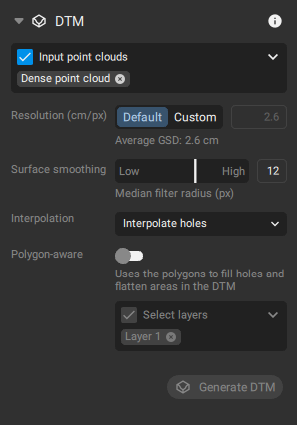
Note: Multiple inputs can be selected for DTM generation. For all selected inputs, terrain classification must be applied before creating the DTM.
Resolution
Defines the spatial resolution used to generate the DTM. The default resolution is determined based on the calculated average Ground Sampling Distance (GSD) of the project.
- Resolution [units/px]: Defines the resolution of the DTM.
- Default: The resolution is 1 x GSD of the project.
- Custom: Allows to select any value for the resolution of the DTM.
Surface smoothing
The surface smoothing is applied to the generated DTM. When using Low values, the final DTM contains sharper features and edges. When using High values, the DTM is smoothed out.
- Surface smoothing (0 - 20, 12 - default): The radius of the median filter can be selected to determine the effect of DTM smoothing:
- 0: No smoothing is applied.
- Low (values closer to 1): Tries to preserve the orientation of the surface and to keep sharp features such as corners and edges of buildings.
- High (values closer to 20): Tries to smooth areas based on a larger surrounding area. Sharp edges will be smoothed out. Areas that are not very planar are smoothed and become planar.
Important: The DTM receives its input as the dense point cloud. If the dense point cloud is noisy, this will be directly reflected in the generated DTM. Make sure that the results of the Calibrate and Dense point cloud steps are optimal before generating the DTM.
Interpolation
The Interpolation parameters affect the completeness of the generated DTM:
- No interpolation. Only areas where the dense point cloud is generated are reconstructed in the DTM. Where the dense point cloud is not generated or is not dense enough, holes in the DTM appear.
- Interpolate holes. Holes in the DTM are filled based on neighboring data.
- Expand area. The DTM data is extended, attempting to cover the entire area that is visible from the (calibrated) cameras
Polygon-aware
Use a polygon to fill holes and flatten areas in the DTM.
Visualization
Visualization in 2D
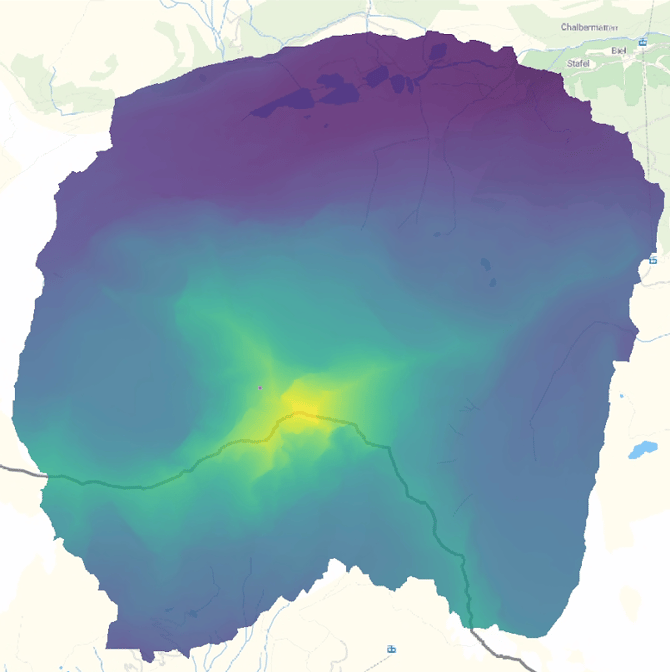
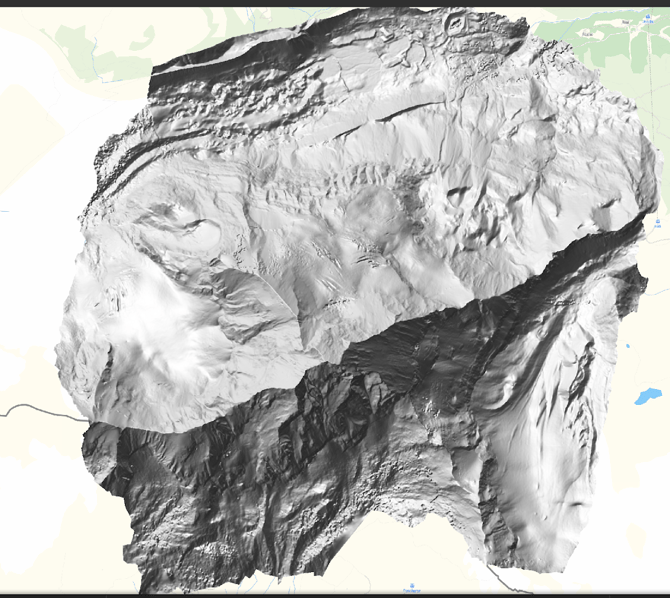
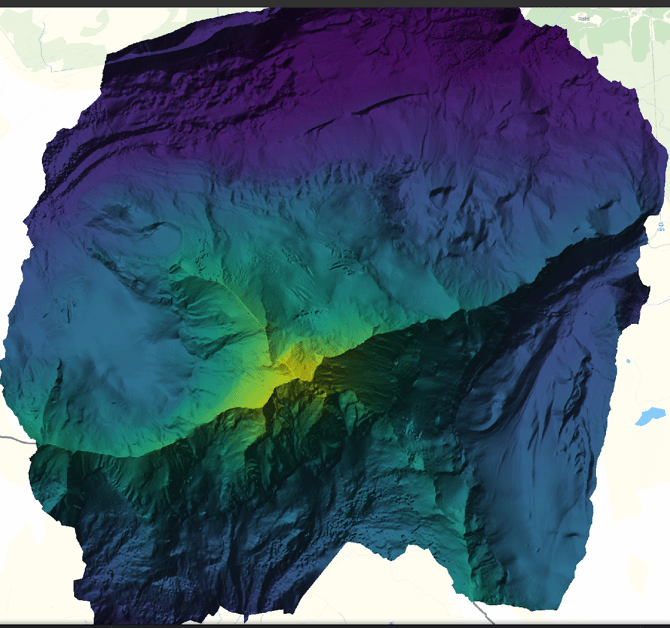
Since elevation values are represented in each pixel, a visualization can be created by adjusting the height values within the range of heights of the points used to generate the DTM.
Additionally, a shaded mode can be changed between three different modes: Color map, Hillshading (Greyscale), and Combined, and a Z factor for vertical exaggeration slider to control shading intensity.
| Colormap | Hillshade | Combined |
|
|
|
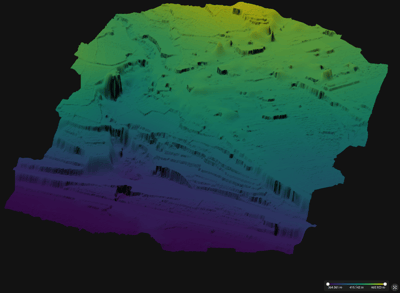
Visualization in 3D
The DSM can also be viewed in 3D. The same shading modes available in the 2D view are also available in the 3D view.
Applying the Region of Interest (ROI) for cropping
After processing the Digital Terrain Model (DTM), the Region of Interest (ROI) can be applied to clip the output to a specific area of the project. This reduces the file size and saves time, as reprocessing is not required.
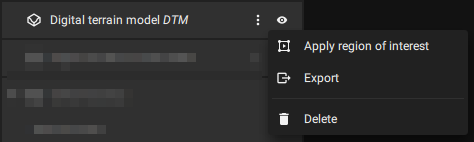
From the content panel, in the Digital Terrain Model (DTM) section, the option Apply region of interest becomes available from the three-dot menu after a Region of Interest has been drawn.
Exports
To export the DTM, there are two methods to do it.
- From Content panel > Digital terrain model DTM > Export
- File > Export > DTM
The following export settings are available:
- Compression (LZW compression, Enabled - default): Defines the compression of the exported file.
- LZW compression - Enabled: No data is lost during the compression of the file and the .tiff is not degraded. This results in a smaller file size of the exported file.
- LZW compression - Disabled: No compression is used during the export. This results in a larger file size of the exported file.
- File Type (Single - default):
- Single: The image will be exported in a single file.
- Tiles (16384 px - default): The image will be exported in tiles with a predefined size of 8192 px, 16384 px, or 4096 px. The origin of the tiles is the top left corner of the project boundary.
- Image Scale (100%- default): Defines the scale of the exported file.
- 100%: The exported image will keep the original size.
- 50%: The exported image will be scaled to 50% of the original size.
- 25%: The exported image will be scaled to 25% of the original size.
Example: For a file with the original size of 10000 x 10000 pixels, the exported file with Image scale:
- 100%: 10000 x 10000 pixels.
- 50%: 5000 x 5000 pixels.
- 25%: 2500 x 2500 pixels.
- Save as...:
- Single: Specifies the path and the file name of the exported file.
- Tiles: Specifies the destination folder.