
IN THIS ARTICLE
What is a dataset?
Creating a dataset
Dataset navigation
Editor viewer
Rename a dataset
Change the capture date and time
Assign a dataset to a Site
Troubleshooting: the New button is disabled
Licenses: This article is valid for all PIX4Dcloud licenses.
Roles: Owners, Managers, and Editors can create or modify in PIX4Dcloud.
What is a Dataset?
A dataset represents data collected at a specific location and time. It contains the data used to create the dataset and the outputs generated during processing.
A dataset can include:
- Inputs: Data captured or uploaded by the user, such as images. For more information, see Inputs.
- Processing outputs: Outputs generated from the input data, which can be visualized and analyzed in the 2D/3D viewer. For more information, see Outputs - PIX4Dcloud.
Creating a dataset
For more information about creating datasets, see Create a dataset in PIX4Dcloud.
Dataset navigation
When a dataset is opened, the navigation displays its position within the PIX4Dcloud Drive and allows you to return to its parent folder or Site.
- Dataset in a folder: The breadcrumb displays the name of the dataset's parent folder. Select the folder name to open that folder in the Drive.
- Dataset at the Drive root: Only the dataset is displayed; no folder breadcrumb is shown.
- Dataset in a Site: The breadcrumb displays the Site and dataset information. The folder containing the Site is not displayed.
Only the dataset's immediate parent folder is shown. Other ancestor folders are not displayed.
Editor View
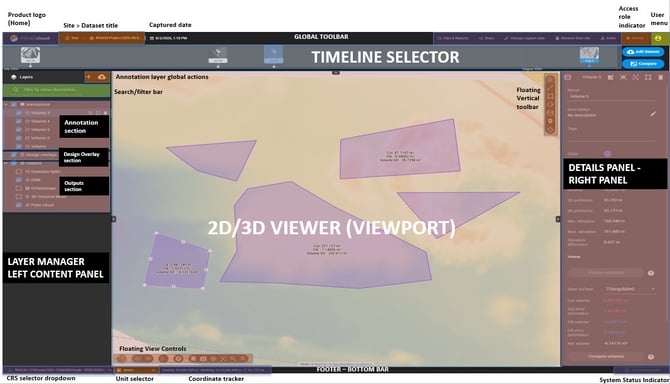
The Editor viewer is the main workspace for interacting with a dataset in PIX4Dcloud. It allows users to visualize and analyze processing outputs, manage dataset information and layers, create annotations and measurements, and compare captured reality with design plans in the 2D/3D viewer.
For more information, see Editor viewer in PIX4Dcloud.
Create a dataset through the project wizard
Datasets can also be created directly in PIX4Dcloud using the Project Wizard. This workflow allows you to create a dataset and configure its processing settings as part of the project creation process.
For detailed instructions, see:
If you are creating a dataset directly from the Drive, follow the instructions in the Creating a dataset section above.
Renaming a dataset
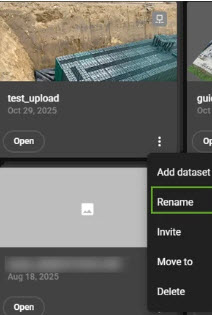
A dataset can be renamed from the Drive or directly from the dataset.
From Drive:
- In the Drive, select the More options (⋮) menu on the dataset.
- Select Rename.
- Enter the new name and confirm.
From the dataset
- Open the dataset.
- Select the dataset name in Global toolbar.
- Edit the name and hit Enter.
Change the capture date and time
By default, PIX4Dcloud uses the capture date detected from the image metadata. The capture date and time can be modified from the dataset's Global toolbar.
- Open the dataset.
- In the Global toolbar, select Captured date.
- Define the new date and time.
- Select Save.
Changing the capture date also updates the dataset's position in the Timeline.
Assign a dataset to a Site
Datasets can be organized into Sites to group datasets captured at the same location and monitor progress over time.
To assign a dataset to a Site:
- On the Drive, on the dataset.
- Click Assign to.
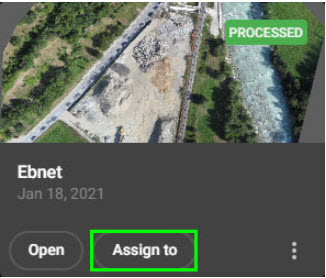
- Enter the name of an existing site or a new site.
- Select Assign.
The dataset is moved into the Site.
Warning: To assign a dataset to a different site, it must first be removed from its current site.
Remove a dataset from a Site
To remove a dataset from a Site:
- Open the Site from the Drive.
- Use the Timeline to navigate to the dataset.
- In the top-right corner, select Remove from site.
- Select Remove to confirm.
Removing a dataset from a Site does not delete the dataset. It becomes available again from the Drive.
Troubleshooting: The New button is disabled
If the New button is disabled or unavailable when trying to create a dataset, Site, or Folder in PIX4Dcloud, the license may have expired or may not be valid.
To verify the license status:
- Open the Organization account view.
- Go to Organization Settings > Plans and Licenses.
- Verify that the license is active and valid.
If the license has expired, review the license status and renew or purchase a subscription from the Plans and Licenses management page.