
目次
How to create a new volume
How to compute the volume
How to export a volume report
How PIX4Dsurvey calculates the Volume measurement
新しいボリュームを作成する方法
- ~について ツール バー上で、クリックして体積測定ツールを選択します
 or use the keyboard shortcut V.
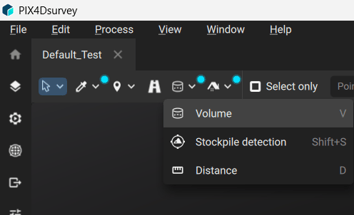
- To draw a volume, left-click on points in the 3D view. Right-click or press enter to complete the volume base polygon.
- (任意)頂点を正確にマークするには、簡易選択ツールを使用してボリュームを選択します
 . The position of each vertex can be corrected in the 3Dビュー, on the images, or using the vertex editor.
 - (任意)ボリュームの底面の頂点に共通の標高を割り当てるには、まず簡易選択ツールを使用してそのボリュームを選択します . その後、 特性 パネル
 、クリック 頂点を揃える
  頂点をどのように配置するかを選択します。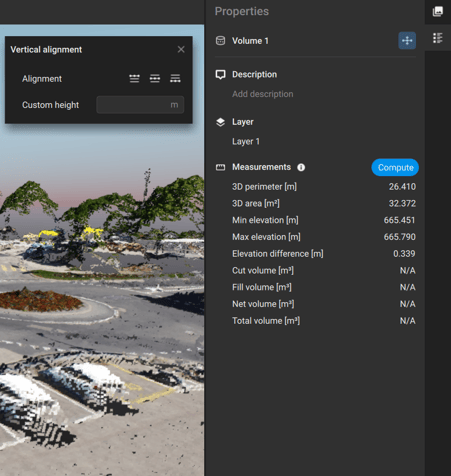
Note: Starting from version 1.85, it is possible to import a LandXML file as a base surface for volume computations.
After drawing the volume, details about the volume measurement are displayed in the 特性 パネル 具体的には:
| 物件 | 説明 |
| Name | 編集可能なボリューム名 |
| 説明 | (任意)特定のボリュームについて説明するための短い説明文を入力するテキストボックス |
| レイヤー | この巻が属する層 |
| Measurements |
本書の主な内容は以下の通りです:
|
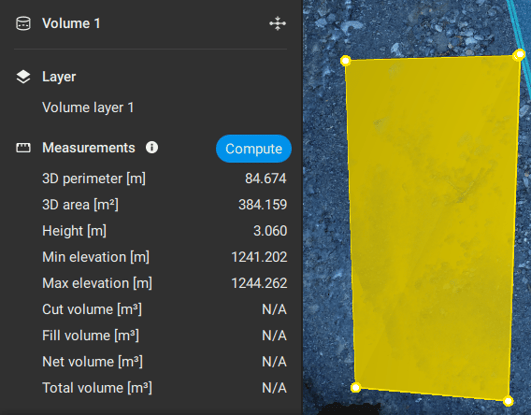
 icon of the volume layers on the left sidebar. The volume can be moved to another volume or vector layer by right-clicking on it.
How to compute the volume
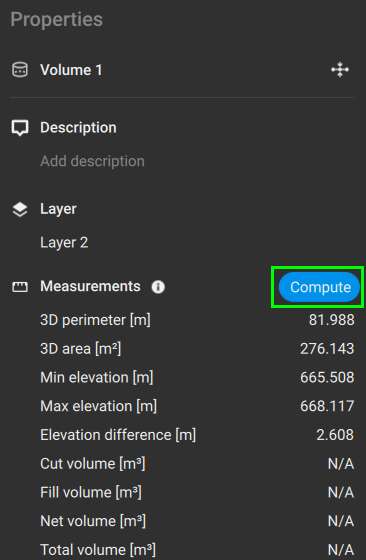
Once the volume is drawn, in the Measurements section of the Properties panel, click Compute to trigger the volume computation.
 |
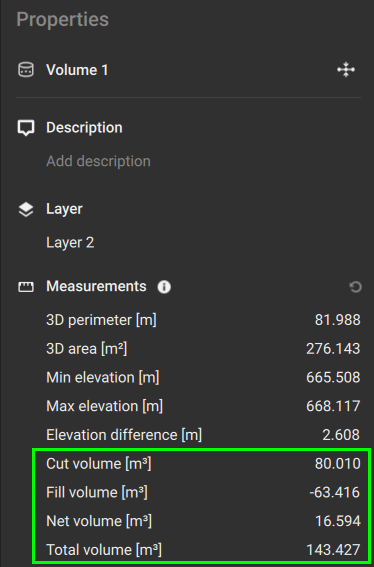 |
| 体積の測定が完了すると、切土・盛土の体積と誤差が表示されます。 | |
具体的には:
- カット体積 [単位3]: 体積基準面より上の体積 。この体積は、体積基準面と表面の間で測定される。
- 充填体積 [単位3]:体積基準面より下の体積。この体積は、体積基準面と表面の間で測定されます。
- 正味体積 [単位3]:切土量と盛土量の絶対差(切土量 -盛土量)
- 総体積 [単位3]:総体積 (切土量+盛土量)。
How to export a volume or volume report
After computing the (cut/fill) volume measurements, the Volume report, the volume polygon and the 3D volume are available to be exported.
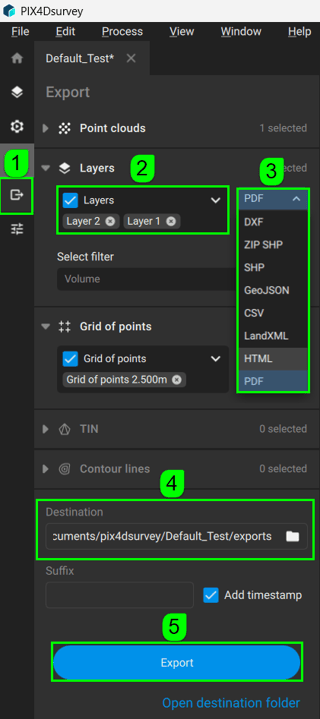
To export the Volume report:
- メニューバーで、[ ] をクリックします ファイル、そして エクスポートあるいは、右上の
 エクスポート. The エクスポート panel opens on the left.
 - (Optional) Unselect the output Volume layers that do not need export.
- In the Export panel, select the output format (PDF, HTML, or CSV for volume reports. LandXML for the 3D volumes. DXF, ZIP SHP, SHP, or GeoJSON for the volume polygon).
- In the Destination section, navigate to the path where the files should be saved.
- 「エクスポート」をクリックします。
How PIX4Dsurvey calculates the Volume measurement
PIX4Dsurvey calculates the volume as follows:
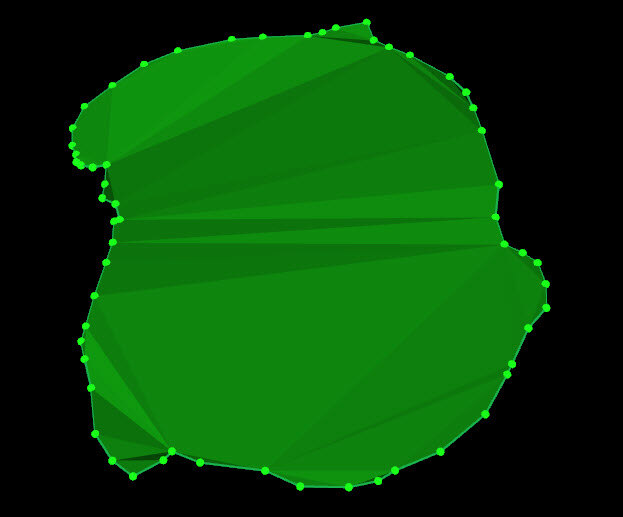
1. A new volume is drawn. For more information on how to draw a volume: 新しいボリュームを作成する方法. 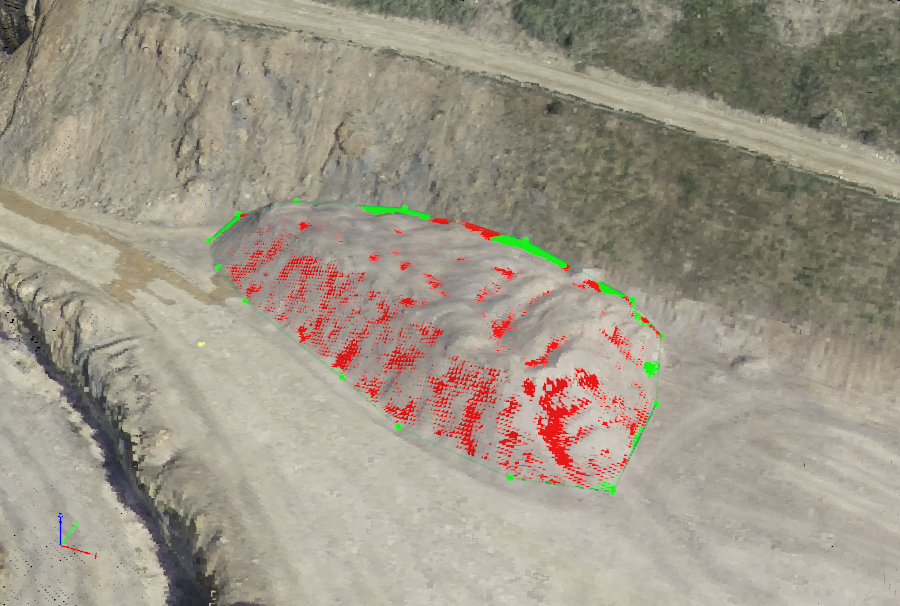
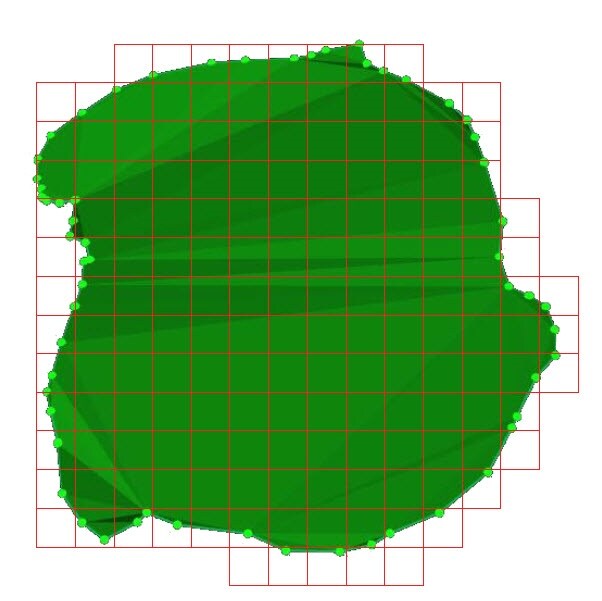
2. PIX4Dsurvey projects a grid with GSD spacing on the base.
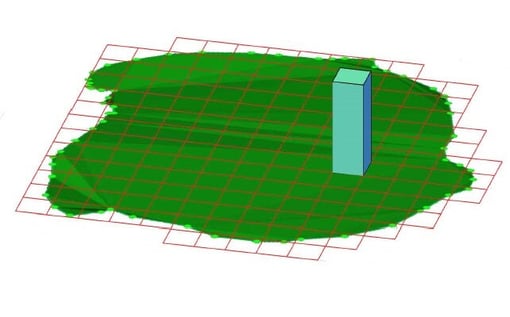
3. For each cell i of the grid, its volume (Vi) is given by:
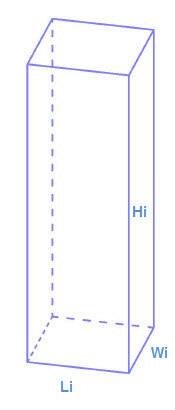
Vi = Li * Wi * Hi
Where:
Li = the length of the cell.
Wi = the width of the cell.
Hi = the height of the cell.
The Length (Li) and Width (Wi) are equal to the project's GSD.
Li =Wi = GSD
The Height (Hi) is given by:
Hi = ZTi - ZBi
Where:
ZTi = the terrain altitude of each cell at the center of the cell.
ZBi = the base altitude of each cell at the center of the cell.
Therefore, the volume Vi of cell i is given by:
Vi = GSD*GSD* (ZTi - ZBi)
- ZTi is the altitude of the 3D terrain corresponding to the center of the cell i.
- ZBi is the altitude of the base surface of the volume corresponding to the center of the cell i .
4. PIX4Dsurvey calculates 2 volumes:
- The Cut volume Vc is the volume between the base and the 3D terrain when the terrain is higher than the base.
Cut volume = VC = VC1 + VC2 +...VCN
Where:
VC1...N = Cut volume for cell i..N
- The Fill volume VF is the volume between the base and the terrain when the terrain is lower than the base.
Fill volume = VF = VF1 + VF2 +...VFN
Where:
VF1...N = Fill volume for cell i...N.
5. The Total volume is given by:
Total Volume = VT =VC+ VF