
新しいプロジェクト
New projects in PIX4Dmatic can be created by dragging and dropping images or image folders on the home screen, using the menu bar, or the Ctrl + N (⌘ + N) shortcut.
入力ファイルをドラッグ&ドロップする
- Drag and drop images or image folders on the home screen.
- Specify the Project name and the Path of the project.
- 「 スタート」をクリックします。
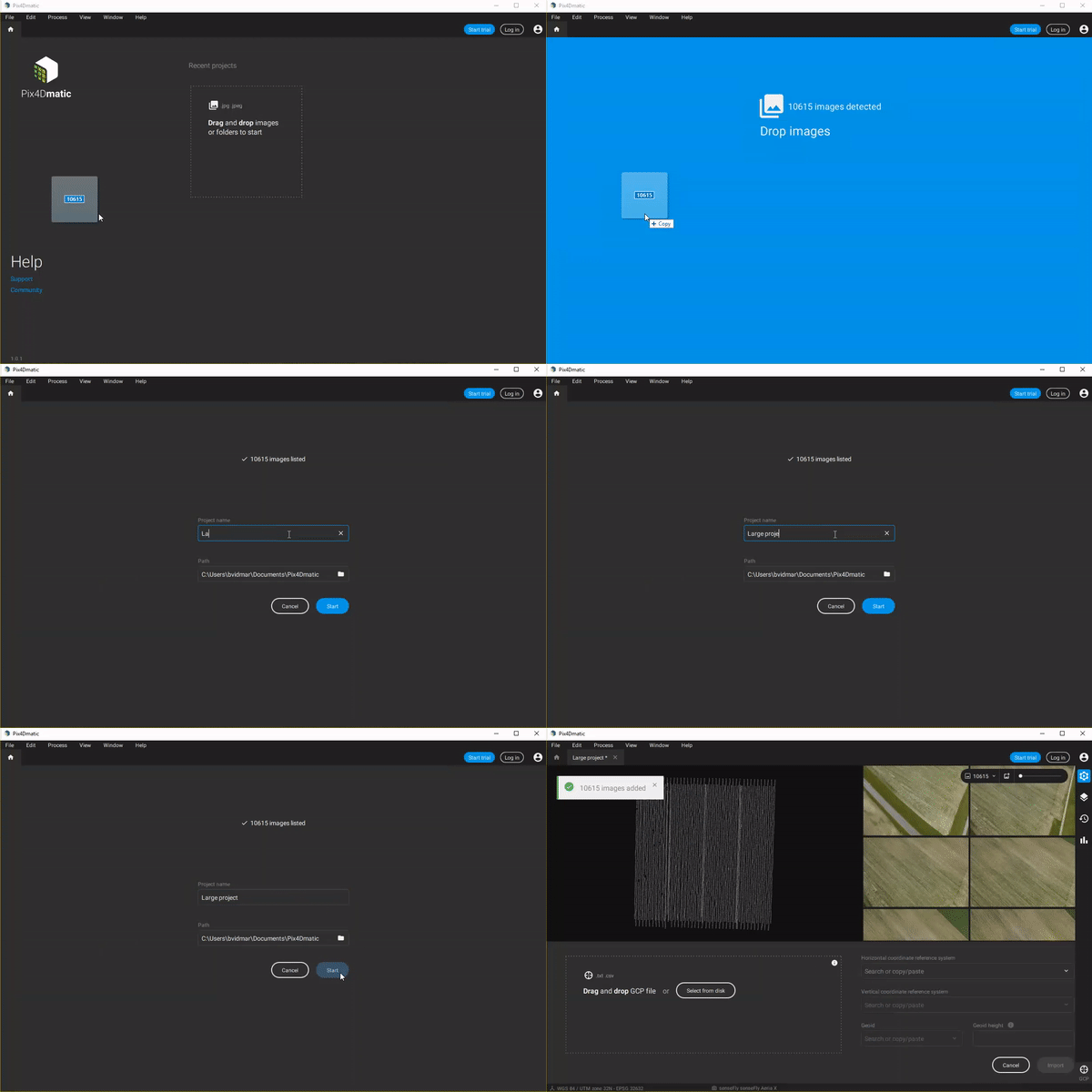
A new project is created and ready for processing. To import additional input files use the File menu or drag and drop them on the screen.
ホーム画面から
- ホーム画面で「ディスクから選択」(最初のサムネイル)をクリックします。
- クリック:
- Select images... to select the images, or
- Select folder... to select the folder with images.
- 新しいPIX4Dmatic の名前とパスを指定してください。
- 「 スタート」をクリックします。
A new project is created and is ready for processing. To import additional input files, use the File menu or drag and drop them on the screen.
From the menu bar
- Click File on the menu bar.
- Click New.
- Specify the Project name and the Path of the project.
- 「 スタート」をクリックします。
A new empty project is created and is ready to import images.
プロジェクトを開く
It is possible to open existing PIX4Dmatic (.p4m) projects using the home screen or the menu bar. Projects can also be opened using the Ctrl + O (⌘ + O) shortcut.
ホーム画面から
Click the project's thumbnail on the home screen. This is only available for projects that were previously opened and saved on the machine.
From the menu bar
- Click File on the menu bar.
- Click Open...
- On the pop-up Open Project, specify the file and click Open.
The project is opened, and a new screen displaying the project opens.
In some cases, the software may display a “Project in use” message even when the project is not open elsewhere. In such cases, you can remove the project.lock file located in the temp subdirectory of the project folder
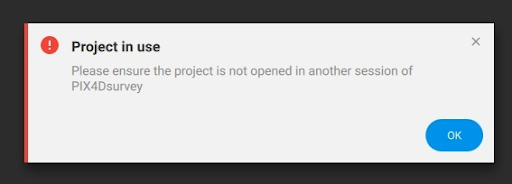
Important: The project must be closed before deleting the file.
Adding additional images
Additional images can be added to the project by:
- Drag and drop images or image folders on the screen, or
- ~において Image viewer, click
 >
>  Import images..., or
 - Use the Menu bar > File > Import images...
Processing queue
PIX4Dmatic has the capability to list projects for processing. From the queue, projects are processed in the order in which they are placed. A project will sit idle while waiting for the previous one to be completed. Once a project has been completed the next queued project will begin processing without delay.
While a project is processing, simply create a new project or open an existing project and click Start. The project will automatically be placed in the queue. The processing status will then be displayed in the Status center below.
