
目次
Error
Solutions
Check the organization used
Proxy configuration
Verify Whether You Are Using a Compatible Software Version
Check for Firewall or Network Restrictions
エラー
After login, the software is not able to get access to a valid license.
This can appear in at least two ways:
-
PIX4Dmatic shows the message "No license available" in the top right corner, even if there is a license associated with the Pix4D account used.

または - The license is not appearing in the Organizations and licenses panel and only Discovery is shown.
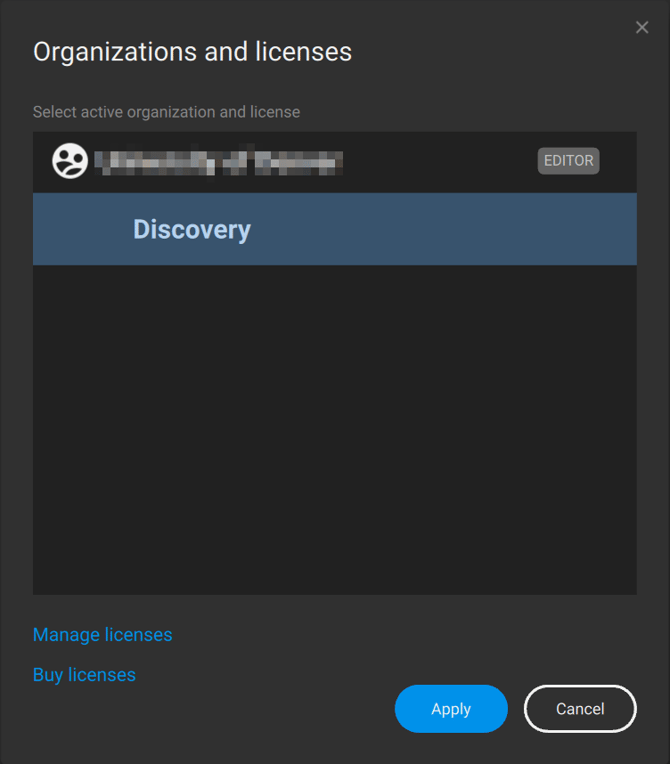
解決策
解決策 1:使用されている組織を確認する
選択した組織に有効なライセンスが含まれていることをご確認ください。
- 右上の「マイページ」ボタンをクリックしてください。
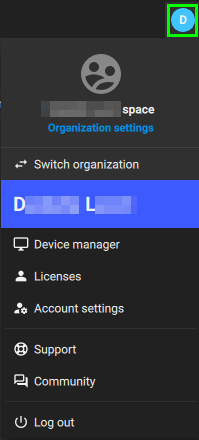
- 画面右上の 組織を切り替える.
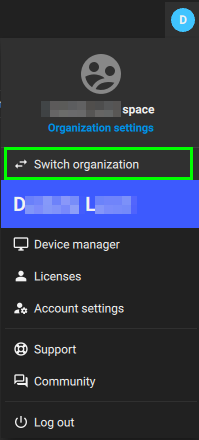
- ライセンスが利用可能な組織が選択されていることを確認してください。
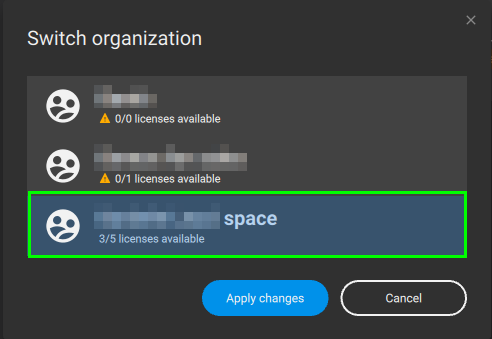
- そうでない場合は、有効な利用可能なライセンスを保有している組織を選択し、「変更を適用」をクリックしてください。
- 選択したPIX4Dmatic 有効なライセンスが表示されているにもかかわらず、「利用可能なライセンスがありません」というメッセージが表示される場合は、以下の「解決策 2」をご覧ください。
解決策 2:プロキシの設定
プロキシによって保護されているローカルネットワークでは、ライセンスの検出に問題が生じる場合があります。「ライセンスがありません」という警告が表示されます。インターネットへの接続にプロキシサーバーを使用している場合は、以下の手順に従ってプロキシ設定を入力してください。
- 「ネットワーク...」をクリックして、プロキシウィンドウを開きます。
- 以下の3つの選択肢があります:
- プロキシなし
- システムプロキシを使用する
- プロキシの手動設定
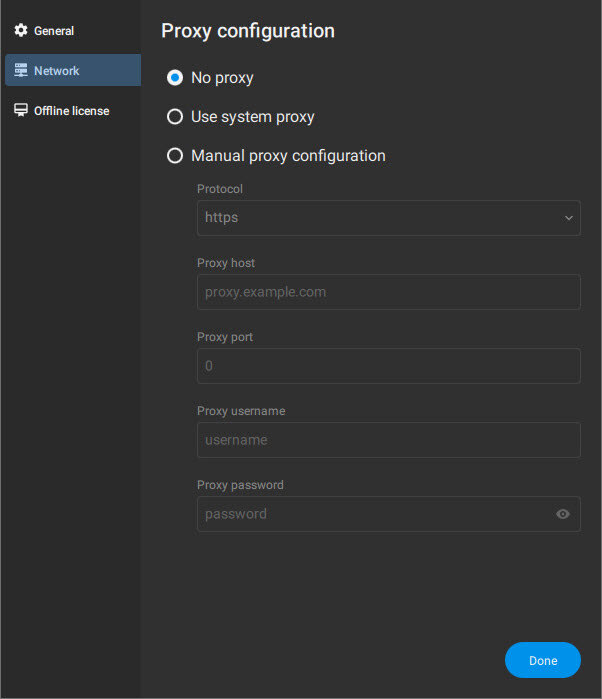
- 「プロトコル」ドロップダウンリスト からどのオプションを選択すべきか、システム管理者に確認してください(http、https、Socks4、Socks5) 。わからない場合は、「システムのプロキシを使用する」を選択してください。
- プロキシのホスト名とポート番号を入力してください。
- プロキシのユーザー名と パスワードを入力してください。
- 「完了」をクリックします。
Solution 3: Verify whether a compatible software version is used
Your license type determines which version of PIX4Dmatic you can use:
- PIX4Dmatic Pro monthly/yearly license: You must use PIX4Dmatic 2.0 or newer. The versions 1.86 or older are not supported.
- PIX4Dmatic OTC license with a valid S&U: You can use any version of the software.
- PIX4Dmatic OTC license with expired S&U: You can only use version 1.86 or older. The PIX4Dmatic version 2.0 or higher requires active S&U .
Solution 4: Check for firewall or network restrictions
If you are on a restricted network (e.g., company, university, or government network), a firewall may block license verification.
In that case, you should contact your IT administrator to set up the firewall exception for the software. The below support article provides all the information your IT team needs to set up the PIX4Dmatic Firewall configuration.
You can learn more about PIX4Dmatic's firewall configuration on this article:
Firewall configuration - PIX4Dmatic.