
To completely uninstall PIX4Dmatic software:
-
In the Windows Search, type Add or remove programs.
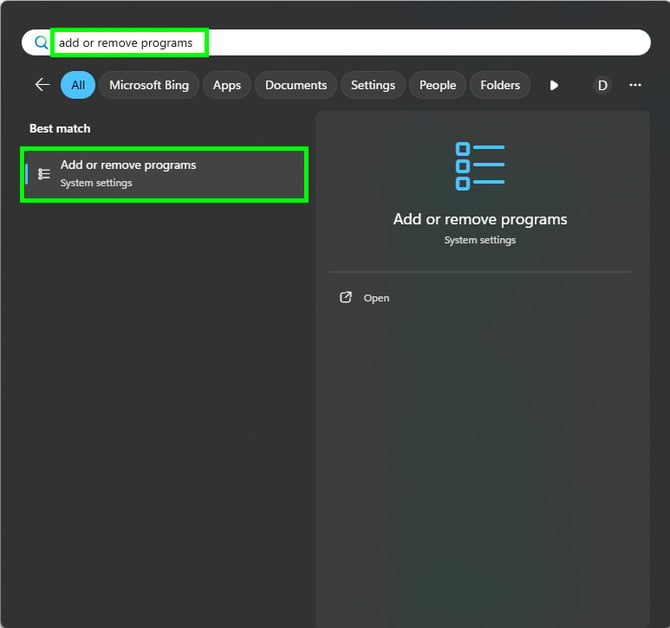
-
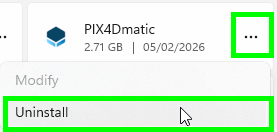
下にスクロールして探す PIX4Dmatic そして、3つの点をタップして、次に アンインストール.
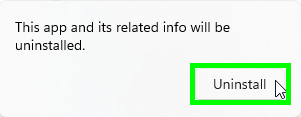
- 画面右上の アンインストール.
- 「このアプリにデバイスへの変更を許可しますか?」 というポップアップが表示された場合は、「はい」をクリックしてください 。
- On the path where PIX4Dmatic was installed (default is C:\Program Files\PIX4Dmatic), ensure this folder does not exist anymore. If it exists, DELETE this PIX4Dmatic folder.
- In C:\Users\Your Username\AppData\Local\pix4d, ensure the folder PIX4Dmatic does not exist anymore. If it exists, DELETE this PIX4Dmatic folder.
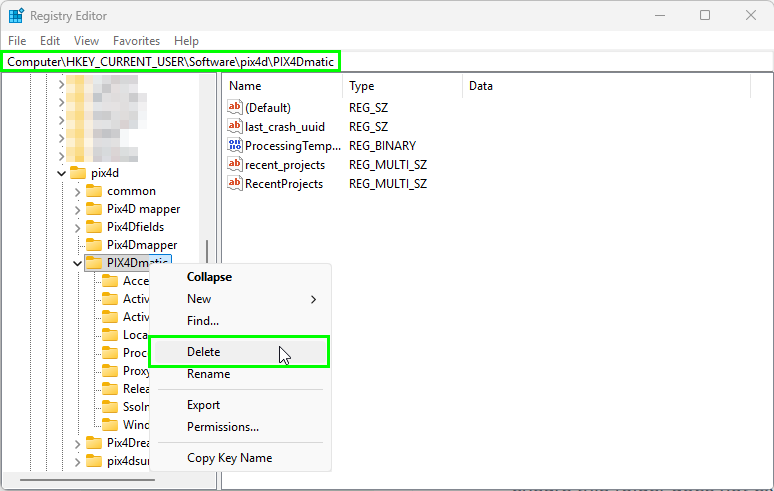
- In the Windows Search type RegEdit and open the Registry Editor.
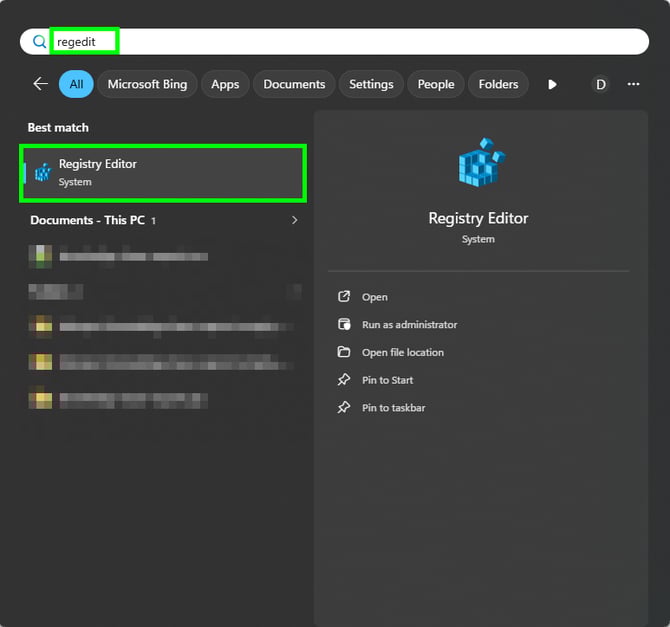
- Locate the folder stored in the path: HKEY_CURRENT_USER\Software\pix4d\pix4dmatic and ensure this folder does not exist anymore. If it exists, 削除 this PIX4Dmatic folder.
- コンピュータを再起動してください。
- Reinstall the latest version of the software: https://www.pix4d.com/download/pix4dmatic/