
要件
- A PIX4Dcatch Professional License
- RTK device connected (recommended).
How to use the AR Point visualization
To use AR point follow the next steps:
-
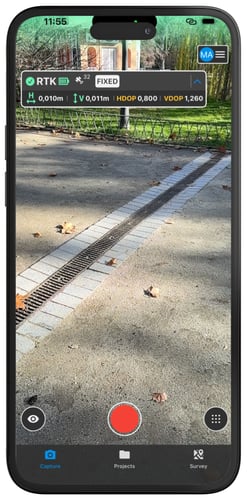
Go to the Capture screen
 .
.
- If applicable, connect the supported RTK antenna.
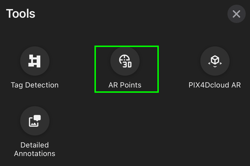
- タップ the Tools menu icon
 そして select the AR Points icon
 .
.
- 選択 the Point Collection and accept the Geolocated AR message.
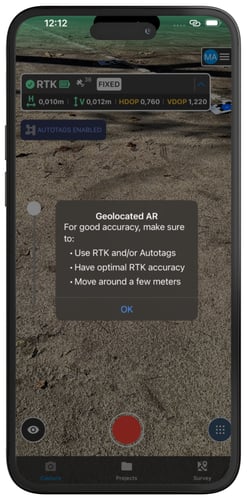
Important: Collections more than 1km (0.6mi) away are unavailable and will appear greyed out.
Note: The AR points are stored in the device.
5. An opacity slider appears on the left side of the screen, allowing for the adjustment of the visibility of the points.
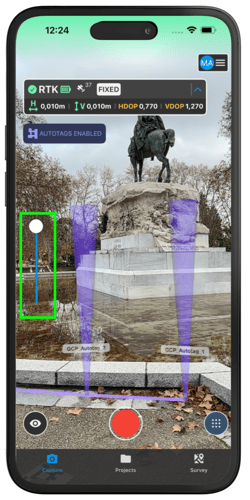
Note: Points and labels can be enabled or disabled from the AR Settings.
6. Capture a project with the AR points activated.
Start moving around, and the points will be displayed in AR on the screen within seconds.
Note: AR points can be activated at the same time as Automatic Tag Detection. It is necessary to use a projected coordinate system as geographic coordinate systems are not compatible with the Tag Detection feature.
7. To turn AR points off, tap the Tools menu そして選択する ARポイント
 , then choose the point collection and tap 削除.
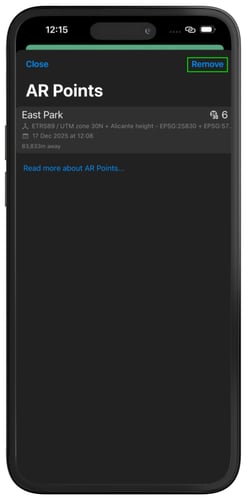
ARの状況
When Augmented Reality (AR) points are uploaded for a capture, the system continuously tracks their alignment status. Once the AR points are uploaded, alignment feedback is provided through on-screen messages and visual status indicators.
.png?width=250&height=500&name=Plantilla%20Iphone%20(38).png)
AR Status Indicators
ARステータスインジケーターは接続カードの下部に表示され、現在の位置合わせ状態を即座に確認できます:
-1.png?width=119&height=24&name=Tag%20(1)-1.png) ARポイントが現在位置合わせされていないことを示しています。
ARポイントが現在位置合わせされていないことを示しています。
.png?width=94&height=24&name=Tag%20(2).png) ARポイントが正しく位置合わせされており、使用可能な状態であることを示しています。
ARポイントが正しく位置合わせされており、使用可能な状態であることを示しています。
画面上の位置合わせに関するメッセージ
位置合わせの過程で、システムはユーザーを誘導するために状況に応じたメッセージを表示します:
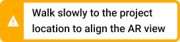
ARポイントの正しい位置合わせを行うため、ユーザーがデバイスを動かす必要があることを示しています。
.png?width=180&height=42&name=Frame%202608736%20(1).png)
ユーザーが動きが速すぎて、システムが正しく位置合わせできない場合に表示されます。

Confirms that the AR points are correctly aligned and that the capture process can begin.
役立つ情報
Further details regarding Augmented Reality Point are available on the PIX4D blog.