
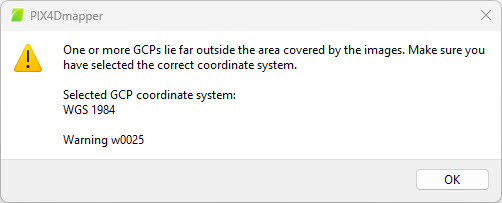
If warning w0024 or w0025 appears in the PIX4Dmapper log file or as a pop-up message, it means that at least one Ground Control Point (GCP) is far from the project area (defined by the location of the images).

IN THIS ARTICLE:
Warning description
When importing Ground Control Points (GCPs) into a PIX4Dmapper project, you may see the following warning messages:
-
w0024: One or more GCPs lie far outside the area covered by the images. Check if the correct GCP file and coordinate system are selected
- w0025: One or more GCPs lie far outside the area covered by the images. Make sure you have selected the correct coordinate system (followed by the selected GCP coordinate system)
Typical symptoms are:
- GCPs appear far away from the project area or completely outside the image footprint.
- The project or GCPs are displayed in the middle of the ocean or off the coast of Africa, even though they should be on land in the correct region.
Note: This message is a warning and not an error. It does not stop the process. However, this warns the user about a possible problem with the GCPs coordinates.
Causes
The root causes cluster into a few categories:
-
Mismatched or incorrectly selected coordinate systems
-
Coordinate format and axis mix‑ups
-
Wrong project location or corrupted geolocation
Solutions
Use these steps to diagnose and resolve the warning w0024 and w0025.
Identify if the problem is with the GCPs or with the images
- In PIX4Dmapper, open the Map View.
- Menu View > Map view, or
- Click the Map View button

- Zoom out in order to see your images (red dots) and GCPs (blue crosses).
- Identify if the issue is with the GCPs or (and) the images geolocation.
- If the issue is with the images (and the GCPs are in the correct location), check that the image coordinate system selected is correct and, in case of a PPK workflow, make sure that the geolocation has been imported correctly. More information about importing geolocation files and their format: Select Geolocation File - PIX4Dmapper.
- If the images' geolocations are correct and the issue is with the GCPs, please proceed with this guide.
Check your GCPs values
- In PIX4Dmapper, open the GCP/MTP Manager.
- Menu Project > GCP/MTP Manager... or
- Click the GCP/MTP Manager button

- Make sure the values in the GCP/MTP Table are correctly imported and there are no misspellings.
- Ensure that the GCP Coordinate System is correctly set and matches the one used by the surveyor when acquiring the GCPs coordinates.
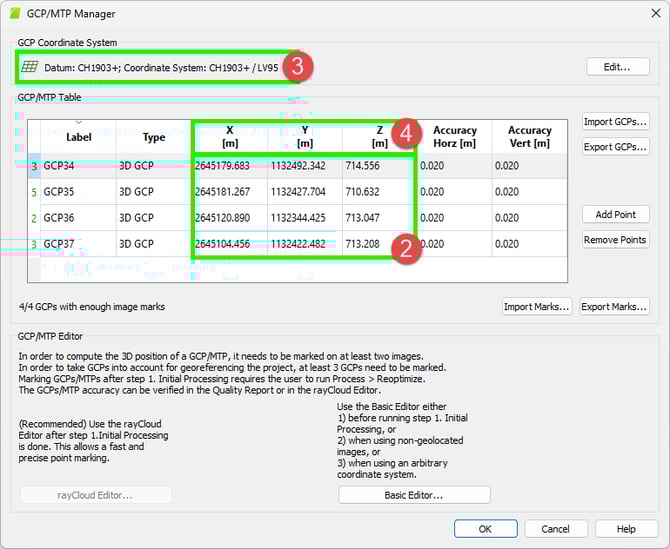
- Also, make sure to provide the coordinates according to the unit of the selected Coordinate Reference System. These can be in meters, feet, or degrees. The unit is given in the first row of the table. If the coordinate values in the GCP/MTP table (2) do not match the unit shown in the header (4), this indicates that the wrong GCP Coordinate System (3) has been selected. For example, if the GCP values are in the format 46.34293815, 8.02197940 (indicating degrees) but the header shows [m], the GCPs will appear far from the project area. The correct GCP Coordinate System (in degrees) will need to be selected.
Identify Axis Swap
- In PIX4Dmapper, open the Map View.
- Zoom out in order to see the images (red dots) and GCPs (blue crosses). If these are on the same latitude, jump this section and go to the next section.
Otherwise, the images and GCPs will appear quite far away from each other.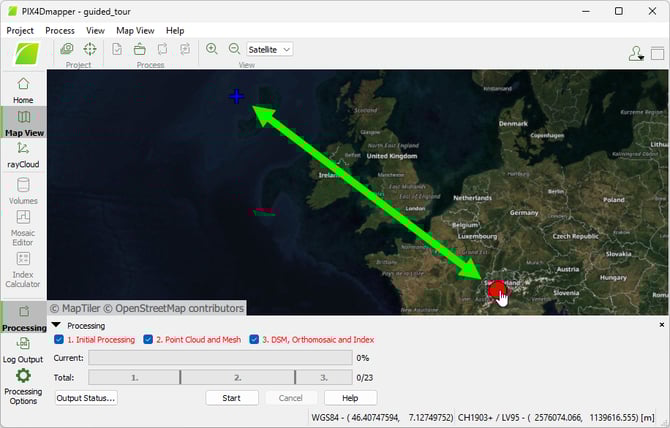
- Hover on the images and annotate the coordinate shown in the bottom/right corner
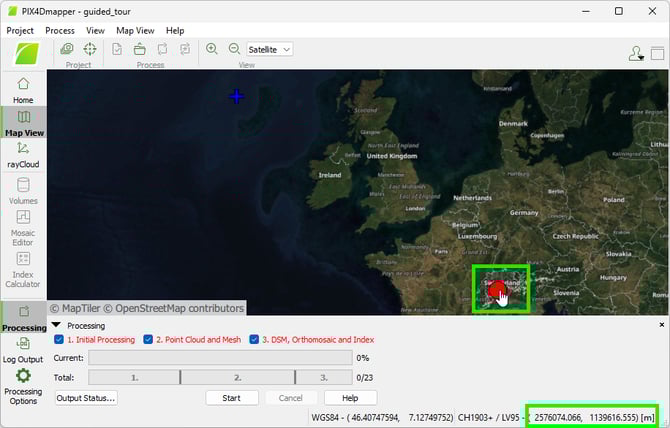
- Hover on the GCPs and note the coordinates.
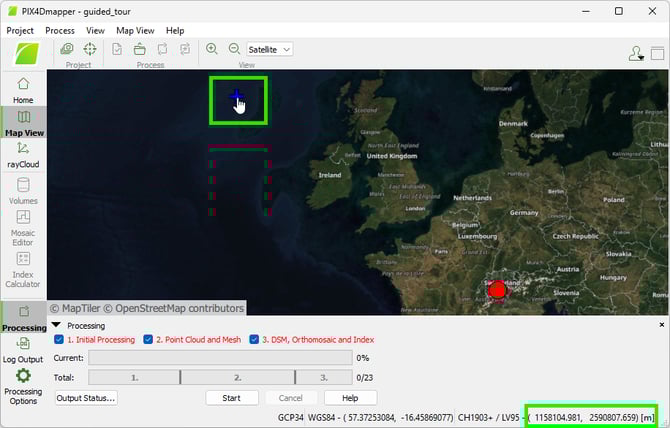
- If these are the same (similar) coordinates as the ones shown on point 3, but with the order swapped, then the axes have been swapped during import. Please import the geolocation again in the GCP/MTP manager, making sure to select the correct coordinate order.
Wrong longitude (correct latitude)
- In PIX4Dmapper, open the Map View.
- Zoom out in order to see your images (red dots) and GCPs (blue crosses).
- If the blue crosses and the red images are at the same latitude (north or south) but on a different longitude, it is likely that the coordinate system is using a UTM zone and the wrong zone has been selected.
In this example, WGS 84 / UTM Zone 33N has been wrongly selected instead of WGS 84 / UTM Zone 32N.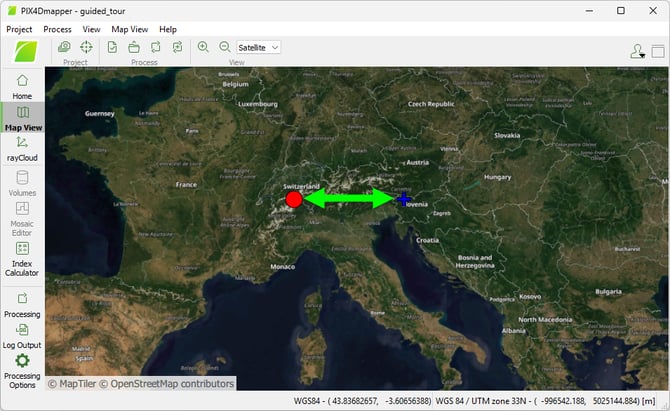
- Select the correct UTM zone in the GCPs coordinate system.