✅Included: PIX4Dmatic Pro and PIX4Dmatic Analyst
❌Not included: PIX4Dmatic Standard
IN THIS ARTICLE
Processing options
Input point cloud
Sample distance
Rigidity
Above ground threshold
Results
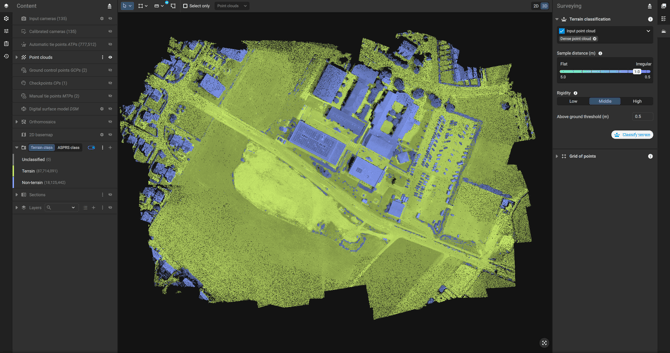
Processing options
Input point cloud
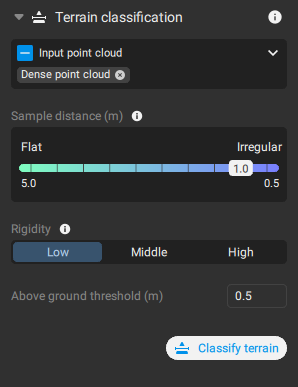
Defines the point clouds used for the Terrain classification process:
- All - default: All point clouds in the Content > Point clouds are used for processing.
- Only visible. Only visible point clouds in the Content > Point clouds are used for processing.
Sample distance
- Sample distance [units]: Determines a sampling grid size for the algorithm. The range depends on the units of the project coordinate system:
- 5.0 m - 0.5 m, 1.0 m - default.
- 15.0 ft - 1.5 ft, 3.0 ft - default
- Large sample distance: For simple and flat areas or sparse point clouds.
- Small sample distance: For areas with a lot of rapid elevation changes in the terrain and for areas with buildings. Using a smaller sample distance allows detecting more details in the terrain.
Note: The Sample distance parameter has a direct impact on the processing time. Smaller values, e.g. 0.5 m or 1.5 ft, can increase the processing time.
Rigidity
- Rigidity (Low - default, Middle, High): A physical parameter of a fabric that simulates the terrain. Low rigidity is soft and drapes more easily, high rigidity is stiffer and flexes less when draped.
Above ground threshold
- Above Ground Threshold [units] (0.5 m, 1 ft - default): determines the maximum allowed distance between a point in the input point cloud and the surface generated based on the Sample distance and Rigidity parameters. The optimal value depends on the original density of the point cloud and on the quality of the reconstruction.
Results
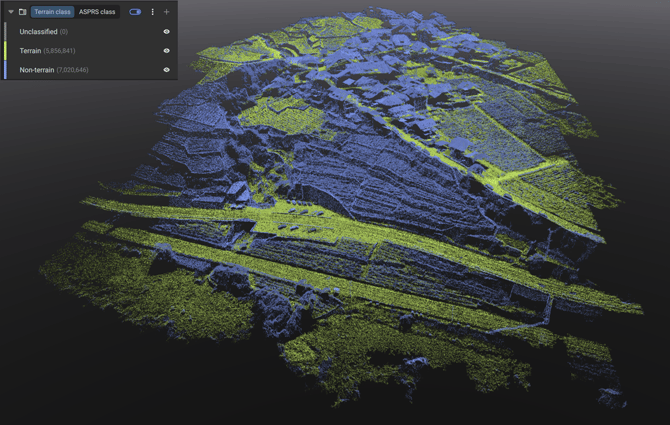
The result is a classified point cloud with three different classes. To see the result, it is necessary to activate the Terrain class visualization in the Content panel:
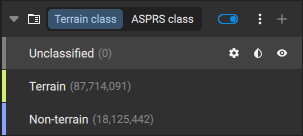
- Unclassified: Points corresponding to point clouds that were never classified.
- Terrain (green color): Points classified as terrain.
- Non-terrain (blue color): Points classified as non-terrain.
To display terrain classes, both the Point clouds and Terrain class visibility ( ) need to be selected. If the points are turned off in the Point clouds section, that will overrule the display of the terrain classes.
To change the color display of terrain classes:
- For monochrome (default), click Show in monochrome
 .
. - For RGB, click Show class in RGB
 .
.
Note: It is possible to change the default colour of the terrain classes from class properties ( )
)
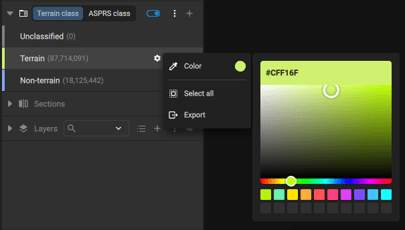
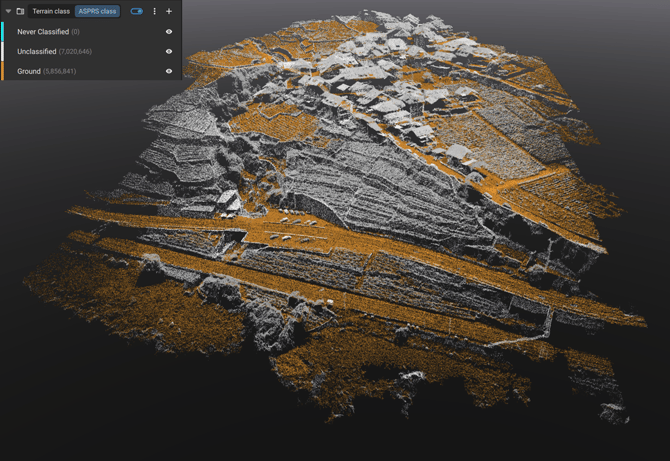
Since the terrain and non-terrain classification in PIX4Dmatic does not follow a standard convention, to preserve the terrain classification in the exported point cloud, it is possible to manually assign points to ASPRS classes.
This ensures that the classification can be correctly interpreted by third-party software.