
IN THIS ARTICLE
How to use the RTK profile template
Creating a new RTK profile
Exporting an RTK profile
Importing an RTK profile
NTRIP (Networked Transport of RTCM via Internet Protocol) is a protocol used to stream real-time correction data over a data connection from a GNSS base station to a rover. This enables centimeter-level positioning accuracy and is commonly used in Real-Time Kinematic (RTK) workflows.
With the NTRIP Profile Template in PIX4Dcatch, users can now configure RTK settings once and share them efficiently with other PIX4Dcatch users.
This functionality allows the sharing of NTRIP credentials, RTK rover settings, and antenna offsets. Profiles can be password protected and exported in bulk.
How to use the RTK Profile Template
In the RTK Device Settings, RTK profiles can be created or imported.
Creating a new RTK profile
To create an RTK profile template:
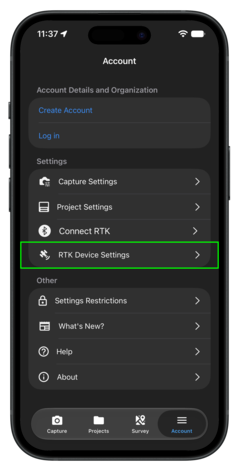
- Open RTK Device Settings from the main menu in PIX4Dcatch.
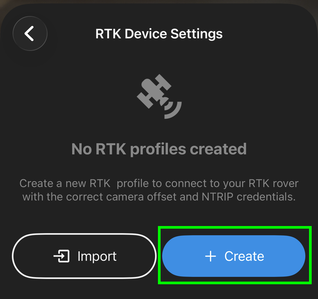
- Tap Create.
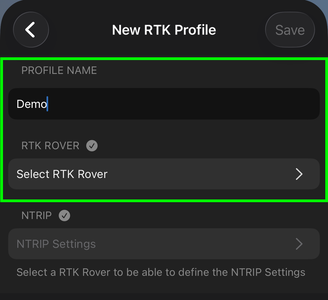
- Enter a Profile Name.
- Select the RTK receiver to be associated with the profile.
- Select the Camera Offset to be used.
If the RTK receiver offers an optional orientation, select Right or Left. Alternatively, if using a non-standard setup, select Custom.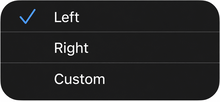
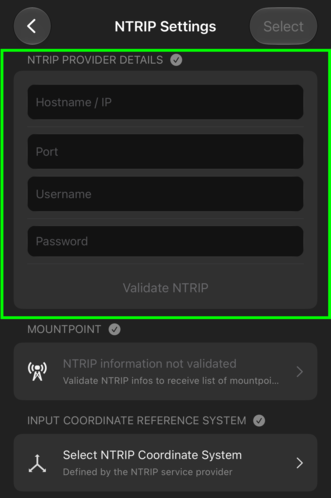
- Enter the NTRIP Provider Details.
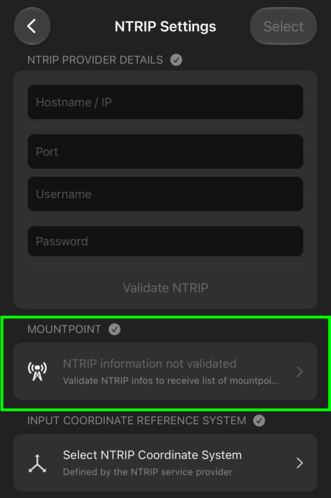
- Select the Mountpoint. The correct mountpoint will depend on your NTRIP provider and region.
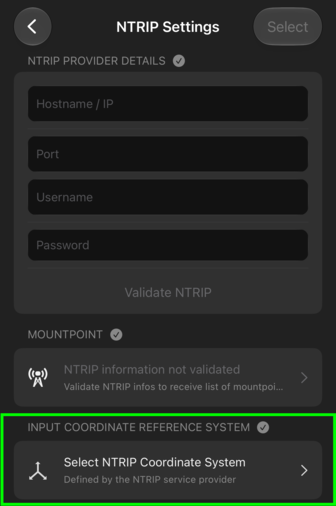
- Select the Input Coordinate Reference System. The correct input coordinate reference system will depend on your provider and region.
- Tap Save.

Exporting an RTK profile
- In the RTK Device Settings, select the desired Profile.
- Tap the
.svg) Export icon.
Export icon.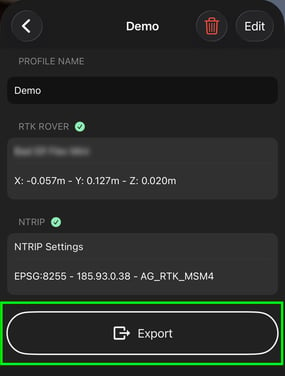
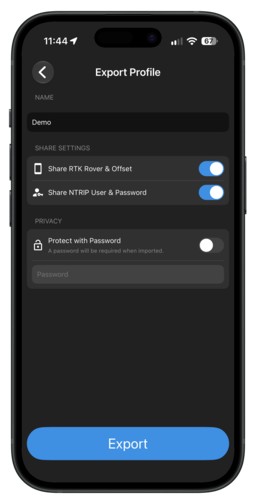
- Select one or more export options from the menu:
- Share RTK Rover & Offset – Shares the RTK rover and the camera offsets used in the RTK profile.
- Share NTRIP User & Password – Shares only the server address, username, and password for the NTRIP connection.
- Protect with Password – Secures the profile with a password which is required at import. Passwords must not include spaces or commas.
6. Tap Export and choose a method to save or share the JSON file.
Importing an RTK profile
Note: The exported JSON file must be stored locally on the mobile device.
To import an RTK profile template:
- Open RTK Device Settings from the main menu in PIX4Dcatch.
- Tap
 Import and locate the JSON file on the device.
 - If prompted, enter the profile password.
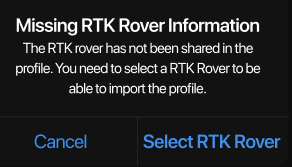
A message may appear requesting NTRIP credentials or antenna selection, depending on the contents of the profile.
Warning: When using third-party applications such as Zeno Connect or Trimble Mobile Manager, it is necessary to password-protect the profile.
Ensure the RTK settings in the third-party app match the imported profile in PIX4Dcatch.