
IN THIS ARTICLE
Overview of the Map View
Navigating to a dataset or a site
Map dashboard settings
Dataset and site positioning on the map
Datasets or sites not displayed on the map
Licenses: This article is valid for PIX4Dcloud Starter and PIX4Dcloud Pro licenses (formerly PIX4Dcloud Advanced).
Roles: Owners, Managers, Editors, and Readers can see all resources belonging to the Organization in PIX4Dcloud.
Overview of the Map View
The PIX4Dcloud Map View is a dashboard that displays datasets and sites geolocated on an interactive map. It provides a spatial overview of projects and enables quick navigation based on location.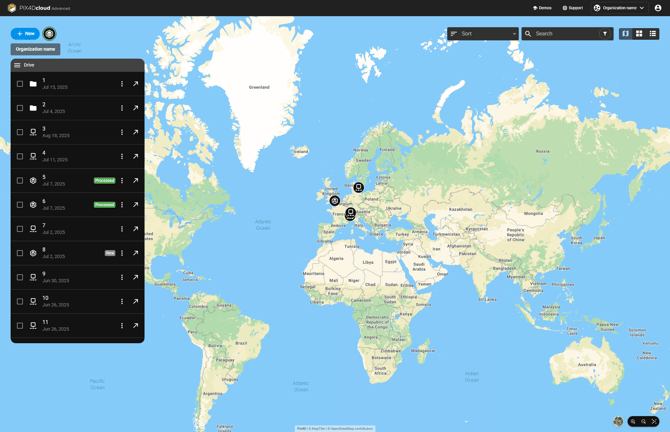
Map View is the default view when accessing PIX4Dcloud. Users can also switch to alternative display modes:
-
Thumbnail view
-
List view

Content displayed on the map
The map displays:
-
Datasets and sites located at the root level of the Drive.
The map does not display:
-
Datasets and sites located inside closed folders.
To display datasets or sites stored in a folder, the folder must be opened using Open. All datasets, sites, and folders are always listed in the Drive panel on the left side of the interface, regardless of their visibility on the map.
Navigating to a dataset or a site
There are two ways to locate and open a dataset or site from the Map View:
Option 1 – From the map
- Locate the dataset or site marker on the map.
- Select the marker. The corresponding item is highlighted in the Drive panel.
- Open the dataset or site from the Drive panel.

Option 2 – Using search
-
Use the search field in the top-right corner.
-
Select the dataset or site from the search results.
-
The map automatically centers on its location, and the item is highlighted in the Drive panel.
-
Open the dataset or site from the Drive panel.

Map dashboard settings
The Map View includes navigation and display controls located in the lower-right corner of the map:
-
Map / Satellite view toggle
-
Zoom in / Zoom out controls
-
Zoom to all, which adjusts the map to display all datasets and sites currently listed in the Drive panel

Dataset and site positioning on the map
Datasets
A dataset is positioned on the map based on the geographic center of its georeferenced outputs.
Sites
A site is positioned on the map based on the geographic center of the most recently added dataset within that site.
Datasets or sites not displayed on the map dashboard
Resources created before June 26, 2024
Datasets or sites created before the release of the Map View (June 26, 2024) are not displayed on the map in the following cases:
-
Datasets containing only 3D outputs (point cloud, 3D mesh, and/or IFC)
-
Sites that contain only datasets with 3D outputs
Resources created after June 26, 2024
Datasets or sites created after the release of the Map View are not displayed on the map in the following cases:
-
Datasets containing only a 3D mesh and/or IFC
-
Sites that contain only datasets with a 3D mesh and/or IFC
Projects without geolocation
Datasets without geolocation are listed in the Drive panel but cannot be displayed on the map. When selected, an informational message indicates that the dataset cannot be shown due to missing geographic information.
Information: Access to advanced site-based workflows and extended dataset management is available with the PIX4Dcloud Pro license.