IN THIS ARTICLE
Introduction
Creating a Targeted Operation
Exporting for Hylio Boundary mission
Import to the Hylio platform
Introduction
Hylio spraydrones support the import of prescription files created with PIX4Dfields, that precisely define the treatment area, obstacles and no-spray zones.
This enhances operational safety and efficiency by ensuring that the application is limited to the intended areas while avoiding obstacles and restricted areas. Boundary missions are intended for flat rate applications.
Hylio spraying drones currently support:
- AgroSol GCS boundary mission
- It allows the definition of the field area to be sprayed ,along with obstacles and no-spray zones. The rate has to be set in AgroSol GCS.
- Exported file: GeoJSON.
Creating a Targeted Operation
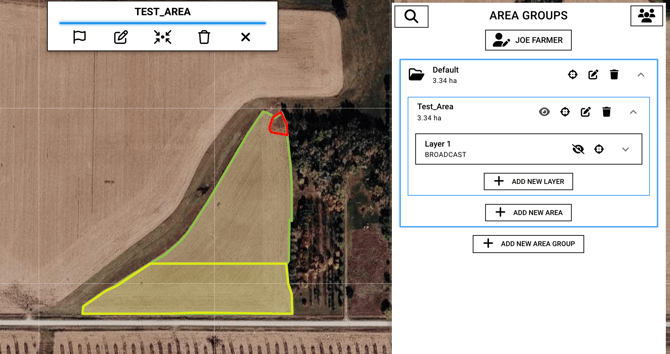
Targeted operations enable users to mark obstacles, no-spray and variable rate zones directly on a operations layer. These zones can be delineated based on drone, satellite and external imagery.
To create a Targeted spraying map, please follow the procedure described here: How to create a targeted spraying map - PIX4Dfields.
Note: Ensure to assign exactly one rate, to all zones were you want the spraydrone to apply. Zones assigned without any rate will be converted to no-spray zones upon export. No-spray zones with holes or rates inside are not supported.
Exporting for Hylio Boundary mission
Make sure the Targeted Operation as only one rate assigned in PIX4Dfields, all non-assigned cells will be converted to no-spray zones. To export a Targeted Operation to Hylio drones:
- Go to the Export menu.
- Click Operations.
- Select the Operation to be exported.
- Select Hylio.
- Select the format: AgroSol GCS boundary mission.
- Click Export.
Note: When exporting Targeted Operations to Hylio, only one format is available at the moment.
Support for variable rate prescriptions will be available in the future.
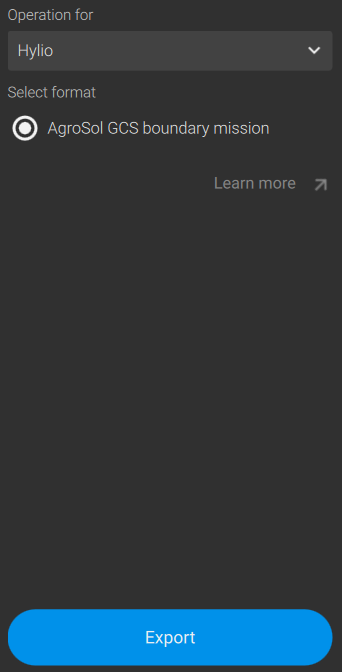
After the export, a *.geojson file named as the TOPS layer exported will be created in a folder named as the PIX4DFields project in the chosen location. The file will include:
- The spray area.
- The obstacles.
- The non-spray areas as no-spray zones.
Import to the Hylio platform
When importing the GeoJSON file into the AgroSol CGS app, the 3 types of polygons will be recognized automatically.
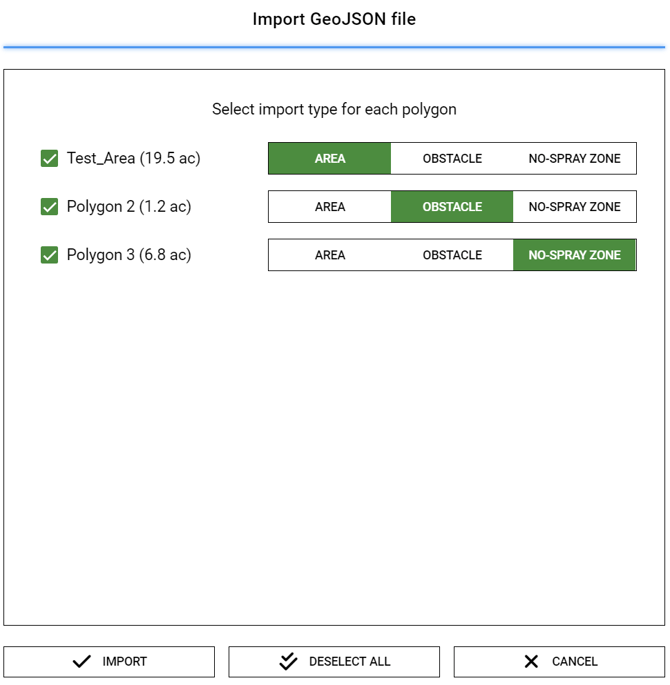
After clicking on import, the areas, obstacles, and no-spray zones will be displayed on the map.