
IN THIS ARTICLE:
Warning: For all Sentera cameras, it is advised to adjust the sensor configuration to disable the built-in image processing pipeline before flying and processing the imagery in PIX4Dfields. For more information: Pix4D Fields Compatibility Settings (external link) .
Sentera Double4K (D4K)
The Sentera Double4K (D4K) camera has several versions:
- Double 4K Ag+ (RGB and NDVI multispectral imagery).
- Double 4K Analytics (Zoom RGB and NDVI multispectral imagery).
- Double 4K Multispectral (5-band multispectral mapping).
- Double 4K NDVI/NDRE.
All band combinations can be processed directly in PIX4Dfields.
As mentioned above, it is advised to adjust the sensor configuration to disable the built-in image processing pipeline before flying.
As mentioned above, it is advised to adjust the sensor configuration to disable the built-in image processing pipeline before flying.
Additionally, the camera captures two image types, which should be processed separately in PIX4Dfields:
- Create a new project, import only ONE folder (RGB, NDVI, or NDRE)
- Click process.
- After processing the first folder of images, go to Import
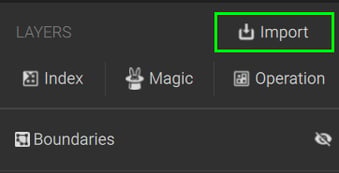
- Select the second folder RGB/RedEdge/NIR images.
Two orthomosaics will be available afterward, depending on the camera used.
Sentera 6X Series Sensors
For proper use of 6X Series Sensors with PIX4Dfields, Sentera recommends that certain configuration changes be made to the sensor, disabling the built-in image processing pipeline on the 6X sensors so that the images can be better processed within PIX4Dfields.
The raw imagery from the sensor will now appear different from what was previously expected.
The full procedure can be found on the Pix4D Fields Compatibility Settings (external link) page.