
IN THIS ARTICLE
Introduction
Creating a Targeted Operation
Exporting for HORSCH sprayers
Import to the HORSCH terminal
Introduction
HORSCH supports the import of prescription files created with PIX4Dfields, for variable rate or spot-spraying applications.
HORSCH sprayers support two types of mission:
- eosT10Pro Spot-Spraying:
- A zipped shp file containing a point geometry.
- eosT10Pro VRA-ISOXML:
- A zipped XML file containing a Variable Rate Application (VRA) map.
Creating a Targeted Operation
Targeted operations enable users to mark obstacles, no-spray and variable rate zones directly on a operations layer. These zones can be delineated based on drone, satellite and external imagery.
To create a Targeted spraying map, please follow the procedure described here: How to create a targeted spraying map - PIX4Dfields.
Exporting for HORSCH sprayers
To export the Targeted Operation to HORSCH sprayers:
-
Go to the Export menu.
-
Click Operations.
-
Select the Operation to be exported.
-
Select HORSCH.
-
Select the format:
-
eosT10Pro Spot-Spraying
- eosT10Pro VRA-ISOXML
-
- Click Export.
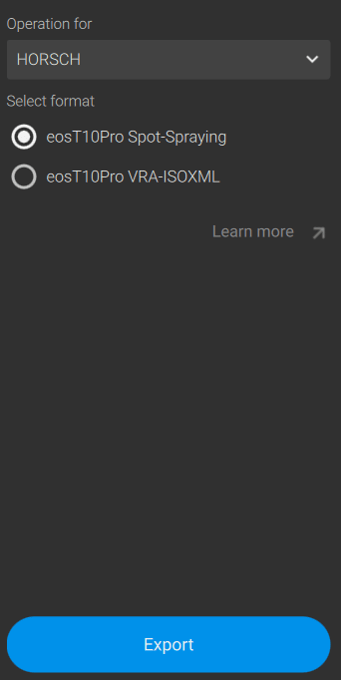
eosT10Pro Spot-Spraying
A folder named HORSCH will be created and the zipped file will be saved inside it.
eosT10Pro VRA-ISOXML
A folder named as the PIX4DFields project will be created and the zipped ISOXML file will be saved inside it. The file will be named as the layer in PIX4DFields.
Import to the HORSCH terminal
Spot-Spraying
- Navigate to Field data > Fields.
- Click Import
- Select SpotSpray map.
- Select the Spot-Spraying file.
- Select the object to import.
- Import the SpotSpray map.
- (optional) Use Extend spots to adjust the radius of individual spots.
VRA-ISOXML
-
Navigate to Field data > Fields.
-
Click Import.
- Select Application maps.
- Select a file.
- Select a column.
- Select a unit.
- You can adapt the following values in the overview:
- Default value
- Not-in-field value
- GNSS-lost value
- Import the application maps
Info: More information on file import on HORSCH sprayers can be found here on their download center (external link).