
IN THIS ARTICLE:
Error desctiption
Causes
Solutions
Best practices to prevent e9039
Error description
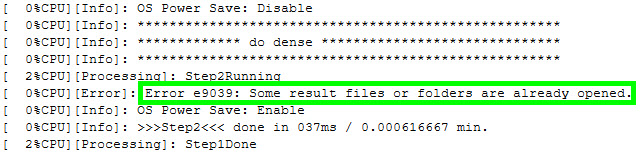
The processing stops and the error message "Error e9039: Some result files or folders are already opened" is displayed in the log file. The outputs are not generated and the step will not appear complete.
This most often happens when:
- Re‑running Step 2 or Step 3 in a project that already has results.
- Re‑optimizing (Reoptimize, Rematch and Optimize) after changing GCPs or camera parameters.
- Resuming Step 3 after a completed run, especially to change the processing area, volumes, or classification.
Causes
This error indicates a file‑access / file‑locking problem: PIX4Dmapper cannot delete or overwrite existing result files/folders in the project directory.
The most common causes are:
Result files locked by other applications
- PDF quality report is already open in a PDF viewer.
- GIS/3D or other software reading Pix4D outputs.
- Antivirus / backup / sync tools scanning or syncing result files at the same time.
- Projects inside a cloud-services (Dropbox, OneDrive, Google Drive, etc.) synced folder or a network-attached storage (NAS) folder.
Stale quality report or result folders (e9039a + e9039)
- e9039 often follows e9039a: “The quality report in PDF could not be removed”.
- Indicates PIX4Dmapper cannot remove or overwrite previous step‑1/quality‑report files (locked, read‑only, or inconsistent).
Multi‑user access to the same project folder
- One user processes the project, another user (or account) re‑opens and tries to re‑run a step on the same shared folder.
- Files may be owned or locked by the first user, causing e9039 for the second.
Interrupted or inconsistent processing
- PC or PIX4Dmapper crashes/shuts down while processing, leaving half‑written results that the next run cannot clean up.
Solutions
Close viewers and sync tools, then restart
-
Close:
-
Any software reading project outputs, including the PDF quality report.
-
All File Explorer windows open on
1_initial,2_densification,3_dsm_orthofolders.
-
-
Temporarily pause sync / backup cloud services (Dropbox, OneDrive, Google Drive, etc.) for the project folder:
-
Restart PIX4Dmapper and the computer, and try processing the step again.
Move the project to a local, non‑synced drive
If the project is on a network share or synced folder:
-
In File Explorer, copy the entire project folder (images,
.p4d, all subfolders) to a local path likeC:\Pix4D\Projects\MyProject\. -
Open PIX4Dmapper and open the
.p4dfile from this new local folder. The user be asked to link the new location of the images folder. -
Re‑run the failing step (Step 1/2/3, Reoptimize, etc.).
Use “Save As” to create a clean copy
If the e9039 error still appears:
-
Open the project in PIX4Dmapper.
-
Go to File → Save As… and:
- Save in a new local folder (not cloud synced).
- Name it something like
ProjectName_e9039_fix.
- Close the original project and open the new one.
- Re‑run processing:
-
- If Steps 1–2 were fine, run Step 3 only.
- If you changed GCPs or calibration, re‑run Step 1 → Step 2 → Step 3.
Clean result folders (advanced)
For persistent cases, or when e9039 follows e9039a:
-
Back up the full project folder first.
-
With PIX4Dmapper closed, in File Explorer:
-
If e9039 appeared while processing step 3: delete the
3_dsm_orthofolder. -
If e9039 appeared while processing step 1 (e.g. after Rematch/Optimize issues): delete
1_initial\reportand, if needed, the relevant1_initial\project_dataresult files.
-
- Re‑open the project and re‑run the corresponding step.
Best practices to prevent e9039
Please follow these suggested best practices to avoid the error w0939 in future processing.
-
Always process from a local SSD/HDD
- Store active projects on a local drive (e.g.
C:\Pix4D\Projects\…). Make sure the folders are not synced automatically to cloud services (Dropbox, OneDrive, Google Drive, etc.).
- Store active projects on a local drive (e.g.
-
One user per project folder at a time
- Avoid multiple users opening/processing the same project directory.
- If several people need to work on a dataset, give each person their own copy of the project folder instead of sharing one live copy.
-
Process iteratively, step by step, when editing
When you change GCPs, processing area, volumes, classification, or other key options:-
Run Step 1 only → review calibration and GCPs.
- Run Step 2 only → review the dense point cloud.
- When satisfied, run Step 3 only for DSM/orthomosaic/index.
This avoids repeatedly overwriting results for multiple steps at once, which is when e9039 most commonly appears.
-
- Keep other tools away from the project results while processing
- Do not keep the Quality Report or other output files open in external viewers while (re‑)processing.
- Do not keep the Quality Report or other output files open in external viewers while (re‑)processing.
-
- Exclude Pix4D project folders from real‑time antivirus or backup scans where possible, or schedule scans outside processing windows.
- Exclude Pix4D project folders from real‑time antivirus or backup scans where possible, or schedule scans outside processing windows.