Error 0xc0000142 - PIX4Dmapper
This article explains the meaning of error 0xc0000142 and provides step-by-step solutions to help resolve it. Follow the guidance below to troubleshoot and address this issue effectively.
IN THIS ARTICLE:
Error
Cause
Most common solutions (Recommended)
Other solutions
Error
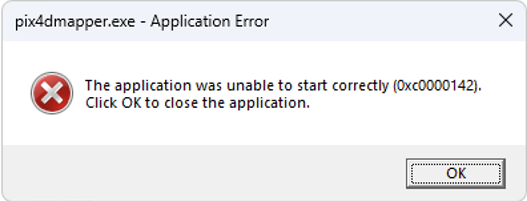
During the startup of PIX4Dmapper, the error 0xc0000142 appears, preventing the software from launching and being used.

Cause
Error 0xc0000142 is a general Windows error that occurs when an application fails to start correctly.
- Antivirus/ security software interference: In most cases, this issue is caused by antivirus or security software blocking the application. Antivirus or security programs may mistakenly block applications and files required by PIX4Dmapper to launch properly.
Most common solutions (Recommended)
Check antivirus or security software
-
In most cases, the error 0xc0000142 occurs because antivirus software blocks PIX4Dmapper from starting. After a software update, some antivirus programs may not recognize the new version of the application and may block required files or processes. In several cases, this issue has been associated with antivirus software such as Sophos Antivirus.
To resolve this issue, add PIX4Dmapper to the antivirus whitelist or exclusion list. It is important to exclude both the installation folders and the user data folders (where * represents your Windows username):
C:\Program Files\Pix4Dmapper\
C:\ProgramData\Pix4D\
C:\Users\*\AppData\Local\Pix4D\
C:\Users\*\AppData\Roaming\Pix4D\
Firewall configuration
-
In some cases, network restrictions may prevent PIX4Dmapper from starting correctly. Corporate networks, proxy servers, or security policies may block the connections required by the software during startup.
To resolve this issue, ensure that the required network connections used by PIX4Dmapper are allowed in your network configuration. If you are working on a company network, contact your IT administrator to verify that the necessary connections are permitted. For more information on the firewall setting, visit How to set up the Firewall Configuration - PIX4Dmapper
Other solutions
If the most common solutions didn't solve the problem, please continue trying these other solutions. Remember to check if PIX4Dmapper works after each solution.
Tip: After each possible solution, be sure to check if the issue persists in the Pix4D software.
Run as administrator
-
Set the Pix4D executable (.exe) to be run as administrator:
-
Right-mouse click on the Pix4D executable icon (.exe) and choose Properties
-
Navigate to Compatibility
-
Check the option Run this Program as Administrator
-
Click Apply and close the window
-
Completely uninstall the software
-
Completely reinstall PIX4Dmapper as described: How to completely uninstall PIX4Dmapper - PIX4Dmapper and configure the firewall and whitelist the software as recommended above.
Update the Microsoft
-
Follow this procedure (external link) suggested by Microsoft. The page is referring to an Office application, but the same applies to PIX4Dmapper. When you need to uninstall PIX4Dmapper, please follow the procedure listed in the support article below, which includes a couple of manual steps:
Citrix application
-
If the computer has Citrix with App Protection (external link) installed, try disabling it for the Pix4D software or reinstalling Citrix with App Protection disabled.
Update Windows
-
Ensure Windows is up to date:
-
Click on the Windows start button in the Taskbar and type
update -
Click on the result Check for updates
-
Click the Check for Updates button
-
If there are any updates, download and install them
-
Restart the computer.
-
Update your Graphic card
-
Ensure that the GPU’s drivers are up to date. This can be done using the driver updating tool for AMD or NVIDIA (eg. GeForce Experience). For more information visit, How to update the driver.
Install Visual C++
-
Install or repair Visual C++ Redistributables from the latest installer here (external link)
Run Check Disk
-
Run the Check Disk (CHKDSK) tool:
-
Click on the Windows start button in the Taskbar and type
terminal -
Right mouse click on the result Terminal and select Run as administrator
-
Type the following in the terminal
chkdsk C: /f -
If prompted to schedule the check, type
Yand then reset the computer
-
Run DISM tool
-
Run the Deployment Image Servicing and Management (DISM) tool
-
Click on the Windows start button in the Taskbar and type
terminal. -
Right mouse click on the result Terminal and select Run as administrator.
-
Type the following in the terminal
DISM.exe /Online /Cleanup-image /Restorehealth. -
More information on this tool can be found here (external link).
-
Run System File Checker tool
-
Run the System File Checker (SFC) tool:
-
Click on the Windows start button in the Taskbar and type
terminal -
Right mouse click on the result Terminal and select Run as administrator
-
Type the following in the terminal
sfc /scannow -
More information on this tool can be found here (external link)
-
Run as Compatibility mode
-
Modify Compatibility Settings
-
Right-mouse click on the Pix4D software icon and choose Properties
-
Navigate to Compatibility
-
Click on Run this program in compatibility mode for and choose Windows 8
-
Click Apply and close the window
-
Modify the Windows registry key
-
It has been reported that modifying a value in the Windows registry has fixed this issue for certain users. Before modifying the registry it is recommended that a backup is performed (external link).
-
Click on the Windows start button in the Taskbar and type
regedit -
Click on the result Registry Editor
-
Navigate the following folders:
HKEY_LOCAL_MACHINE→SOFTWARE→Microsoft→Windows NT→CurrentVersion→Windows -
Clicking on the final
Windowsfolder will show a list of items on the right side -
Double-click on
LoadAppInit_DLLsin the list -
Change this value to
0and click Ok
-
Run Windows with third party service
-
Start Windows without third-party services:
-
Click on the Windows start button in the Taskbar
-
Type
system configin the search bar and click on the result System Configuration -
Navigate to Services
-
Ensure Hide all Microsoft Services is checked
-
Press the Disable all button
-
Reset the computer
-
If the issue is fixed, enable each service again until the one causing the issue is found
-
Windows Debugging Tool
-
If none of the above fixes the issue, install the Debugging tools for Windows and send the results to Pix4D Technical Support:
-
Download the Debugging tools for Windows here (external link).
-
Run the installer and make sure Debugging Tools for Windows is checked. All other options can be unchecked
-
Navigate to
C:\Program Files (x86)\Windows Kits\10\Debuggers\x64 -
Open the Global Flags executable gflags.exe
-
Navigate to Image File and type
Pix4Dmatic.exein the text field next to Image -
Press Tab to enable all the options and then check Show loader snaps
-
Click Apply and then Okay
-
Open the Windows debugger windbg.exe
-
Click File and then Open Executable
-
Navigate to the Pix4D executable and click Open
- If the console stops writing to the log at any point, press F5 to continue, until the Pix4D application is fully open
- Copy all logs from the output window into a text file and contact support
-
Disclaimer: This article includes external links to additional resources. These links are provided solely for convenience and reference, and the content or availability of external sites is not guaranteed.