
IN THIS ARTICLE:
Error
Cause
Solution
Request for Files for Support Investigation
Error
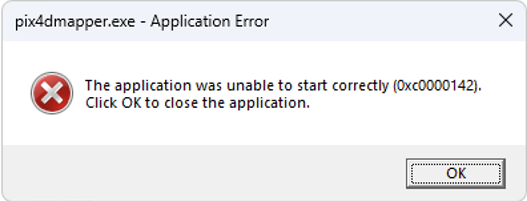
During startup, PIX4Dmapper may display error 0xc0000142 or 0x0000142, preventing the application from launching.
Cause
These are general Windows errors that occurs when an application fails to start correctly. This is the result of an antivirus such as Sophos installed on your computer.
- Antivirus/Security software interference: This error commonly occurs when antivirus software (such as Sophos) or security software prevents PIX4Dmapper from launching. After a software update—either of PIX4Dmapper or the antivirus itself (e.g., Sophos)—the application may no longer be recognized as trusted. As a result, the antivirus may block required files, preventing the software from launching.
Solution
-
Whitelist/Exclusion list: To resolve this issue, add PIX4Dmapper to the antivirus whitelist or exclusion list.
-
In addition to whitelisting the application, we recommend excluding both the PIX4Dmapper installation folders and the PIX4D user data folders(where * represents your Windows username):
C:\Program Files\Pix4Dmapper\
C:\ProgramData\Pix4D\
C:\Users\*\AppData\Local\Pix4D\
C:\Users\*\AppData\Roaming\Pix4D\
Please make sure the exclusions are configured correctly in Sophos. Depending on your Sophos configuration, multiple protection layers may need to be addressed to completely avoid the issue.- Real-time scanning
- Ransomware protection
- Exploit Mitigation and Activity Monitoring
- Behavioral detection (HIPS)
- Temporarily disabling “Malicious Behavior Detection” in Sophos can help determine whether it is causing the issue. If the software launches successfully after this feature is disabled, it may indicate that Sophos is blocking the application.
-
If you are unable to resolve the issue after following the above recommendation for the whitelist and folder exclusion, the exceptions may not be set properly. You can either completely uninstall Sophos Antivirus to test whether that resolves the issue, or contact the antivirus company to learn how to create an exclusion for the software.
Request for Files for Support Investigation
If none of the above fixes the issue, open a support ticket using Contact Support and provide the following files: Windows Event logs and Windows Debugging Tool files.
Windows Debugging Tool
-
Download the Debugging tools for Windows here (external link).
-
Run the installer and make sure Debugging Tools for Windows is checked. All other options can be unchecked
-
Navigate to
C:\Program Files (x86)\Windows Kits\10\Debuggers\x64 -
Open the Global Flags executable gflags.exe
-
Navigate to Image File and type
pix4dmapper.exein the text field next to Image -
Press Tab to enable all the options and then check Show loader snaps
-
Click Apply and then Okay
-
Open the Windows debugger windbg.exe
-
Click File and then Open Executable
-
Navigate to the Pix4D executable and click Open
-
If the console stops writing to the log at any point, press F5 to continue until the PIX4Dmapper application is fully open
-
Copy all logs from the output window into a text file and send it to Support.
Windows Event log
-
Start PIX4Dmapper.
-
Trigger the issue.
-
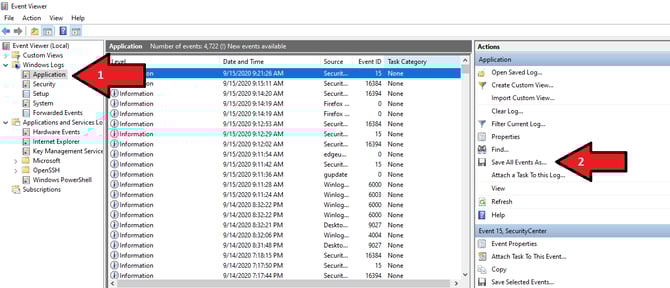
From the Windows search field, open Windows Event Viewer.
-
On the left panel, select Windows Logs > Application.
-
On the right panel, click Save All Events As...
-
Save the file as .evtx
Disclaimer: This article includes external links to additional resources. These links are provided solely for convenience and reference, and the content or availability of external sites is not guaranteed.