
IN THIS ARTICLE
Definitions
How to use the stockpile detection tool
Stockpile detection tool parameters
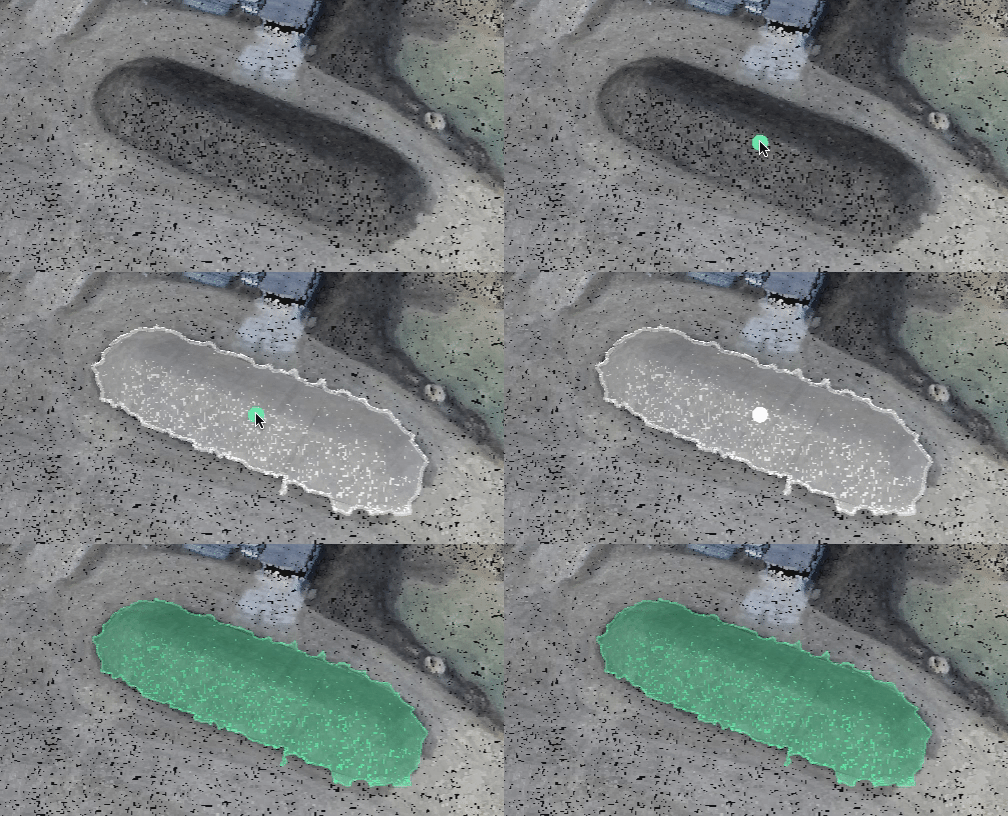
The Stockpile detection tool in PIX4Dmatic allows for automatic detection of stockpiles and creates a volume polygon that can be used for volume measurement. The algorithm uses information on the color, the slope, and the distance from a seed point to detect the stockpile. The minimum slope and the radius from the seed point can be defined and modified by the user in order to adapt the detection algorithm to local features.
Definitions
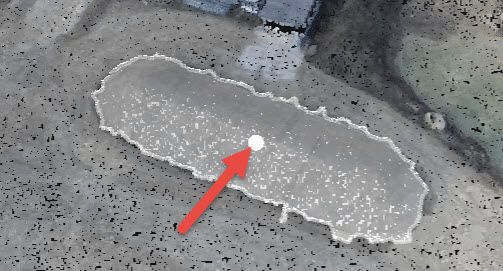
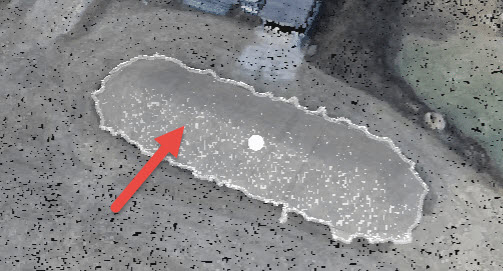
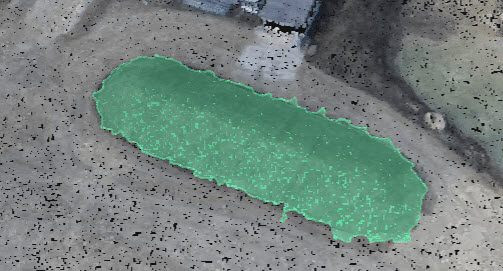
| Seed | Volume preview | Volume polygon |
| This is the starting point of the stockpile detection algorithm and it is chosen by the user with a click over the stockpile. The volume preview grows starting from this point using the information on the color, the slope, and the distance from the seed point. It is possible to have more than one seed in order to grow the volume preview in a specific direction. |
The volume preview represents the part of the stockpile that is currently detected. It is possible to grow this area by adding a new seed or accepting it, turning the volume preview into a volume polygon. |
This is the actual polygon used for volume calculation. It is created only once the volume preview is accepted. This polygon is made visible in the Volume Layers in the Content sidebar. |
 |
 |
 |
How to use the stockpile detection tool
- Open a project in PIX4Dmatic.
- Select the Stockpile detection tool
 from the toolbar or press Shift + S keys.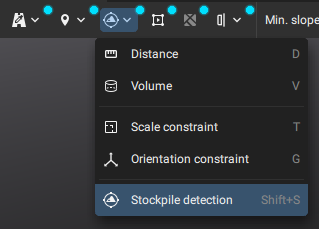
- Click in the center of a stockpile in your project.
- If the stockpile was successfully detected and the volume preview is satisfying, skip to step 4.
- If the stockpile was just partially detected, hold the Shift key and place a new seed by clicking in another region of the stockpile (a + sign will appear near your cursor). If this procedure does not lead to satisfactory results, try modifying the parameters as described in the next point.
- If the volume preview is much smaller or much larger than the stockpile extent, the slope and radius parameters may need to be adjusted. The volume preview updates live as the Min Slope and Radius parameters are modified.
- To delete the seed and the relative volume preview, click
 or Ctrl + Z (or ⌘ + Z).
- Accept the volume preview by clicking on
 or by clicking the secondary mouse button. A volume polygon will be created and added to the Volume Layers.
 - Proceed with volume measurement.
Stockpile detection tool parameters
- Min slope [degrees]: This is the minimum value of the stockpile slope and is used to detect the toe of the stockpile. The stockpile detection algorithm creating the volume preview will stop once the slope reaches this value.
- 45° - 5°, 15° - default.
- Radius [units]: This is the maximum distance from the seed point (first click). No area further than this distance from the seed point will be considered part of the volume polygon unless a second seed is added.
- 1m - 50m, 10m - default.
- 3ft - 150ft, 30ft - default.