
A PIX4D account is required to access PIX4Dcatch. For users with multiple organizations, it is important to select the correct organization to ensure access to shared licenses. A valid PIX4D license is required to export or upload data captured with PIX4Dcatch.
IN THIS ARTICLE
Login
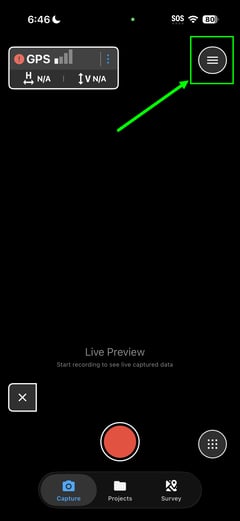
To access and benefit from all assigned resources within PIX4Dcatch, users must log in to the application. Login can be initiated by selecting the profile icon in the top-right corner of the main screen.
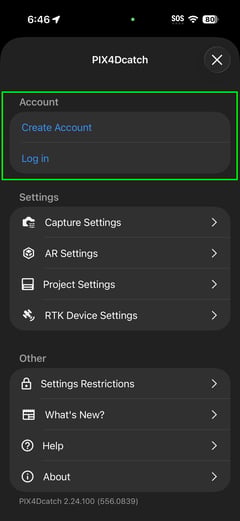
By clicking Create Account, a new Pix4D account will be created.
For an existing account, select Log in.
After logging in, the profile icon updates to indicate the account in use.
If a user is part of multiple organizations or has different roles, they must select the correct organization for the current session. For more information on organization management, click here.
Users with multiple organizations
To change the organization:
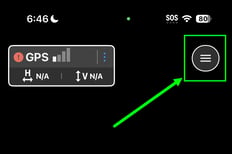
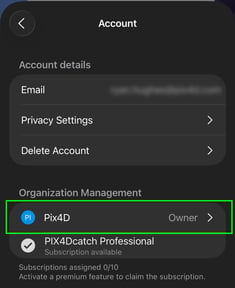
- Open the Account settings by tapping the user icon at the top-right corner of the home screen.
- Tap the Organization name.
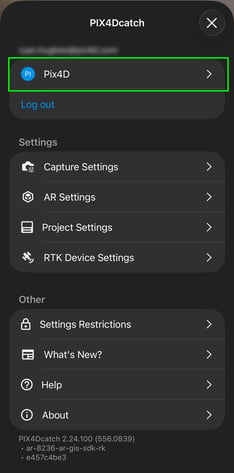
- Tap the Organization name under Organization Management.
- Select the desired organization. The assigned role is displayed below the organization's name.
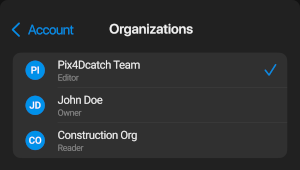
Confirm the correct organization is selected before uploading. This ensures that processing credits are drawn from the correct account and the project is accessible to the correct team members.