IN THIS ARTICLE
Output types and project files supported
Connect to Trimble Connect
Transfer files to Trimble Connect
Disconnect from Trimble Connect
Licenses: This article is only valid for PIX4Dcloud Starter and PIX4Dcloud Pro licenses (formerly PIX4Dcloud Advanced). Also PIX4Dcloud Enterprise with API access.
Roles: Only Owners, Managers, and Editors can transfer outputs from a dataset in PIX4Dcloud.
Video: The following video tutorial explains step-by-step how to transfer outputs from a PIX4Dcloud project to a Trimble account.
Output types and project files supported
Outputs
-
Orthomosaic
-
DSM
-
Multispectral Index
-
Point Cloud
-
Mesh (
.obj) -
Mesh (
.fbx)
Reports
-
Quality report
-
Processing log
-
AutoGCP report
Connect to Trimble Connect
To connect PIX4Dcloud to Trimble Connect:
-
Log in with PIX4D credentials at cloud.pix4d.com.
-
In PIX4Dcloud Drive, click the user icon in the top-right corner.
-
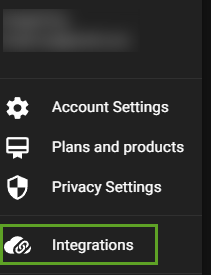
Click Integrations.
-
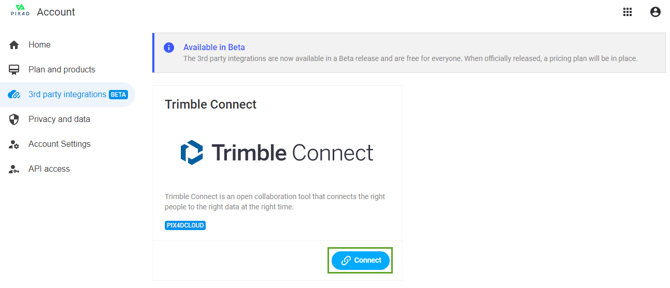
Click Connect.
-
On the Trimble Connect login page, enter the Trimble credentials and sign in.
-
After successful authentication, the Integrations page confirms the connection to Trimble.
-
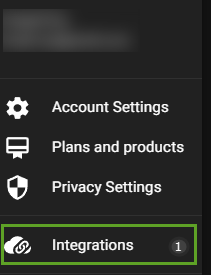
Return to PIX4Dcloud Drive, click the user icon, and verify that the account is connected.

Transfer files to Trimble Connect
To transfer files from a dataset to Trimble Connect:
-
Open the desired dataset in PIX4Dcloud.
-
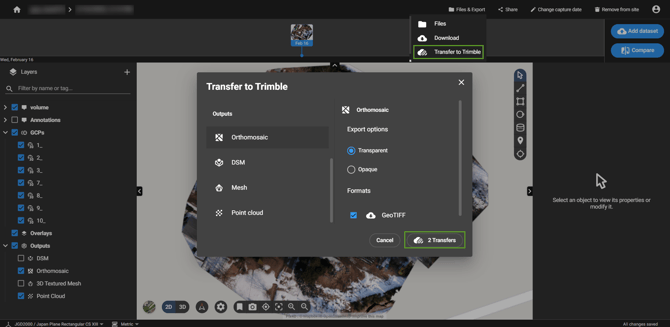
On the top bar, click Files & Export > Transfer to Trimble.
-
In the Export dialog, select the files to transfer.
The number of selected files is displayed. -
Click # Transfers, where the number corresponds to the selected outputs.
-
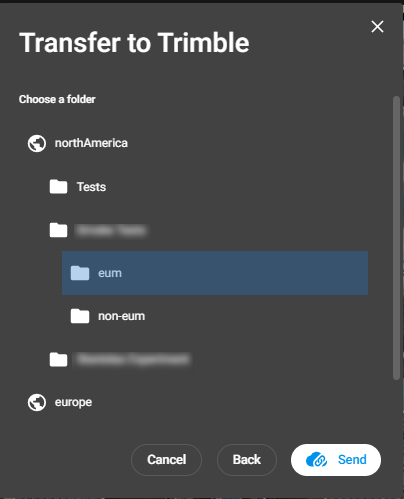
Select the destination in Trimble Connect:
-
Cluster: North America, Europe, or Asia
-
Folder: Select the target folder or subfolder
-
-
Click Send to start the transfer.
The transfer duration depends on the size and number of the selected files.
Disconnect from Trimble Connect
To disconnect the Trimble Connect integration:
-
Log in at cloud.pix4d.com.
-
In PIX4Dcloud Drive, click the user icon.
-
Click Integrations.
-
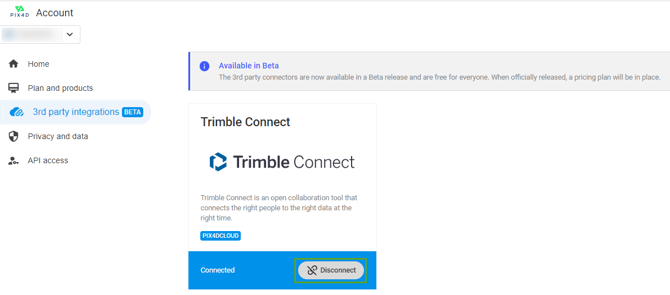
Click Disconnect under the Trimble integration.