
IN THIS ARTICLE
NTRIP coordinate reference system
Output coordinate reference system
GCP coordinate reference system
A coordinate reference system (CRS) defines how locations on the Earth are represented using coordinates by specifying the datum, coordinate axes, units, and map projection. Based on your project setup, selecting the correct input CRS and output CRS, and applying a geoid (where necessary) are mandatory.
Note: The use of EPSG codes is strongly advised to ensure the CRS is clearly identified. Relying solely on CRS names can lead to misinterpretation. The EPSG codes of the CRSs can be searched here: http://epsg.org/.
For more information: Coordinate reference systems and 2D projections.
NTRIP coordinate reference system
NTRIP (Networked Transport of RTCM via Internet Protocol) is a protocol that streams GNSS correction data via the internet from a base station to a rover, ensuring centimeter-level accuracy. When using a supported RTK device, the NTRIP CRS is either automatically defined by the NTRIP provider or requires manual setup by the user in the NTRIP settings.
Select the NTRIP input coordinate reference system
When pairing PIX4Dcatch with a supported RTK device, an RTK profile must be created first to define the NTRIP CRS.
To create a profile, follow the next steps:
- On the PIX4Dcatch home screen, tap the user icon in the top-right corner.
- Under Settings, tap RTK Device Settings.
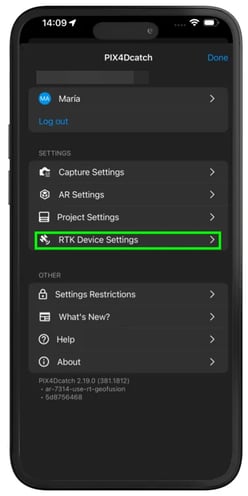
- Tap Create in the bottom right corner.
-1.png?width=250&height=500&name=Plantilla%20Iphone%20(26)-1.png)
- On the New RTK Profile screen, fill in the following information:
- Profile Name: Insert a descriptive name for the profile.
- RTK Rover: Select the appropriate RTK Rover from the Catalog.
- NTRIP Settings: Define the connection parameters.
-
Provide the mandatory NTRIP Settings:
- NTRIP Provider Details
- Hostname / IP
- Port Number
- Username
- Password
- NTRIP Provider Details
-
Tap Validate NTRIP
- Select a mountpoint
- Select a Mountpoint
- Input Coordinate Reference System (optional if not defined automatically).
- Tap Save.
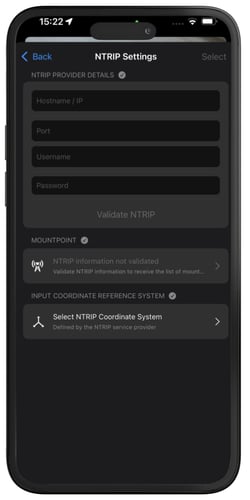
Important: The selected NTRIP CRS must match the CRS used by the NTRIP service to broadcast its corrections. If this information is not readily available, contact the NTRIP service provider.
Common CRS Used by NTRIP Providers (by Region)
| Country or region | CRS |
| Europe | ETRS 89 (EPSG:4258) |
| United States | NAD83 2011 (EPSG:6318) |
| Japan | JGD 2011 (EPSG:6668) |
| Singapore | SVY 21 (EPSG:4757) |
Output coordinate reference system
The output CRS is the system used to geo-reference the reconstructed model.
For more information: Output Coordinate Reference System - PIX4Dcatch.
Select the output CRS when uploading to PIX4Dcloud.
-
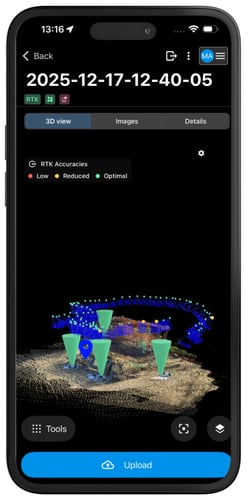
Open PIX4Dcatch and tap Projects at the bottom.
-
Tap the project to select an output CRS.
-
Tap Upload
 .
.
- Tap
 Output coordinate system.
 - Tap Auto Detected to select the output CRS.
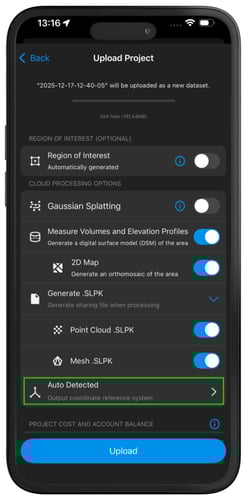
Manually select the output coordinate reference system:
- Once tapping the Auto Detected, select Known CRS.
- Tap the icon
 to select the horizontal CRS:
- In the Horizontal coordinate reference system dialog, search or copy-paste:
- The name of the CRS, or
- The EPSG code of the CRS.
- In the Horizontal coordinate reference system dialog, search or copy-paste:
- Tap the icon
 to select the vertical CRS:
- In the Vertical coordinate reference system menu, search or copy-paste:
- The name of the CRS, or
- The EPSG code of the CRS.
- In the Vertical coordinate reference system menu, search or copy-paste:
- (Optional) Tap the icon
 to select a geoid. If the selected vertical CRS supports geoids and the geoid model is available in the PIX4D database. Select the geoid model in the drop-down list.
 - Tap Select in the top-right corner.
- Tap Upload.
For more information on vertical CRSs and geoids: How to use vertical coordinate systems and geoids - PIX4Dmatic.
GCP coordinate reference system information
When collecting ground control points (GCPs), the user must select the CRS in which the GCPs was collected.
Note: When creating a new GCP collection, PIX4Dcatch will prefill the horizontal and vertical fields depending on the current region and configuration information.
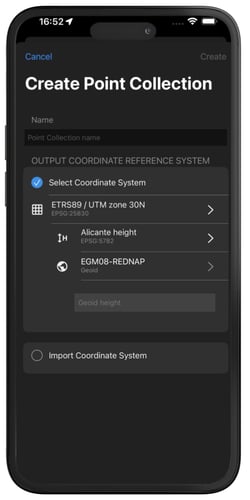
Important: The exact CRS used for GCP collection must be maintained and selected when importing the GCP files into PIX4Dmatic, PIX4Dmapper, or any alternative third-party processing software.