
IN THIS ARTICLE
Important Notes
Import a DXF Design Overlay (2D/3D)
Visualizing DXF in 2D
Visualizing DXF in 3D
Import a Design File in Image Format
Licenses: This article is only valid for PIX4Dcloud Pro licenses. (formaly PIX4Dcloud Advanced)
Roles: Only Owners, Managers, and Editors can upload and manage Design Overlays in PIX4Dcloud.
Video tutorial:
Important Notes
-
The Design Overlay feature is available only in PIX4Dcloud Pro.
-
Design Overlays are available only for datasets assigned to a Site. More information on assigning datasets to sites is here.
-
Supported file formats: PDF, JPEG, JPG, PNG, and DXF.
-
Multiple files can be uploaded to a single project.
-
Once a Design Overlay is added, it is visible across all datasets within the same Site. Editing or deleting the overlay in one dataset applies the change to all datasets in the Site.
-
Changes to the Design Overlay name, description, tags, and opacity affect only the current dataset.
-
Files cannot be imported or deleted from a share link.
Import a DXF Design File (2D/3D)
-
In the left panel, under Design Overlays, click Add.
-
Select Vector design (DXF).
-
Upload the DXF file by browsing or dragging it into the wizard.
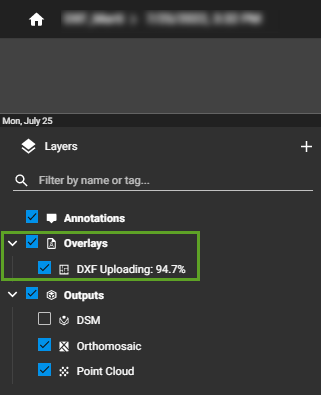
Notes:
-
The DXF file must be in the same coordinate system as the project to align with the orthomosaic and DSM.
-
Multiple DXF files can be imported simultaneously.
-
Larger DXF files may require a faster internet connection for smooth display in 2D/3D viewers.
Visualization limitations:
-
Hatching and uncommon DXF features may not be supported.
-
Curves may be smoothed.
-
Text styling and special characters may not be preserved.
Visualizing DXF in 2D Viewer
-
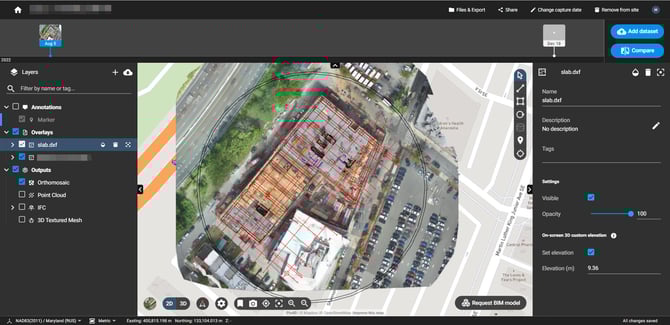
By default, all layers are visible but can be toggled off for clarity.
-
Users can reorder multiple DXF files using drag-and-drop.
Visualizing DXF in 3D Viewer
-
DXF without elevation information: displayed at 0 altitude by default. Elevation can be adjusted under On-screen 3D custom elevation.
-
DXF with elevation information: displayed at the correct altitude. The lowest point is referenced in the right panel.
-
Users can set a custom height or shift the DXF using the up/down arrows.

Import a Design File in Image Format
-
Click Add under Design Overlays and select Image design (PDF, PNG, JPG).
-
Upload the file or drag-and-drop it into the wizard.
-
Optionally, replace an existing file by selecting Replace file.
-
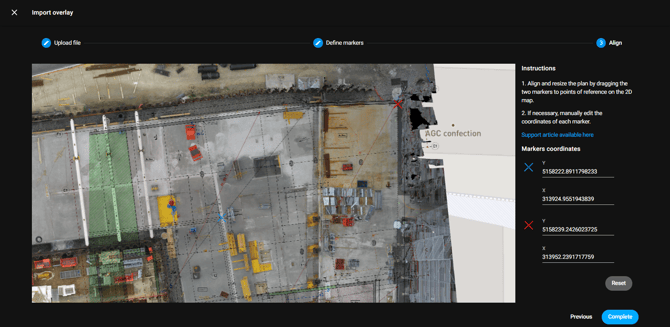
Define two reference points on the image using the red and blue markers to align the overlay with the orthomosaic.
-
Adjust marker coordinates manually if necessary.
-
Click Complete to finalize the import.
Notes:
-
For large images, PIX4Dcloud Pro generates tiles, which may take a few minutes. A processing icon indicates progress.
-
The imported overlay can be repositioned or replaced, but it cannot be deleted once added to a project.
-
Spline lines are not supported; their elevation defaults to 0.